Blog / Small Business Automation
Run an Apps Script on a Schedule and Get Told When It Fails
By Keyona Meeks, Founder, ReRev Labs · Oct 31, 2026 · 10 min read
The short answer: A time-driven trigger runs a script on a schedule. The risk is silence: a job that fails or never starts tells no one. This post adds three things. A wrapper logs every run in a tab. It emails you when the job throws an error. A second daily trigger emails you when no good run has been logged for too long. I tested the script with a mock in Node. Nothing was run in Google, and no real email was sent. I could not confirm Google's own failure-notification settings, so I do not describe them.
By the end of this post, you'll be able to:
- Schedule a script with a time-driven trigger.
- Log every run, good or bad.
- Get an email when a run fails.
- Get an email when the job goes quiet.
We sell AI operations work, so weigh this post with that in mind.
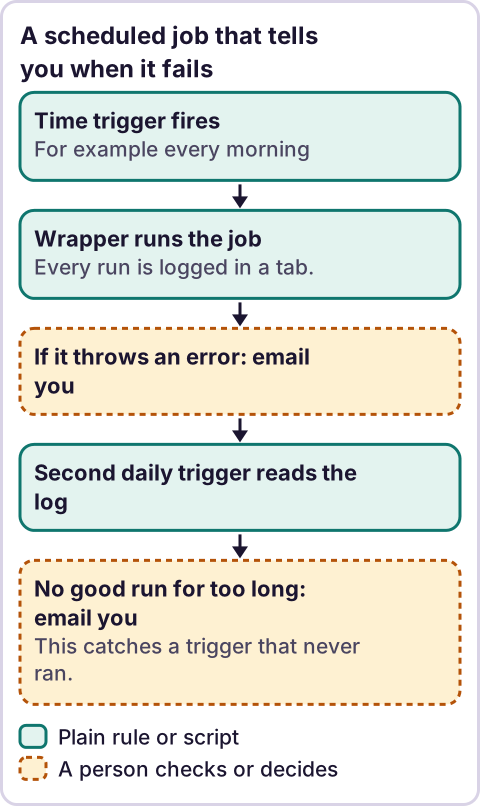
Diagram: A scheduled job that tells you when it fails.
How do you run an Apps Script on a schedule?
Use a time-driven trigger. Google's page on installable triggers, as my tool returned it, says: "Time-driven triggers let scripts execute at a particular time or on a recurring interval." My tool returned excerpts, so check the page.
For the editor steps, the page says to open your Apps Script project, then: "At the left, click Triggers alarm." and "At the bottom right, click Add Trigger." Then you select and configure the trigger type and save. I give no more clicks than that, because I did not confirm the rest.
You can also create triggers in code. The script below does that with installTriggers.
What account does the trigger run as?
The page says: "Installable triggers always run under the account of the person who created them." So an email sent by a trigger comes from the creator's account. If that account loses access, the trigger stops, and so does everything in this post. Per an earlier review of Google's authorization page, scopes are "determined automatically by scanning the script code." Read the permission prompt before you approve it.
How do you get told when it fails?
Google's page was silent on failure notifications in the excerpts I saw. I could not confirm where Google's own failure-notification settings sit, so I do not describe them. The script below does its own alerting instead.
The wrapper safeRun calls your work inside a try block. On success it adds a line to the Run log tab. On failure it adds an error line, emails you, and then throws the error again, so Google also records the failure. It adds lines with appendRow and never edits a cell.
What if the trigger never runs?
Then nothing fails, so nothing alerts. A job that never starts sends no error. That is why the script has a second function, checkQuiet. It runs on its own daily trigger. It looks in the log for the latest good run of your job. If none is newer than STALE_HOURS, it emails you. While the job stays quiet, you get this email each day until a good run is logged.
checkQuiet has limits. It runs under the same account as the job. If that account loses access, both stop. Treat it as one safety net, not a guarantee.
What does the script look like?
Paste this into the Apps Script project attached to the sheet. Put your own work in yourWork. Make a tab named Run log with any headings in row 1. Nothing in it runs until you call it.
// Runs a job on a schedule, logs every run in a "Run log" tab, emails you when it fails, and emails you if it has gone quiet.
var RECIPIENT = '';        // Paste the address that should get failure notices. Your decision.
var TASK_NAME = 'dailyJob';
var LOG_TAB = 'Run log';
var RUN_HOUR = 7;          // Hour the job runs, in the script time zone.
var CHECK_HOUR = 10;       // Hour the quiet check runs.
var STALE_HOURS = 26;      // Email if the last good run is older than this. Your decision.

function now() { return Date.now(); }

function yourWork() {
  // Put the work you want to schedule here. Throw an error if it fails.
}

function logTab() {
  var tab = SpreadsheetApp.getActiveSpreadsheet().getSheetByName(LOG_TAB);
  if (!tab) throw new Error('Missing tab: ' + LOG_TAB);
  return tab;
}

function notify(subject, body) {
  if (!RECIPIENT) return false;
  if (MailApp.getRemainingDailyQuota() < 1) return false;
  MailApp.sendEmail(RECIPIENT, subject, body);
  return true;
}

function safeRun(name, work) {
  var tab = logTab();
  try {
    work();
    tab.appendRow([name, 'ok', now(), '']);
  } catch (e) {
    tab.appendRow([name, 'error', now(), String(e)]);
    notify('Failed: ' + name, 'The job "' + name + '" stopped with this error:\n\n' + String(e));
    throw e;
  }
}

function dailyJob() {
  safeRun(TASK_NAME, yourWork);
}

function lastGood(rows, name) {
  var latest = null;
  rows.forEach(function (r) {
    if (String(r[0]) === name && String(r[1]) === 'ok' && typeof r[2] === 'number') {
      if (latest === null || r[2] > latest) latest = r[2];
    }
  });
  return latest;
}

function checkQuiet() {
  var rows = logTab().getDataRange().getValues();
  var last = lastGood(rows, TASK_NAME);
  var limit = STALE_HOURS * 3600 * 1000;
  if (last !== null && now() - last <= limit) return { quiet: false, emailed: false };
  var text = last === null ? 'There is no good run in the log.' : 'The last good run was ' + Math.round((now() - last) / 3600000) + ' hours ago.';
  var sent = notify('No recent run: ' + TASK_NAME, 'The job "' + TASK_NAME + '" has not logged a good run in the last ' + STALE_HOURS + ' hours. ' + text);
  return { quiet: true, emailed: sent };
}

function installTriggers() {
  if (!RECIPIENT) throw new Error('Set RECIPIENT first.');
  var tz = Session.getScriptTimeZone();
  ScriptApp.newTrigger('dailyJob').timeBased().everyDays(1).atHour(RUN_HOUR).inTimezone(tz).create();
  ScriptApp.newTrigger('checkQuiet').timeBased().everyDays(1).atHour(CHECK_HOUR).inTimezone(tz).create();
}
What the parts do, with Google's own descriptions as I read them in the method tables this session:
getActiveSpreadsheet(): "Returns the currently active spreadsheet, ornullif there is none."getSheetByName(name): "Returns a sheet with the given name."getDataRange(): "Returns aRangecorresponding to the dimensions in which data is present."getValues(): "Returns the rectangular grid of values for this range."Sheet.appendRow(rowContents): "Appends a row to the bottom of the current data region in the sheet."MailApp.sendEmail(recipient, subject, body)"Sends an email message."getRemainingDailyQuota()"Returns the number of recipients you can send emails to for the rest of the day."everyDays(n)"Specifies to run the trigger everyndays."atHour(hour)"Specifies the hour the trigger at which the trigger runs."inTimezone(timezone)"Specifies the timezone for the specified dates/time when the trigger runs."Session.getScriptTimeZone()"Gets the time zone of the script."Date.now()is plain JavaScript, not a Google method. I did not look it up in Google's docs.
STALE_HOURS is 26 as an example, so a daily job has some slack. Your schedule sets the right number. If you leave RECIPIENT blank, the wrapper still logs and still throws the error, but it sends no email, and installTriggers will not run.
How do you put it on a schedule?
Run installTriggers once. It creates two daily triggers: dailyJob at 7 and checkQuiet at 10, in the script time zone. Then check your project's triggers list for exactly two entries. If you run it twice, you get four, so delete the extras. I could not confirm which minute of the hour a trigger fires, so do not expect 7:00 sharp. Google's quotas page, as my tool returned it, lists 20 triggers per user per script.
How do you test it?
- Set
RECIPIENTto your own address. - Run
dailyJobby hand.Run logshould get one line with "ok." - Make
yourWorkthrow an error, for examplethrow new Error('test'), and rundailyJob. You should get an email, andRun logshould get an "error" line. - Remove the test error.
- Clear the "ok" lines from
Run logand runcheckQuiet. You should get a "No recent run" email. - Run
dailyJobagain, thencheckQuiet. You should get no email. - Run
installTriggersand check the triggers list. - Delete the test lines.
What did the test show?
I tested the script in Node with a mock of the Google services and a movable clock. All 21 checks passed. They covered a good run being logged, a failure being logged, emailed and thrown again, a blank recipient, a used-up email quota, a recent good run, a stale run, an empty log, error lines not counting as good runs, other job names being ignored, the latest good run winning, the edge at 26 hours, a missing tab, a blank recipient at install, the two triggers and text timestamps being ignored. The mock cannot show how Google runs triggers. Nothing was run in Google, and no real email was sent.
Where does an LLM fit in this?
An LLM can help with the messy input. For example, it can read an error message in your Run log and suggest a likely cause, or draft a plain-words summary of a week of failures. A person checks the suggestion against the code, because an LLM can blame the wrong line and sound sure. The log, the alert and the quiet check are plain rules that do the same thing every time. My stance: AI writes the code, plain automation runs it, and an LLM shows up only where the input is messy and a person checks the result. For background on the tool, see what Google Apps Script is.
Where this has limits
- Nothing was run in Google. The test was a mock in Node.
- I could not confirm Google's own failure-notification settings. The trigger page was silent on them in the excerpts I saw.
- My tool returned excerpts of Google's pages. Check the quotes.
- Both triggers run under one account. If it loses access, both stop.
- An error in the wrapper's own log step is not caught. For example, if the
Run logtab is missing, the run stops with an error and sends no email. - Email quotas apply. I quote the quota call above. Check Google's limits for your account type.
- No ReRev prices and no promises about results.
If you want help making your scripts report their own health, see our AI operations service or tell us which scripts run your business. Do not send API keys, passwords or login details.
Frequently asked questions
How do I run an Apps Script every day?
Create a time-driven trigger. Google's page says time-driven triggers "let scripts execute at a particular time or on a recurring interval." The script above creates a daily one in code.
How do I know if my script failed?
Log each run and email yourself on errors. The safeRun wrapper above does both.
What if my script just stops running?
A script that never starts gives no error. The checkQuiet function emails you when no good run is logged for too long.
Whose account does the trigger run under?
Google's page says installable triggers always run under the account of the person who created them.
Does Google send failure emails by itself?
I could not confirm that from the pages I read, so I make no claim.
Does the script use an LLM?
No. An LLM can help explain an error, and a person checks the result.
Read next: Exceeded maximum execution time is the failure a scheduled script hits first, and who fixes the automation when it breaks is the maintenance plan for everything you schedule.