Blog / Small Business Automation
How to Automate Client Onboarding for a High-Ticket Service Business
By Keyona Meeks, Founder, ReRev Labs · Oct 31, 2026 · 10 min read
The short answer: Onboarding is the stretch between a signed contract and the kickoff call. For a high-ticket service business it is the same few steps every time: make a client folder, send an intake form, send a welcome email, hold a time for the kickoff. A short Google Apps Script can do the setup when you change a client's Status to Signed. It creates the folder with subfolders, drafts the welcome email, and puts a kickoff block on your calendar. It drafts the email. It does not send it. A person reads it, then sends it. I mock-tested the script; I did not run it in a live Google account.
By the end of this post, you'll be able to:
- List the steps of your own onboarding so you know what is worth automating.
- Paste in a script that sets up a folder, a draft email and a kickoff block.
- Keep a person between the script and the client.
- Test it on a copy before a real client is involved.
A client signs. You are pleased. Then comes the scramble: which folder, which form, who sends the welcome email, what time is the kickoff. Sometimes it takes an hour. Sometimes it takes three days because the signature came in on a Friday. The client has just paid a serious amount of money and the first thing they see is how organized you are, or are not.
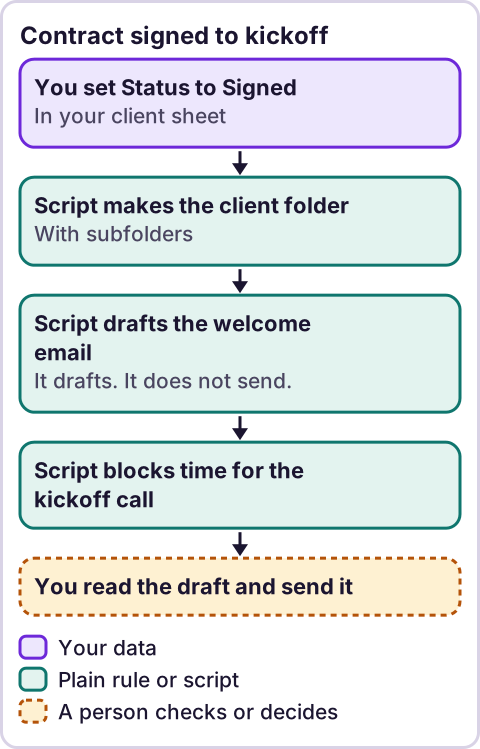
Diagram: Contract signed to kickoff.
Which onboarding steps are worth automating?
When I searched "automate client onboarding service business" on October 30, 2026, page one was software vendor pages and a long run of how-to articles from consultancies. Titles only. I did not review them and I name none. Many describe a full software platform. You may not need one.
Start by writing your steps. For most service businesses they look like this:
- Contract signed.
- Create a place for the client's files.
- Send an intake form so you learn what you need to know.
- Send a welcome email that says what happens next.
- Hold a time for the kickoff.
- Tell the team.
Steps 2, 4 and 5 are the same every time, and they are the ones a script can do. Step 3 is a form you build once. Step 6 depends on your team. Step 1 is a human event, and the script should wait for it. If you are unsure which of your steps to automate first, read what to automate first in a small business.
What should a person still do?
Three things. The signature, the welcome email and the kickoff time.
The script does not watch for a signature. You change a cell to Signed when you have one. That keeps an unsigned client from getting a welcome. The script drafts the welcome email and leaves it in your drafts. You read it, adjust it and send it. And it puts a hold on your own calendar without inviting anyone, so you can confirm the time with the client first.
I would keep it that way for a high-ticket client. A mistake in a mass email is a nuisance. A mistake in the first email to a new, expensive client is a bad start.
What does the sheet need?
Make a Google Sheet with a tab named Clients and these headers in row 1, spelled exactly like this:
Client, Contact name, Email, Status, Kickoff start, Folder URL, Draft created, Calendar block, Error
You fill in the first five. The script fills the last four. Kickoff start should be a real date and time, for example Nov 9, 2026 10:00 AM, formatted as a date and time. Leave it blank if you have not picked one.
Also make:
- A folder in Drive for all clients. Open it and copy the folder ID from the address bar, the long text after
/folders/. I know that from using Drive, not from a Google page I opened for this post, so check it. - An intake form. A Google Form with the questions you need. Copy its link.
How do you set up the script?
- Open the sheet. Choose Extensions, then Apps Script. If this is new to you, read what Google Apps Script is first.
- Delete the placeholder code and paste the script below.
- Change the folder ID, form link, your name and your company name at the top. Edit the subfolder names if you like.
- Click Save.
- In the function list, choose
startOnboardingand click Run once. Google asks you to allow the script to use your sheet, Drive, Gmail and Calendar. Read the list. Approve it only if you agree. - Test on a copy first, using the steps below. Then choose
setupOnboardingTriggerand click Run.
// Client onboarding: when a client's Status is Signed, make the folder, draft the welcome email and block the kickoff.
// Paste into Extensions > Apps Script in the sheet where you track clients.

const SHEET_NAME = 'Clients';
const CLIENTS_FOLDER_ID = 'PASTE_FOLDER_ID_HERE';
const SUBFOLDERS = ['01 Contract', '02 Intake', '03 Work', '04 Deliverables'];
const INTAKE_FORM_URL = 'https://forms.gle/your-intake-form';
const YOUR_NAME = 'Your Name';
const COMPANY = 'Your Company';
const KICKOFF_MINUTES = 60;

const COL = {
  client: 'Client',
  contact: 'Contact name',
  email: 'Email',
  status: 'Status',
  kickoff: 'Kickoff start',
  folder: 'Folder URL',
  draft: 'Draft created',
  event: 'Calendar block',
  error: 'Error'
};

function startOnboarding() {
  const lock = LockService.getScriptLock();
  if (!lock.tryLock(10000)) return;
  try {
    const sheet = SpreadsheetApp.getActiveSpreadsheet().getSheetByName(SHEET_NAME);
    const values = sheet.getDataRange().getValues();
    if (values.length < 2) return;
    const head = values[0].map(function (h) { return String(h).trim(); });
    const at = {};
    Object.keys(COL).forEach(function (k) { at[k] = head.indexOf(COL[k]); });
    const missing = Object.keys(COL).filter(function (k) { return at[k] < 0; });
    if (missing.length) {
      throw new Error('Missing columns: ' + missing.map(function (k) { return COL[k]; }).join(', '));
    }

    const root = DriveApp.getFolderById(CLIENTS_FOLDER_ID);

    for (let r = 1; r < values.length; r++) {
      const row = values[r];
      const rowNum = r + 1;
      const client = String(row[at.client]).trim();
      if (!client) continue;
      if (String(row[at.status]).trim().toLowerCase() !== 'signed') continue;
      if (String(row[at.error]).trim() !== '') continue;

      const put = function (key, value) { sheet.getRange(rowNum, at[key] + 1).setValue(value); };

      try {
        let folderUrl = String(row[at.folder]).trim();
        if (!folderUrl) {
          if (root.getFoldersByName(client).hasNext()) {
            put('error', 'A folder named "' + client + '" already exists. Check it, then clear this cell.');
            continue;
          }
          const folder = root.createFolder(client);
          SUBFOLDERS.forEach(function (n) { folder.createFolder(n); });
          folderUrl = folder.getUrl();
          put('folder', folderUrl);
        }

        if (String(row[at.draft]).trim() === '') {
          const email = String(row[at.email]).trim();
          if (!/^[^@\s]+@[^@\s]+\.[^@\s]+$/.test(email)) {
            put('error', 'Email does not look valid');
            continue;
          }
          GmailApp.createDraft(email, 'Welcome to ' + COMPANY + ': next steps', welcomeBody_(row, at));
          put('draft', new Date());
        }

        if (String(row[at.event]).trim() === '') {
          const start = row[at.kickoff];
          if (start instanceof Date) {
            const end = new Date(start.getTime() + KICKOFF_MINUTES * 60000);
            CalendarApp.getDefaultCalendar().createEvent('Kickoff: ' + client, start, end);
            put('event', new Date());
          } else {
            put('event', 'No kickoff date');
          }
        }

        put('status', 'Onboarding started');
      } catch (err) {
        put('error', String(err.message || err));
      }
    }
  } finally {
    lock.releaseLock();
  }
}

function welcomeBody_(row, at) {
  const first = String(row[at.contact]).trim().split(/\s+/)[0] || 'there';
  const start = row[at.kickoff];
  const when = start instanceof Date
    ? 'I have held ' + Utilities.formatDate(start, Session.getScriptTimeZone(), 'EEE MMM d, h:mm a') + ' for our kickoff call. I will confirm it with you separately.'
    : 'I will be in touch to set a time for our kickoff call.';
  return [
    'Hi ' + first + ',',
    '',
    'Thank you for signing. Here is what happens next.',
    '',
    '1. Please fill in the intake form: ' + INTAKE_FORM_URL,
    '2. ' + when,
    '',
    'Reply to this email if anything is unclear.',
    '',
    YOUR_NAME,
    COMPANY
  ].join('\n');
}

function setupOnboardingTrigger() {
  ScriptApp.getProjectTriggers().forEach(function (t) {
    if (t.getHandlerFunction() === 'startOnboarding') ScriptApp.deleteTrigger(t);
  });
  ScriptApp.newTrigger('startOnboarding').timeBased().everyMinutes(10).create();
}
What does the script do?
For each row whose Status is Signed:
- Makes the folder. A folder named for the client inside your clients folder, with the subfolders you list. If a folder with that name already exists, it stops and says so, so it does not create a second one or put files in the wrong place.
- Drafts the welcome email. To the client's email, with a link to your intake form and a line about the kickoff. It saves a draft. It does not send.
- Holds the kickoff time. An event on your calendar for 60 minutes, only if you typed a Kickoff start. No invitation goes out.
- Records each step. It writes the folder link and the times to the sheet as it goes, so a failure in step two does not repeat step one.
- Changes the Status to Onboarding started when all three are done.
It runs every ten minutes once you set the trigger, so a client does not get set up the moment you type Signed. It is a few minutes behind.
What does Google's documentation say about these pieces?
Short quotes from Google's reference pages, checked October 30, 2026, each read through a fetch tool that returned excerpts:
- Folders.
createFolder(name)"creates a folder in the current folder with the given name." Source: Class Folder. - Drafts.
createDraft"creates a draft email message." Source: Class GmailApp. The excerpt I got did not say in so many words that a draft is saved without being sent, and did not define the optional arguments, so I use the plain version and check that no email goes out in the test. - Calendar.
createEvent"creates a new event." Source: Class Calendar. The excerpt did not describe the guest and invitation options, so the script uses only a title, a start and an end. Check on your own calendar that no invitation goes out.
Google's authorization page says "Authorization scopes are determined automatically by scanning the script code." Source: Authorization for Google Services, checked October 30, 2026. This script touches Sheets, Drive, Gmail and Calendar, so the approval screen lists all four. Read it, and run the script from a company account.
Google's installable triggers page says they "always run under the account of the person who created them." Source: Installable triggers, checked October 30, 2026. The folders, the draft and the calendar block all belong to the account that ran setupOnboardingTrigger.
I could not confirm from these pages the exact behavior of getUrl() on a folder, how soon the ten-minute trigger fires, or how a draft appears in Gmail. The test covers each.
How do you test it before a real client is involved?
Test on a copy of the sheet, a copy of the clients folder and your own email address.
- Make copies. Point the script at the copy of the folder.
- Add a row with a made-up client, your own email, Status
Signedand a kickoff time tomorrow. - Run
startOnboarding. Open Drive. Check the folder and the four subfolders. - Open Gmail drafts. Check the draft, the form link and the time. Check that nothing was sent.
- Open your calendar. Check the block exists and that no invitation went out.
- Look at the sheet. The Status should read
Onboarding startedand the three record columns should be filled. - Run again. Nothing new should appear.
- Add a second row with the same client name, Status
Signed. Check that it stops with the folder-exists message and creates nothing. - Put a bad email in a third row. Check that the folder is made, the Error column explains the problem and no draft is made. Fix the email, clear the Error cell and run again. It should finish without making a second folder.
- Delete the test folder, draft and event.
What can go wrong?
- Nothing happens. Check that Status says exactly
Signed, that the headers match and that the trigger exists. - A client has no folder but the row says started. Look at the Error column of that row, and the order in which the steps ran.
- The draft has the wrong tone. Edit the text in
welcomeBody_. It is a starting point, not your voice. - Two clients share a name. Make the Client column unique, for example with a project name.
- A new teammate cannot see the folder. The script does not share anything. Set sharing yourself, on purpose, per client.
Where does an LLM fit in this?
Not in the setup. Folders, drafts and calendar holds are fixed steps. An LLM could help at the edges: summarizing the intake form answers into a one-paragraph brief for your team, or tailoring a line in the welcome email to what the client signed up for. A person reads that before it is used, because the first impression is not the place for a wrong sentence. My stance: AI writes the code, plain automation runs it, and an LLM shows up only where the input is messy and a person checks the result.
Where this has limits
- Not run in Google. I tested the logic in a mock with 22 checks. I have not run it in a live Google account.
- Unconfirmed behavior. Folder
getUrl(), the draft arguments, calendar invitations and how soon the trigger fires. The test steps cover each. - It does not read your contract or watch for a signature. You change the Status.
- It does not send anything to the client. That is deliberate.
- It does not share the folder. Sharing is a decision about client data. Make it yourself.
- It does not replace a client portal or contract software. If you need those, you need those.
- Client data is sensitive. Keep the sheet private and run it from a company account.
If your onboarding is a different scramble every time, bring the workflow to us on /letstalk. You can also read how we approach this work on our AI-powered operations page. Do not send client data, contracts or passwords.
Frequently asked questions
How do I automate client onboarding?
Write your steps, then automate the ones that repeat. For many service businesses that is the client folder, the welcome email and the kickoff hold. A person keeps the signature, the sending and the relationship.
Should the welcome email send automatically?
For a high-ticket client I would not. Draft it, read it and send it yourself. The cost is a minute. The risk it avoids is a wrong first impression.
Do I need onboarding software?
Not always. A sheet and a short script can cover the setup. Software may fit better when you have many clients, a portal, e-signature and billing in one place.
Does the script invite the client to the kickoff?
No. It puts a hold on your own calendar. You confirm the time with the client and send the invitation yourself.
What happens if it fails halfway?
It writes the error in the sheet and skips that row. The steps it finished stay recorded, so fixing the problem and clearing the Error cell continues from where it stopped.
Is it safe to keep client details in a sheet?
It depends on who can open the sheet. Keep it private, share it only with people who need it and run the script from a company account.
Read next: A Drive folder for every new project is usually the first onboarding step worth automating.