Blog / AI & Automation
How to Brief Claude So It Writes an Apps Script You Can Trust (and Test It)
By Keyona Meeks, Founder, ReRev Labs · Oct 31, 2026 · 10 min read
The short answer: Claude can write an Apps Script, but a script that looks right can still be wrong. Do four things. Write a brief that names the sheet, the rules and what the script must never do. Ask for the logic as plain functions that do not touch Google. Run those functions against a small test file in Node. Then check every Google call the script makes against Google's own reference. The script is not trusted until the test passes and a person has read it. This is the stance in practice: AI writes the code, plain automation runs it, and an LLM shows up only where the input is messy and a person checks the result.
By the end of this post, you'll be able to:
- Write a brief that gives an AI model what it needs.
- Split a script into logic you can test and a thin Google wrapper.
- Run a test in Node before you run anything in Google.
- Check every Google call before you trust the script.
We sell AI and automation training for teams, so weigh this post with that in mind.
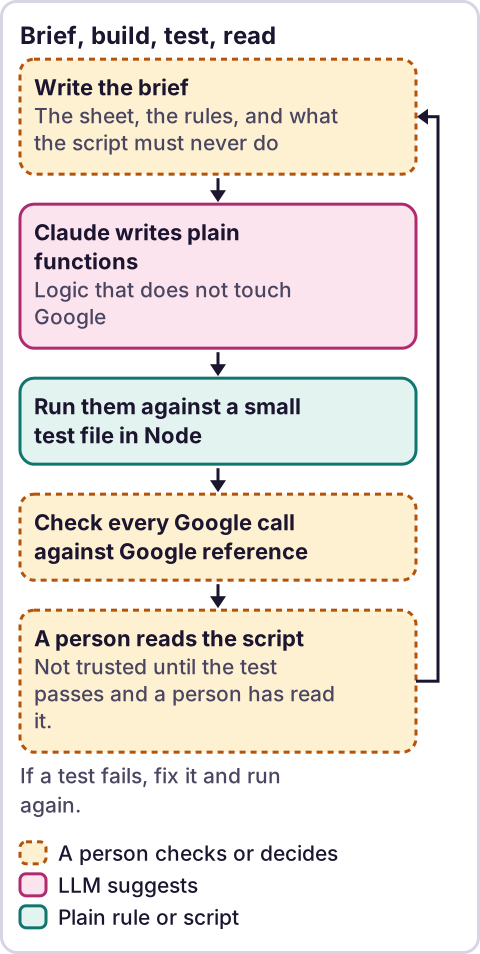
Diagram: Brief, build, test, read.
What should a brief to Claude include?
Write it as if for a new colleague who cannot ask questions. Include:
- The goal in one sentence. For example: "Email me a list of tasks that are overdue."
- The sheet layout. Tab names and the exact column headings.
- The rules in plain words. What counts as overdue. What to skip.
- What it must never do. For example: never edit a cell, never email anyone but me, never delete anything.
- What I will paste in myself. Addresses and other settings go in as paste values, and the script stops if one is blank. Claude must not invent them.
- How I will test it. Say you want plain functions and a test in Node.
- A request for a list of every Google call. Ask it to name each one, so you can check them.
Keep private data out of the brief. Use fake rows.
Why ask for plain functions?
A Google call such as SpreadsheetApp.getActiveSpreadsheet() only works inside Google. If all the logic hangs off those calls, you can only test it in Google, with real data and real side effects. If the logic is in plain functions that take rows and return a result, you can test it anywhere.
Ask for two layers. One layer is pure functions. They take rows and a date and return an answer. The other layer is a thin wrapper that reads the sheet, calls the pure function and sends the result.
This small example shows the split. The pure function is findOverdue. The wrapper is emailOverdue.
// Pure function: no Google services. Rows are [id, dueDateText, doneText]. Dates are 'yyyy-MM-dd'.
function findOverdue(rows, todayKey) {
  return rows
    .filter(function (r) { return String(r[0]).trim() !== '' && String(r[2]).trim() === '' && String(r[1]) !== '' && String(r[1]) < todayKey; })
    .map(function (r) { return r[0]; });
}

// Thin wrapper: the only part that touches Google. It turns date cells into text first.
function emailOverdue() {
  var tz = Session.getScriptTimeZone();
  var rows = SpreadsheetApp.getActiveSpreadsheet().getSheetByName('Tasks').getDataRange().getValues().slice(1).map(function (r) {
    var due = Object.prototype.toString.call(r[1]) === '[object Date]' ? Utilities.formatDate(r[1], tz, 'yyyy-MM-dd') : String(r[1]);
    return [r[0], due, r[2]];
  });
  var todayKey = Utilities.formatDate(new Date(), tz, 'yyyy-MM-dd');
  var overdue = findOverdue(rows, todayKey);
  MailApp.sendEmail(RECIPIENT, 'Overdue: ' + overdue.length, overdue.join('\n'));
}
How do you test the logic in Node?
Node is a free tool that runs JavaScript on your computer. You do not need Google to run the test. The test below loads the script file, runs findOverdue on made-up rows and checks the answer.
const fs = require('fs');
const vm = require('vm');
const assert = require('assert');
const ctx = {};
vm.createContext(ctx);
vm.runInContext(fs.readFileSync('sample.js', 'utf8'), ctx);

const rows = [
  ['T1', '2026-10-01', ''],      // overdue
  ['T2', '2026-10-31', ''],      // due today, not overdue
  ['T3', '2026-10-01', 'yes'],   // done
  ['T4', '', ''],                // no date
  ['', '2026-10-01', '']         // blank id
];
assert.deepStrictEqual(ctx.findOverdue(rows, '2026-10-31'), ['T1']);
assert.deepStrictEqual(ctx.findOverdue([], '2026-10-31'), []);
console.log('2 checks passed');
Save the first block as sample.js and the second as test_sample.js in the same folder. RECIPIENT is not set in the example, because the wrapper is never run here. Run the test with node test_sample.js. If every check passes, it prints 2 checks passed. If one fails, Node stops with an error that shows the difference. I ran this exact pair in Node, and it printed 2 checks passed. The wrapper emailOverdue was not run, because it needs Google.
The test cannot see everything. It passes dates as text, such as '2026-10-01'. In Sheets, a date cell can come back from getValues() as a date object, not as text. That is my understanding, and I did not confirm it from Google's one-line description of getValues(). If the wrapper passed it straight through, the pure function would compare the wrong things, and this test would still pass. That is why the wrapper above turns date cells into text first. The Node test cannot prove that step works. Only a review and a run on a copy of the sheet can. I did not run it in Google.
Pick test rows that try to break the rule. In the example, one row is due today, one is done, one has no date and one has a blank id. Ask Claude to propose edge cases too, then add your own.
How do you check every Google call?
The test cannot check Google calls, because the test does not run them. A script can pass every test and still call a method that does not exist or does not do what you think. So check the calls by hand.
- Ask Claude to list every Google method the script uses.
- Open Google's reference page for each class, such as
SpreadsheetApp,RangeorMailApp. - Find each method. Read its one-line description. Compare it with what the script expects.
- If you cannot find a method, treat it as suspect. Ask Claude where it got it.
Never write a menu path or a button label from an AI answer alone. Find it in the vendor's own documentation.
Where does an LLM fit in this?
An LLM fits in two places here. It writes the first draft of the code. It can also read your messy notes or a pile of emails and suggest what to put in the brief. The script it writes then runs as plain automation, the same way every time. A person checks both. The checks are the brief, the test and the call list. An LLM can write a rule that sounds right and is wrong, so do not skip them. For the thinking behind this stance, see AI agents vs automation.
What goes wrong most often?
These are the failures to look for. They are general patterns, not numbers from a study:
- The script does something you did not ask for. Ask for a "never do" list and read the code for it.
- A date compares as text. Test a date at the edge, such as due today.
- A blank cell breaks a rule. Test blank cells.
- A method is wrong or invented. Check the reference.
- A setting is guessed. Ask for paste values that stop the script when blank.
What should you do before you run it in Google?
- Read the whole script once, top to bottom.
- Run the Node test.
- Check the Google calls against the reference.
- Run it in a copy of the sheet with fake data and your own address as the recipient.
- Read the permission screen before you approve it.
- Only then use real data.
Where this has limits
- A passing test shows the logic is right for the cases you tried. It does not show the Google calls work.
- The example here ran in Node only. The wrapper was not run, and nothing was run in Google.
- An AI model can still be wrong when the brief is good. The review is the safeguard.
- This post gives no data on how often AI-written scripts fail. I have none.
- No ReRev prices and no promises about results.
If you want your team to build with AI and keep the checks that make the result safe, see our AI and automation training for teams or tell us who on your team builds. Do not send passwords, keys or customer data.
Frequently asked questions
Can Claude write a Google Apps Script?
Yes. Treat the result as a draft. Test the logic in Node and check every Google call against Google's reference.
How do I know the script is safe to run?
Read it, run the test, check the Google calls and try it on a copy with fake data. Read the permission screen before you approve it.
What is a pure function?
A function that takes inputs and returns a result without touching anything outside itself. It is easy to test.
Do I need to know how to code?
You need to read the script well enough to check it against your brief, or have someone do that for you. A test file helps, because it shows what the script does with each case.
Should I paste real customer data into the brief?
No. Use fake rows.
Does the finished script use an LLM?
Not in the examples here. The script runs as plain automation. An LLM helps write it, and a person checks it.
Read next: Apps Script limits every builder should know still applies no matter who or what wrote the code.