Blog / Technical Guides
Send an Email from Google Sheets When a Cell Changes
By Keyona Meeks, Founder, ReRev Labs · Oct 31, 2026 · 9 min read
The short answer: Google Sheets has a built-in rule that emails people when a cell changes, but only some work or school accounts get it. For everyone else, write a short Apps Script and install it as an edit trigger. A plain
onEditfunction cannot send email, because sending email needs authorization. An installable trigger can. The script below emails the row owner when a Status cell becomes a value you choose, and it emails once per change.
By the end of this post, you'll be able to:
- Check whether the built-in notification rule is available to you.
- Set up a Requests sheet that can trigger an email.
- Install an edit trigger that emails the right person when a status changes.
- Test it, and know what can stop it from firing.
Someone changes a status to "Needs approval." The approver has no idea. Three days later a customer asks why nothing happened. The sheet had the answer the whole time, and nobody was looking at it.
A sheet has no way to nudge anyone on its own. This post shows two ways to make it, and when to pick each.
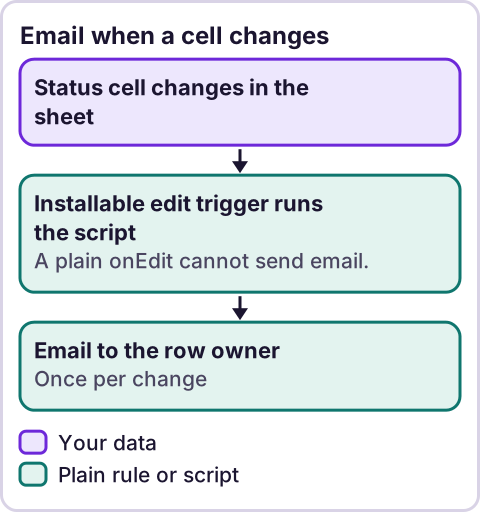
Diagram: Email when a cell changes.
Can Google Sheets email you when a cell changes without code?
Maybe. Google's help page says you can "create rules to send email notifications when a cell changes in Google Sheets." You choose what change triggers it and who gets the email.
The steps on that page: open the spreadsheet on your computer, click Tools, then Conditional notifications, then Add rule. Pick the column to watch, add a condition if you want one, and choose who to email. Source: Google's help page on conditional notifications, checked October 30, 2026.
Know the limits before you build on it:
- The page says "Conditional notifications are only available to certain work or school accounts." If you do not see the option, the page says to contact your administrator.
- It does not support group email addresses, or recipients outside Google such as Outlook and Yahoo.
- The page says "Email notifications may not be immediate and multiple changes may be consolidated into one email."
- It may not fire for changes to value formats, for external data such as IMPORTRANGE, or for volatile functions like TODAY().
If the built-in rule covers your case, use it. It is less to maintain. If it does not, the script below does the job.
Why does a plain onEdit trigger not send email?
Apps Script has a function name, onEdit, that runs by itself when someone changes a cell. It is a simple trigger. Google's docs say simple triggers "can't access services that require authorization," and give this example: "a simple trigger can't send an email because the Gmail service requires authorization." Source: Simple Triggers in Google's Apps Script guide, checked October 30, 2026.
Installable triggers can. The docs say they "can call services that require authorization," and that they "always run under the account of the person who created them." Source: Installable Triggers, checked October 30, 2026. So the emails go out as the account that installed the trigger. Use an account you are happy to send from.
What does the sheet need?
Make a tab called Requests. Put these headers in row 1. Keep the names exactly as written, because the script finds columns by header text.
| Column | Header | What goes in it |
|---|---|---|
| A | Request | What it is |
| B | Owner email | The person who should get the email |
| C | Status | A dropdown, for example Draft, Needs approval, Approved |
| D | Notified status | The script fills this in. Leave it empty |
Add a dropdown to column C so nobody types needs approval in lowercase and slips past the script.
- Select the cells in column C, from C2 down.
- Click Data, then Data validation, then Add rule.
- Under Criteria, choose Dropdown.
- Add your statuses.
- Click Done.
Menus in Google Sheets change, so see Google's help page on dropdown lists if yours looks different.
Put in a couple of sample rows with made-up names and your own email address.
How do you install the script?
It uses Google Apps Script, which lives inside your sheet. If you have not used it before, read what Google Apps Script is first.
- In the sheet, click Extensions, then Apps Script.
- Delete what is in the editor and paste the code below.
- Change
WATCH_STATUSESto the status values that should send an email. - Click Save.
- In the function list, choose
setupStatusTriggerand click Run. Google asks you to allow the script. Read what it asks for and approve it if you agree.
// Email the row owner when Status changes to a watched value. Paste into Extensions > Apps Script.
const CONFIG = {
  SHEET: 'Requests',
  WATCH_STATUSES: ['Needs approval'],    // send an email when Status becomes one of these
  SUBJECT: 'Needs your attention: ',     // followed by the text in the Request column
  MAX_EMAILS_PER_EDIT: 20                // stops a large paste from sending a flood
};

function onStatusEdit(e) {
  if (!e || !e.range) return;
  const sheet = e.range.getSheet();
  if (sheet.getName() !== CONFIG.SHEET) return;

  const width = sheet.getLastColumn();
  const col = headerMap_(sheet.getRange(1, 1, 1, width).getValues()[0]);   // 0-based positions
  const statusCol = col['Status'] + 1;
  if (statusCol < e.range.getColumn() || statusCol > e.range.getLastColumn()) return;

  const startRow = Math.max(e.range.getRow(), 2);          // never treat the header row as data
  const endRow = e.range.getLastRow();
  if (endRow < startRow) return;
  const rows = sheet.getRange(startRow, 1, endRow - startRow + 1, width).getValues();
  let sent = 0;

  rows.forEach(function (row, i) {
    const rowNumber = startRow + i;
    const status = String(row[col['Status']]).trim();
    const notified = row[col['Notified status']];
    const notifiedCell = sheet.getRange(rowNumber, col['Notified status'] + 1);

    if (CONFIG.WATCH_STATUSES.indexOf(status) === -1) {
      if (notified !== '') notifiedCell.setValue('');        // left the watched state, so reset
      return;
    }
    if (notified === status) return;                         // already emailed for this status
    if (sent >= CONFIG.MAX_EMAILS_PER_EDIT) return;

    const to = String(row[col['Owner email']]).trim();
    if (!/^[^@\s]+@[^@\s]+\.[^@\s]+$/.test(to)) {
      console.log('Row ' + rowNumber + ': no valid Owner email, nothing sent');
      return;
    }
    MailApp.sendEmail({
      to: to,
      subject: CONFIG.SUBJECT + row[col['Request']],
      body: 'Status is now "' + status + '" for: ' + row[col['Request']] + '\n\nOpen the row: ' +
        sheet.getParent().getUrl() + '#gid=' + sheet.getSheetId() + '&range=A' + rowNumber
    });
    notifiedCell.setValue(status);
    sent++;
  });
}

function setupStatusTrigger() {
  ScriptApp.getProjectTriggers().forEach(function (t) { ScriptApp.deleteTrigger(t); });
  ScriptApp.newTrigger('onStatusEdit').forSpreadsheet(SpreadsheetApp.getActive()).onEdit().create();
}

function headerMap_(headers) {
  const map = {};
  headers.forEach(function (h, i) { map[String(h).trim()] = i; });
  return map;
}
Running setupStatusTrigger creates the installable edit trigger. It uses the pattern in Google's reference for the spreadsheet trigger builder: ScriptApp.newTrigger('myFunction').forSpreadsheet(sheet).onEdit().create(). Source: Class SpreadsheetTriggerBuilder, checked October 30, 2026. Run it once. Running it again replaces the trigger, and it also deletes any other triggers in this script project.
What does the script do and not do?
- It runs only for edits on the
Requeststab, and only when the edit touches the Status column. - It never treats the header row as data.
- It emails the row's owner when Status is one of your watched values.
- It then writes that status in
Notified status, so a second edit to the same cell does not send a second email. - When the status moves away from a watched value, it clears
Notified status, so a later return to "Needs approval" sends a fresh email. - If you paste many rows, it checks each pasted row. Google's event documentation says the edit event's
valueandoldValueare "only available if the edited range is a single cell," so the script reads the rows from the sheet instead of relying on them. - It sends at most 20 emails for any one edit. Run the edit again, or fix the paste, to finish the rest.
- It skips a row with no valid-looking owner email and writes a line to the execution log.
- Script writes to the sheet do not set off the trigger again. Google's docs say "Script executions and API requests don't cause triggers to run."
How do you test it?
I tested the script with made-up rows in a mock harness and a syntax check. I did not run it in a live Google account. Test it on a copy of your sheet:
- Add two rows with your own email address as the owner.
- Change one row's Status to
Needs approval. You should get one email. - Edit the same cell again without changing it. No second email should arrive.
- Change the status to
Approved, then back toNeeds approval. You should get a new email. - Open Executions in Apps Script. It lists each run and any error.
If nothing arrives, check that the trigger exists and that the sheet tab is named Requests exactly.
Where does an LLM fit in this?
Not here. A status change and an email address are a rule, and plain code does the same thing every time. An LLM can help in one place: reading a messy request that arrives as free text and suggesting a status or an owner. A person checks that before it goes into the sheet. The sheet trusts what is typed into it.
The pattern I use: AI helps write the script, plain automation runs it, and a language model only appears at a messy step where a person checks the result.
Where this has limits
- Email quotas apply. Google's quotas page lists 100 email recipients per day for consumer accounts and 1,500 per day for Google Workspace accounts, as of October 30, 2026. It also says limits can change without notice. A busy sheet can use that up. See Google's quotas page. The same page lists 20 triggers per user per script and caps daily trigger run time.
- Edits made by other scripts do not fire it. Only a person editing the sheet does. If another script or an import changes the status, no email goes out.
- View-only users do not fire it. Google's docs say triggers do not run "if a file is opened in read-only (view or comment) mode."
- It sends as one account. The person who installed the trigger is the sender. If they leave, or lose access, emails stop. Name one owner.
- Silent failures happen. If the script errors, nobody is told. Check Executions now and then.
- A sheet is not a workflow engine. If you need approvals with reminders, audit trails or several approvers, you have outgrown a status column. That is the point where software built for approvals, or a custom build, makes sense.
- Test with your own accounts first. Do not point it at customer email addresses until you have run the test above.
If approvals, handoffs and status changes in your business depend on someone noticing a change in a sheet, see our AI-powered operations work or apply on /letstalk. Bring the sheet or a description of it, what changes, and who needs to know. Do not send passwords or customer data.
To decide what to fix first, read what to automate first in a small business. If you are trying to drop a paid add-on, replacing paid software subscriptions covers the thinking.
Frequently asked questions
Can Google Sheets send an email when a cell changes?
Yes. Use the built-in conditional notifications if your account has them. If not, use an Apps Script with an installable edit trigger, as above.
Why does my onEdit script not send email?
A plain onEdit function is a simple trigger, and Google's docs say simple triggers cannot use services that need authorization, which includes sending email. Install the trigger with setupStatusTrigger or from the Apps Script triggers page.
Does the trigger fire when I paste data?
It fires, and the script checks each pasted row. Google says the event's value and oldValue are only available for a single-cell edit, so the script reads the rows from the sheet. It stops at 20 emails per edit.
Will it email when another script changes the cell?
No. Google's docs say script executions and API requests do not cause triggers to run.
Can I email a group address?
The built-in notifications do not support group addresses, per Google's help page. The script sends to whatever valid address is in Owner email. I have not tested groups.
How many emails can it send?
It depends on your account type. Google's quotas page lists the limits and says they can change, so read it on the day you build this.
Could I get one email each morning instead of one per change?
Yes. That is a different design: a daily timer that reads the sheet and sends one list, instead of reacting to each edit.
Read next: More Google Workspace automation examples built on the same trigger pattern as this one, and onEdit trigger not working: 7 causes and fixes if your trigger misbehaves.