Blog / Use Cases
The Phoebe Daily Briefing: Build a Morning Summary Email From Your Calendar and Tasks
By Keyona Meeks, Founder, ReRev Labs · Apr 6, 2026 · 9 min read
The short answer: A daily briefing is one email, sent at the same hour each morning, that lists today's calendar events and the tasks that are due or overdue. You can build a plain version in Google Apps Script with about 70 lines: read the calendar, read the task lists, send one email, and set a daily trigger. Phoebe, the system I use, does more because an LLM reads messy CRM notes and ranks what matters. The plain version has no LLM. I tested the script with a mock in Node, not in Google, so run the test steps below before you trust it.
By the end of this post, you'll be able to:
- Say what a daily briefing contains and what it leaves out.
- Set up a script that emails you today's events and due tasks.
- Put it on a daily trigger and test it.
- Tell which parts need an LLM and which do not.
We sell this kind of build, so weigh this post with that in mind. The first version of this post, from April 2026, described Phoebe. This update keeps that story and adds a build you can do yourself.
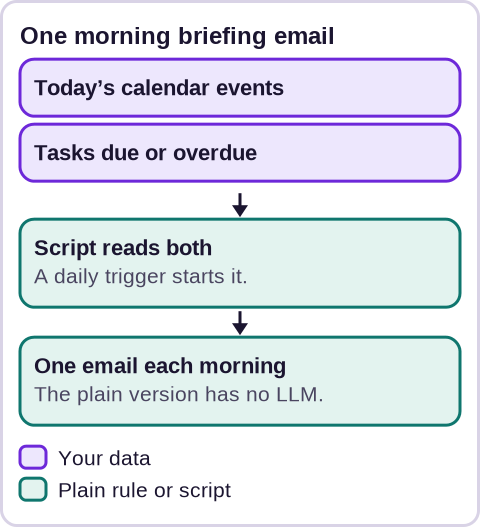
Diagram: One morning briefing email.
What is the Phoebe daily briefing?
Phoebe is the briefing I run for myself. The original post describes it this way: "Every morning at 7am, she pulls your open action items, reads your calendar, checks your task lists, and sends one email." The system is "Google Tasks + Google Calendar + your CRM, orchestrated by Claude." The email holds open action items by urgency, today's calendar, overdue CRM follow-ups and a plain-language summary.
The part that needs an LLM is the CRM and the summary. CRM notes are messy, and ranking urgency takes judgment. A person still reads the email and decides. The calendar and task parts do not need an LLM at all. They are plain rules, and a short script can do them.
What does the plain version do?
It sends one email each morning with two sections:
- Calendar today. Each event with its time and place. All-day events say "All day."
- Tasks due today or overdue. Oldest first. A last line gives the count of open tasks that have no due date.
It does not rank, summarize or guess. It tells you what is on your calendar and what is due. That is the point of the plain version.
What do you need first?
- A Google account with Calendar and Tasks.
- An Apps Script project. See our post on what Google Apps Script is if you have not made one.
- The Tasks advanced service turned on in that project. Google's page for it says: "This is an advanced service that must be enabled before use." That page did not show me the steps, only a link to another guide, so I could not confirm where the switch sits. Follow Google's guide.
What does the script look like?
Paste this into the project. Nothing in it runs until you call it.
// Daily briefing: today's calendar events and due tasks, sent as one plain email.
var RECIPIENT = ''; // Paste the address that should get the briefing. Your decision.
var SEND_HOUR = 7;  // Hour of day, in the script time zone.
var MAX_ITEMS = 25; // Most lines per section.

function formatBriefing(events, tasks, undatedCount, dateLabel) {
  var lines = ['Briefing for ' + dateLabel, '', 'CALENDAR TODAY'];
  if (events.length === 0) {
    lines.push('Nothing on the calendar.');
  } else {
    events.slice(0, MAX_ITEMS).forEach(function (e) {
      var when = e.allDay ? 'All day' : e.start + ' to ' + e.end;
      lines.push(when + '  ' + e.title + (e.location ? ' (' + e.location + ')' : ''));
    });
    if (events.length > MAX_ITEMS) lines.push('Plus ' + (events.length - MAX_ITEMS) + ' more.');
  }
  lines.push('', 'TASKS DUE TODAY OR OVERDUE');
  if (tasks.length === 0) {
    lines.push('None.');
  } else {
    tasks.slice(0, MAX_ITEMS).forEach(function (t) {
      lines.push('- ' + t.title + ' (due ' + t.due + ')');
    });
    if (tasks.length > MAX_ITEMS) lines.push('Plus ' + (tasks.length - MAX_ITEMS) + ' more.');
  }
  lines.push('', 'Open tasks with no due date: ' + undatedCount);
  return lines.join('\n');
}

function sendDailyBriefing() {
  if (!RECIPIENT) throw new Error('Set RECIPIENT first.');
  if (MailApp.getRemainingDailyQuota() < 1) throw new Error('No email quota left today.');

  var tz = Session.getScriptTimeZone();
  var now = new Date();
  var todayKey = Utilities.formatDate(now, tz, 'yyyy-MM-dd');

  var events = CalendarApp.getDefaultCalendar().getEventsForDay(now).map(function (ev) {
    return {
      title: ev.getTitle(),
      allDay: ev.isAllDayEvent(),
      start: Utilities.formatDate(ev.getStartTime(), tz, 'h:mm a'),
      end: Utilities.formatDate(ev.getEndTime(), tz, 'h:mm a'),
      location: ev.getLocation()
    };
  });

  var due = [];
  var undated = 0;
  var lists = Tasks.Tasklists.list().items || [];
  lists.forEach(function (list) {
    var items = Tasks.Tasks.list(list.id).items || [];
    items.forEach(function (t) {
      if (t.status === 'completed') return;
      if (!t.due) { undated++; return; }
      var dueKey = String(t.due).slice(0, 10);
      if (dueKey <= todayKey) due.push({ title: t.title, due: dueKey });
    });
  });
  due.sort(function (a, b) { return a.due < b.due ? -1 : a.due > b.due ? 1 : 0; });

  var label = Utilities.formatDate(now, tz, 'EEE, MMM d');
  MailApp.sendEmail(RECIPIENT, 'Daily briefing: ' + label, formatBriefing(events, due, undated, label));
}

function installTrigger() {
  ScriptApp.newTrigger('sendDailyBriefing')
    .timeBased()
    .everyDays(1)
    .atHour(SEND_HOUR)
    .inTimezone(Session.getScriptTimeZone())
    .create();
}
Here is what each part does, with Google's own description of each call:
CalendarApp.getDefaultCalendar()is "Gets the user's default calendar." The script then callsgetEventsForDay(date), which "Gets all events that occur on a given day."- Each event gives
getTitle(), "Gets the title of the event.";getStartTime(), "Gets the date and time at which this calendar event begins.";isAllDayEvent(), "Determines whether this is an all-day event."; andgetLocation(), "Gets the location of the event." Tasks.Tasklists.list()andTasks.Tasks.list(taskListId)come from Google's sample for the Tasks service. I read that page as excerpts.Utilities.formatDate"Formats date according to specification described in Java SE SimpleDateFormat class."Session.getScriptTimeZone()"Gets the time zone of the script."MailApp.sendEmail(recipient, subject, body)"Sends an email message."getRemainingDailyQuota()"Returns the number of recipients you can send emails to for the rest of the day." (Both per an earlier review as well as this session.)
The script stops with a message if RECIPIENT is blank or the email quota is used up. It caps each section at 25 lines.
Who should get the briefing?
You decide. RECIPIENT is a paste value, and the script will not run until you set it. For a personal briefing, that is usually your own address. For a team briefing, ask the people involved before you add them, and do not assume they want it. The email shows calendar titles and task names, so think about who should see them.
How do you put it on a daily schedule?
Run installTrigger once. It builds a time-driven trigger. Google's descriptions of the calls it uses:
everyDays(n): "Specifies to run the trigger everyndays."atHour(hour): "Specifies the hour the trigger at which the trigger runs."inTimezone(timezone): "Specifies the timezone for the specified dates/time when the trigger runs."
I could not confirm from those lines exactly which minute within the hour the trigger fires, so do not expect 7:00 sharp. Per an earlier review of Google's triggers page, installable triggers "always run under the account of the person who created them." Run installTrigger only once. I did not confirm what happens on a second run, but a second trigger would mean two emails, so check your triggers list.
When you first run a function, Google asks for permission. Per an earlier review of Google's authorization page, scopes are "determined automatically by scanning the script code." Read the prompt before you approve it.
How do you test it?
- Set
RECIPIENTto your own address. - Run
sendDailyBriefingby hand. Check the email against your real calendar. - Add a task due today and one due last week. Run it again. Check that both appear, oldest first.
- Log one task object with
Logger.log(JSON.stringify(Tasks.Tasks.list(listId).items[0])). Confirm that it hastitle,statusanddue, and thatduebegins with a date such as 2026-10-30. The script assumes that. I could not confirm it from Google's docs this session. - If you have a long task list, count what appears. I could not confirm how many tasks one call returns. The script reads one call per list.
- Check the time zone. Compare the date in the subject to today's date where you are.
- Run
installTrigger. Look at your project's triggers list and confirm there is exactly one.
What did the test show?
I tested the script in Node with a mock of the Google services. All 17 checks passed. They covered a normal day, an empty day, a list with no items, no lists at all, a blank recipient, a used-up quota, the 25-line cap, a time zone boundary, the trigger chain and banned punctuation in the email. Overdue tasks came first, future and completed tasks were left out, and undated tasks were only counted.
Nothing was run in Google. The mock cannot show how Google returns task dates or how many tasks it returns. That is why the test steps above matter.
Where does an LLM fit in this?
In the plain version, nowhere. The calendar and the due dates are rules, and they do the same thing every time. An LLM earns its place when the input is messy: CRM notes, long email threads, or a list where "urgent" depends on context. Phoebe uses one there. A person reads the result and fixes it, because an LLM can rank the wrong item first without any sign of doubt. My stance: AI writes the code, plain automation runs it, and an LLM shows up only where the input is messy and a person checks the result. For where to start with your own automations, see what to automate first.
Where this has limits
- Nothing was run in Google. The test was a mock in Node.
- I could not confirm the Tasks fields. The Tasks reference page was not readable this session. Test with the log step above.
- It reads your default calendar only. Other calendars you own or share are not included.
- It does not rank or summarize. That is the LLM part, and it is not in this script.
- Email quotas apply. I quote the quota call above. Check Google's limits for your account type.
- Phoebe is our own system. I do not claim this script is the same thing, and I give no results from it.
- We sell this kind of build.
- No ReRev prices and no promises about results.
If you want a briefing built around your own tools, see our AI operations service or tell us what you check every morning. Do not send passwords, login details or private calendar contents.
Frequently asked questions
What is a daily briefing email?
One email at a set hour that lists what is on your calendar and what is due. It saves you from opening several tabs.
Can Google Apps Script send a daily email?
Yes. A time-driven trigger can run a function every day, and the function can send mail with MailApp. Test it before you rely on it.
Does this need an LLM?
Not for the plain version. An LLM helps when you want it to read messy notes and rank them.
Will it include tasks from every list?
It reads each task list your account returns. Test with a long list, since I could not confirm how many tasks one call returns.
Can I send it to my team?
You can. Ask the people involved first, and check what the email would show them.
Is this the same as Phoebe?
No. Phoebe also reads CRM follow-ups and writes a plain-language summary with an LLM. This script covers the calendar and tasks only.
Read next: A daily sales summary email for your store is the same daily-email pattern pointed at orders.