Blog / Product Brand Operations
Back-in-Stock Waitlist Without a Paid App
By Keyona Meeks, Founder, ReRev Labs · Oct 31, 2026 · 10 min read
The short answer: A back-in-stock waitlist needs three lists: who asked, what is in stock, and who you already told. Keep them as three tabs in one Google Sheet. A short Apps Script checks every 30 minutes, emails each person once when their product is back, and writes a row to a "Sent" tab so nobody gets a second email. It never edits your Waitlist tab. I tested the script with a mock in Node. Nothing was run in Google, and I did not send a real email.
By the end of this post, you'll be able to:
- Set up Waitlist, Stock and Sent tabs.
- Run a script that emails each person once.
- Test it without emailing real customers.
- Know what this setup cannot do.
We sell operations builds for product brands, so weigh this post with that in mind. I did not review any paid back-in-stock app, so I make no comparison.
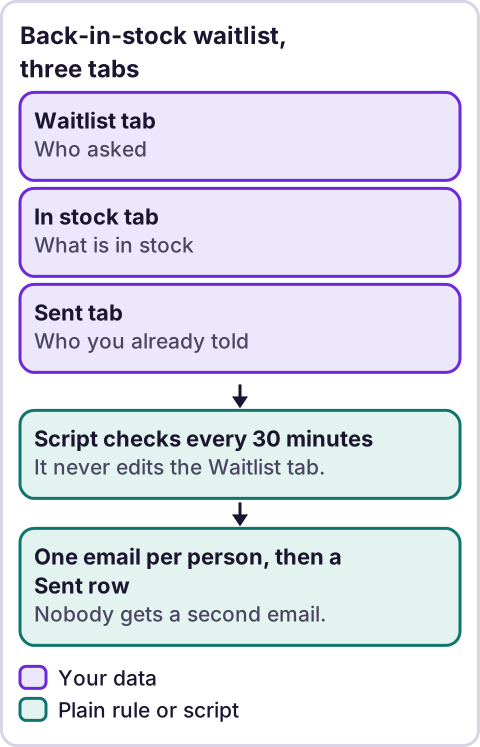
Diagram: Back-in-stock waitlist, three tabs.
What three tabs does a waitlist need?
Row 1 of each tab is a heading row. The names of the tabs matter. The headings do not.
- Waitlist: Email, Product, Signed up. One row per request.
- Stock: Product, In stock. One row per product, with the current count. Keep it up to date, by hand or another way.
- Sent: Email, Product, Sent on. Leave it empty at the start. The script fills it.
The script matches the Product text on Waitlist to the Product text on Stock. It ignores case and extra spaces. A product named "Mug" and one named "Blue Mug" are different products to the script.
How do people get onto the Waitlist tab?
Anything that adds a row will do: a form that writes to the sheet, a page on your site that posts to it, or you typing in a request someone sent you. I do not give a click path for a form tool, because I did not read the vendor's help pages this session. Only collect an email address from someone who asked to be told, and say what you will do with it.
What does the script look like?
Paste this into the Apps Script project attached to the sheet. Nothing in it runs until you call it.
// Emails people on a back-in-stock list when their product is in stock again. Adds each send to a "Sent" tab so nobody is emailed twice for the same product.
// Tabs: "Waitlist" (Email, Product, Signed up), "Stock" (Product, In stock), "Sent" (Email, Product, Sent on). Row 1 of each tab is a heading row.
var STORE_NAME = '';   // Paste your store name. Your decision.
var MIN_STOCK = 1;     // Send when the Stock tab shows at least this many.
var MAX_SEND = 40;     // Most emails in one run.

function key(s) { return String(s).trim().toLowerCase(); }

function findToSend(waitRows, stockRows, sentRows) {
  var stock = {};
  stockRows.forEach(function (r) { if (key(r[0])) stock[key(r[0])] = Number(r[1]) || 0; });
  var done = {};
  sentRows.forEach(function (r) { done[key(r[0]) + '|' + key(r[1])] = true; });
  var out = [];
  waitRows.forEach(function (r) {
    var email = String(r[0]).trim();
    var product = String(r[1]).trim();
    var k = key(email) + '|' + key(product);
    if (email.indexOf('@') === -1 || !product) return;
    if ((stock[key(product)] || 0) < MIN_STOCK) return;
    if (done[k]) return;
    done[k] = true; // Same person listed twice for one product gets one email.
    out.push({ email: email, product: product });
  });
  return out;
}

function sendBackInStock() {
  if (!STORE_NAME) throw new Error('Set STORE_NAME first.');
  var ss = SpreadsheetApp.getActiveSpreadsheet();
  var wait = ss.getSheetByName('Waitlist');
  var stock = ss.getSheetByName('Stock');
  var sent = ss.getSheetByName('Sent');
  if (!wait || !stock || !sent) throw new Error('Missing a tab: Waitlist, Stock and Sent are all needed.');
  var todo = findToSend(wait.getDataRange().getValues().slice(1), stock.getDataRange().getValues().slice(1), sent.getDataRange().getValues().slice(1));
  var tz = Session.getScriptTimeZone();
  var count = 0;
  for (var i = 0; i < todo.length && count < MAX_SEND; i++) {
    if (MailApp.getRemainingDailyQuota() < 1) break;
    var t = todo[i];
    MailApp.sendEmail(t.email, t.product + ' is back in stock at ' + STORE_NAME,
      'You asked us to tell you when ' + t.product + ' is back in stock. It is now.\n\nWe will not email you about this item again.\n\n' + STORE_NAME);
    sent.appendRow([t.email, t.product, Utilities.formatDate(new Date(), tz, 'yyyy-MM-dd HH:mm')]);
    count++;
  }
  console.log('Sent ' + count + ' of ' + todo.length + ' waiting.');
  return { sent: count, waiting: todo.length };
}

function installTrigger() {
  ScriptApp.newTrigger('sendBackInStock').timeBased().everyMinutes(30).create();
}
What the parts do, with Google's own descriptions as I read them in the method tables this session:
getActiveSpreadsheet(): "Returns the currently active spreadsheet, ornullif there is none."getSheetByName(name): "Returns a sheet with the given name."getDataRange(): "Returns aRangecorresponding to the dimensions in which data is present."getValues(): "Returns the rectangular grid of values for this range."Sheet.appendRow(rowContents): "Appends a row to the bottom of the current data region in the sheet." The script uses it to log each send.MailApp.sendEmail(recipient, subject, body)"Sends an email message."getRemainingDailyQuota()"Returns the number of recipients you can send emails to for the rest of the day."everyMinutes(n)"Specifies to run the trigger everynminutes," andn"must be 1, 5, 10, 15 or 30."
I chose to log sends in a separate tab because I could not confirm Google's description of the call that changes a single cell. So the script only ever reads your tabs and appends to Sent.
The script stops with a message if STORE_NAME is blank or a tab is missing. It sends at most 40 emails per run and stops early if the email quota runs out.
What email does it send?
One short email. The subject names the product. The body says the person asked to be told, that the product is back, and that you will not email about this item again. It has no link, because I do not know your product URLs. Add the link to your product page in the body text if you want one. Keep the email to that one purpose.
What if a product sells out again?
Someone already told stays in Sent for that product, so they will not be emailed a second time. If you want to let them be emailed again for a later restock, delete their row from Sent. That is a manual choice, on purpose.
How do you test it?
- Use test addresses that you own. Put three on Waitlist for a test product.
- Put the product on Stock with a count of 0. Set
STORE_NAME. RunsendBackInStock. Nothing should be sent. - Change the count to 5 and run it. You should get three emails, and Sent should get three rows.
- Run it again. Nothing should be sent.
- Add the same address twice with different capitalization. It should get one email.
- Check that the Waitlist tab did not change.
- Only then run
installTrigger, and check the triggers list for one entry. - Delete the test rows.
What did the test show?
I tested the script in Node with a mock of the Google services. All 15 checks passed. They covered the out-of-stock skip, case and spacing in product names, a repeated address, a bad address, a blank product, rows already in Sent, a second run sending nothing, the 40-email cap, a used-up quota, a minimum stock level, a blank store name, a missing tab, a stock count held as text and the trigger chain. No real email was sent, and the mock cannot show how Google delivers mail.
Who is allowed to be emailed?
Only people who asked. I am not an attorney, and I did not research the email laws that apply to you. A one-time "it is back" email that a person requested is different from a marketing list. Check the rules for your country and your email service with an attorney before you use the addresses for anything else. Keep the sheet private, because it holds customer emails.
Where does an LLM fit in this?
Nowhere in the script. Matching a product name and checking a count are plain rules. An LLM could help with the messy side: for example, cleaning up free-text product names that people typed into your form so they match your Stock names, or drafting the email wording. A person checks every match, because an LLM can pair "blue mug" with the wrong product and sound sure. My stance: AI writes the code, plain automation runs it, and an LLM shows up only where the input is messy and a person checks the result. For the thinking behind dropping paid tools, see how to replace paid software subscriptions.
Where this has limits
- Nothing was run in Google, and no real email was sent. The test was a mock in Node.
- It matches product names as text. Typos on the Waitlist will never match.
- Someone has to keep the Stock tab current. The script does not read your store.
- Variants are not handled. A size or color is just part of the product text.
- It does not hold stock for anyone. A person can still find it sold out when they click.
- Email quotas apply. I quote the quota call above. Check Google's limits for your account type.
- No ReRev prices and no promises about results. I have no data on how many people buy after an email.
If you want help connecting this to your store so the Stock tab updates by itself, see our AI operations service or tell us how your store tracks stock. Do not send customer lists, passwords or login details.
Frequently asked questions
Can I do back-in-stock emails without a paid app?
For a small list, yes, with a Google Sheet and a short script. This post shows one. I did not test it with real email.
Will someone get the same email twice?
Not for the same product. The script logs every send in a Sent tab and skips anyone listed there.
How often does it check?
Every 30 minutes, if you run installTrigger. I chose 30 because Google's trigger call accepts 1, 5, 10, 15 or 30.
Does it update my store stock?
No. You keep the Stock tab current.
Does it hold the item for the person?
No. It only tells them.
Does it use an LLM?
No. An LLM is optional, for cleaning up messy product names, and a person checks the result.
Read next: Low-stock alerts tell you when to restock the items this waitlist covers, and replacing Typeform with a form you own is the same no-paid-tool pattern for the waitlist form itself.