Blog / Technical Guides
Import a CSV Report from Gmail into Google Sheets Automatically
By Keyona Meeks, Founder, ReRev Labs · Oct 31, 2026 · 11 min read
The short answer: If a report arrives in Gmail as a CSV attachment, a short Apps Script can find the email, read the attachment and add its rows to a Google Sheet. It logs each email it has handled in a second tab, so a rerun never imports the same email twice. It reads only the emails your search matches, and it never sends or deletes mail. I tested the script with a mock in Node and fake data. Nothing was run in Google, and I read no real mailbox. Test it on one sender first.
By the end of this post, you'll be able to:
- Set up the two tabs the script needs.
- Write a Gmail search that matches one sender's reports.
- Import the rows and skip emails already handled.
- Know what this script can and cannot do.
We sell AI operations work, so weigh this post with that in mind.
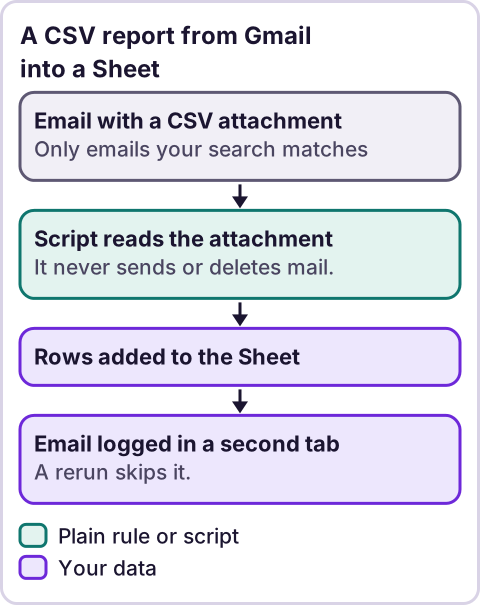
Diagram: A CSV report from Gmail into a Sheet.
When does this help?
When a report you need comes by email as a CSV file and someone copies it into a sheet by hand. Some business tools email reports on a schedule, such as sales or shipping reports. I did not check which ones do, so look at what your own tools offer. If a report arrives as a link or a PDF, this script does not read it.
What access does the script need?
It reads your Gmail, so it asks for access to it. Google's authorization page, as my tool returned it, gives Gmail as an example of access a script may request: "like access to your Sheets files or Gmail." It also says scopes are "determined automatically by scanning the script code," per an earlier review. I could not confirm the name of the Gmail permission on that page. Read the permission screen before you approve it. Google can show a warning screen for some scripts. If you see one, read Google's own pages on it before you go on.
The script reads the emails your SEARCH matches, and nothing else. Make the search narrow: one sender, one kind of report.
How do you set up the sheet?
- Make two tabs:
ImportandProcessed. Leave both empty. - Test your Gmail search in Gmail first, and check that it finds only the report emails. I did not read Gmail's search help, so I give no search operators. Use Gmail's own help.
- Paste the script below into the Apps Script project attached to the sheet.
- Paste your search into the
SEARCHline.
What does the script look like?
Nothing in it runs until you call importCsvReports.
// Copies CSV attachments from matching Gmail messages into an "Import" tab. Each message is handled once; its ID is logged in a "Processed" tab.
var SEARCH = '';             // Paste a Gmail search for ONE sender's report emails. Your decision. Test it in Gmail first.
var IMPORT_TAB = 'Import';
var PROCESSED_TAB = 'Processed';
var MAX_THREADS = 10;        // Most threads read in one run.
var MAX_ROWS = 2000;         // Most data rows added in one run.

function isCsv(name) {
  return /\.csv$/i.test(String(name));
}

function importCsvReports() {
  if (!SEARCH) throw new Error('Set SEARCH first.');
  var ss = SpreadsheetApp.getActiveSpreadsheet();
  var out = ss.getSheetByName(IMPORT_TAB);
  var log = ss.getSheetByName(PROCESSED_TAB);
  if (!out || !log) throw new Error('Missing a tab: ' + IMPORT_TAB + ' and ' + PROCESSED_TAB + ' are both needed.');
  var seen = {};
  log.getDataRange().getValues().forEach(function (r) { seen[String(r[0])] = true; });
  var tz = Session.getScriptTimeZone();
  var threads = GmailApp.search(SEARCH, 0, MAX_THREADS);
  var added = 0;
  var files = 0;
  var stopped = false;
  for (var t = 0; t < threads.length && !stopped; t++) {
    var messages = threads[t].getMessages();
    for (var m = 0; m < messages.length && !stopped; m++) {
      var id = messages[m].getId();
      if (seen[id]) continue;
      var parsed = [];
      messages[m].getAttachments().forEach(function (a) {
        if (isCsv(a.getName())) parsed.push({ name: a.getName(), rows: Utilities.parseCsv(a.getDataAsString()) });
      });
      var need = 0;
      parsed.forEach(function (p) { need += Math.max(p.rows.length - 1, 0); });
      if (added + need > MAX_ROWS) { stopped = true; break; }
      parsed.forEach(function (p) {
        p.rows.forEach(function (row, i) {
          if (i === 0) {
            if (out.getLastRow() === 0) out.appendRow(['Source file'].concat(row));
            return;
          }
          out.appendRow([p.name].concat(row));
          added++;
        });
        files++;
      });
      log.appendRow([id, Utilities.formatDate(messages[m].getDate(), tz, 'yyyy-MM-dd HH:mm'), parsed.length]);
      seen[id] = true;
    }
  }
  console.log('Files imported: ' + files + '. Rows added: ' + added + '.');
  return { files: files, rows: added, stopped: stopped };
}

function installTrigger() {
  ScriptApp.newTrigger('importCsvReports')
    .timeBased()
    .everyDays(1)
    .atHour(7)
    .inTimezone(Session.getScriptTimeZone())
    .create();
}
What the parts do, with Google's own descriptions as I read them in the method tables this session:
GmailApp.search(query): "Search Gmail with the given query."GmailThread.getMessages(): "Gets the messages in this thread."GmailMessage.getId(): "Gets the ID of this message."getDate(): "Gets the date and time of this message."getAttachments(): "Gets all the attachments for this message."GmailAttachment.getName(): "Gets the name of this blob."getDataAsString(): "Gets the data of this blob as a String with UTF-8 encoding."Utilities.parseCsv(csv): "Returns a tabular 2D array representation of a CSV string."getActiveSpreadsheet(): "Returns the currently active spreadsheet, ornullif there is none."getSheetByName(name): "Returns a sheet with the given name."getDataRange(): "Returns aRangecorresponding to the dimensions in which data is present."getValues(): "Returns the rectangular grid of values for this range."getLastRow(): "Returns the position of the last row that has content."appendRow(rowContents): "Appends a row to the bottom of the current data region in the sheet."Utilities.formatDate"Formats date according to specification described in Java SE SimpleDateFormat class."Session.getScriptTimeZone()"Gets the time zone of the script." The trigger calls areeveryDays(n)"Specifies to run the trigger everyndays,"atHour(hour)"Specifies the hour the trigger at which the trigger runs," andinTimezone(timezone)"Specifies the timezone for the specified dates/time when the trigger runs."
The script stops at once if SEARCH is blank. It looks at up to 10 threads. For each message it has not handled, it takes the attachments whose names end in .csv, reads each as UTF-8 text, and adds the rows to Import. The first column holds the file name. The header row of the first file goes in once, when Import is empty. After each message it adds a line to Processed with the message ID, the date and the number of CSV files. A message with no CSV attachment is logged too, so it is not read again. It adds rows with appendRow and never edits a cell.
How do you put it on a daily schedule?
Run installTrigger once, then check your project's triggers list for exactly one entry. It runs at 7 in the script time zone. I could not confirm which minute of the hour a trigger fires. Per an earlier review of Google's triggers page, installable triggers "always run under the account of the person who created them." So the script reads the mailbox of the person who installed it.
How do you test it?
- Send yourself two emails with a small CSV attached, from the sender your search matches. Use fake data.
- Run
importCsvReportsby hand.Importshould list the rows, with the file name in column A, andProcessedshould list two message IDs. - Run it again. Nothing should be added.
- Send a third email with a PDF only. Run it.
Processedshould get a line with 0 files, andImportshould not change. - Clear
SEARCH. You should see the "Set SEARCH" message. Put it back. - Run
installTriggerand check the triggers list. - Delete the test emails and the test rows.
What did the test show?
I tested the script in Node with a mock of Gmail and Sheets and fake CSV text. All 20 checks passed. They covered a basic import, a rerun adding nothing, messages already handled, a non-CSV file being logged but not imported, an upper-case file extension, two files in one message, the header written once, the row cap stopping the run, a blank search, missing tabs, the search call, a header-only file, no unsafe calls, the trigger chain and a leading-zero value. The mock cannot show how real reports look. It does not use a real mailbox, and no real email was read.
Where does an LLM fit in this?
An LLM can help with the messy input. For example, it can read a sample report and suggest what each column means, or write a one-line summary of a week of rows. A person checks the result against the report, because an LLM can misread a column and sound sure. Do not paste a real customer report into an LLM tool unless your own rules allow it. The search, the parse and the skip rule are plain rules. My stance: AI writes the code, plain automation runs it, and an LLM shows up only where the input is messy and a person checks the result. For where to start with your own automations, see what to automate first, and for the thinking behind dropping paid tools, see how to replace paid software subscriptions.
Where this has limits
- Nothing was run in Google, and no real mailbox was read. The test used a mock and fake data.
- It reads your Gmail. Keep the search narrow, and think about who can open the sheet and the script.
- The same data sent twice is imported twice. The script tracks emails, not contents.
- A message with more rows than
MAX_ROWSis never imported. Raise the number if a single report is larger. - It reads up to 10 threads per run. I could not confirm in what order Gmail returns them, so narrow the search if reports pile up.
- It reads attachments as UTF-8 text. Other encodings may come out wrong.
- Sheets may change values when rows are added. For example, text such as 007 may turn into a number. I could not confirm this, so check your own data.
- I give no Gmail search operators. I did not read Gmail's search help.
- No ReRev prices and no promises about results.
If you want help turning emailed reports into a system your team uses, see our AI operations service or tell us which reports arrive by email. Do not send reports with customer data, passwords or login details.
Frequently asked questions
Can Google Sheets import a CSV from a Gmail attachment automatically?
Yes, with a script like the one above. Google Sheets does not do it by itself, as far as I know. I did not check Google's help for a built-in option.
Will the script import the same email twice?
No. It logs each message ID in the Processed tab and skips it next time.
Does the script change or delete my email?
No. It reads messages and attachments. It sends nothing and deletes nothing.
How do I limit it to one sender?
Write a narrow Gmail search and test it in Gmail first. I give no search operators, because I did not read Gmail's search help.
How often does it run?
Once a day if you run installTrigger. You can also run it by hand.
Does the script use an LLM?
No. An LLM can help describe the columns, and a person checks the result.
Read next: Save Gmail attachments to Drive automatically if you want the files kept as files, and the daily sales summary for something useful to build on the imported rows.