Blog / Product Brand Operations
A Daily Sales Summary Email for Your Store
By Keyona Meeks, Founder, ReRev Labs · Oct 31, 2026 · 9 min read
The short answer: A daily sales summary is one short email, sent at the same hour each morning, with yesterday's order count, revenue, item count and a comparison to the week before. If your orders already sit in a Google Sheet, a plain Apps Script can build it in about 60 lines. It adds up numbers. It does not interpret them. I tested the script with a mock in Node. Nothing was run in Google, so run the test steps below before you trust it.
By the end of this post, you'll be able to:
- Say what a daily sales summary should hold and what to leave out.
- Set up a script that emails yesterday's totals from an Orders tab.
- Put it on a daily trigger and test it.
- Decide how to treat refunded orders.
We sell operations builds for product brands, so weigh this post with that in mind. This post covers the numbers digest. For a general morning email built from your calendar and tasks, see the Phoebe daily briefing.
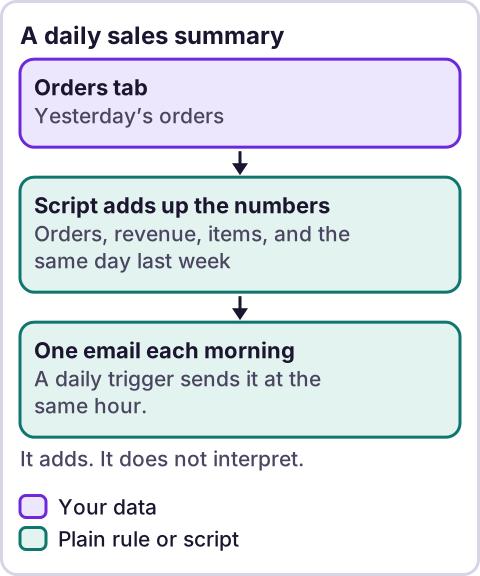
Diagram: A daily sales summary.
What goes in a daily sales summary?
Keep it to numbers you can check against your store:
- Orders. The count for yesterday.
- Revenue. The sum of the order totals.
- Items. The sum of the quantities.
- Left out. How many orders you did not count, such as refunds.
- A comparison. The average orders per day over the 7 days before.
It does not rank products, explain a dip or guess why. A dip has many causes, and a script cannot know them. That part is for a person.
What does the Orders tab need?
The script reads a tab named Orders with these columns, in this order: Order, Created, Financial status, Total, Items. Row 1 holds headings. It expects the Created column to begin with a date in the form 2026-10-28, followed by anything. Where the sheet gets its rows is up to you. You can paste them by hand or fill the tab another way. I do not cover how to fill it here.
If your Created column holds real date cells, the script reads them as dates in the script time zone. I tested both forms in the mock. Test both in your own sheet.
What does the script look like?
Paste this into the Apps Script project attached to that sheet. Nothing in it runs until you call it.
// Emails a short summary of yesterday's orders, read from the "Orders" tab (columns: Order, Created, Financial status, Total, Items).
var RECIPIENT = '';         // Paste the address that should get the summary. Your decision.
var SEND_HOUR = 7;          // Hour of day, in the script time zone.
var ORDERS_TAB = 'Orders';
var EXCLUDE = ['refunded', 'voided']; // Orders with these statuses are counted apart and left out of revenue. Your decision.

function dayKey(value, tz) {
  if (Object.prototype.toString.call(value) === '[object Date]') return Utilities.formatDate(value, tz, 'yyyy-MM-dd');
  return String(value).slice(0, 10);
}

function dayStats(rows, key, tz) {
  var s = { orders: 0, revenue: 0, items: 0, excluded: 0 };
  rows.forEach(function (r) {
    if (dayKey(r[1], tz) !== key) return;
    var status = String(r[2]).toLowerCase();
    if (EXCLUDE.indexOf(status) !== -1) { s.excluded++; return; }
    s.orders++;
    s.revenue += Number(r[3]) || 0;
    s.items += Number(r[4]) || 0;
  });
  return s;
}

function buildSummary(rows, yKey, priorKeys, tz) {
  var y = dayStats(rows, yKey, tz);
  var total = 0;
  priorKeys.forEach(function (k) { total += dayStats(rows, k, tz).orders; });
  var avg = priorKeys.length ? total / priorKeys.length : 0;
  return [
    'Sales summary for ' + yKey,
    '',
    'Orders: ' + y.orders,
    'Revenue (sum of the Total column): ' + y.revenue.toFixed(2),
    'Items: ' + y.items,
    'Left out (' + EXCLUDE.join(', ') + '): ' + y.excluded,
    '',
    'Average orders per day over the 7 days before: ' + avg.toFixed(1)
  ].join('\n');
}

function sendSalesSummary() {
  if (!RECIPIENT) throw new Error('Set RECIPIENT first.');
  if (MailApp.getRemainingDailyQuota() < 1) throw new Error('No email quota left today.');
  var sheet = SpreadsheetApp.getActiveSpreadsheet().getSheetByName(ORDERS_TAB);
  if (!sheet) throw new Error('Missing tab: ' + ORDERS_TAB);
  var rows = sheet.getDataRange().getValues().slice(1);
  var tz = Session.getScriptTimeZone();
  var now = new Date();
  var DAY = 24 * 60 * 60 * 1000;
  var yKey = Utilities.formatDate(new Date(now.getTime() - DAY), tz, 'yyyy-MM-dd');
  var priorKeys = [];
  for (var i = 2; i <= 8; i++) priorKeys.push(Utilities.formatDate(new Date(now.getTime() - i * DAY), tz, 'yyyy-MM-dd'));
  MailApp.sendEmail(RECIPIENT, 'Sales summary: ' + yKey, buildSummary(rows, yKey, priorKeys, tz));
}

function installTrigger() {
  ScriptApp.newTrigger('sendSalesSummary')
    .timeBased()
    .everyDays(1)
    .atHour(SEND_HOUR)
    .inTimezone(Session.getScriptTimeZone())
    .create();
}
What the parts do, with Google's own descriptions as I read them in the method tables this session:
SpreadsheetApp.getActiveSpreadsheet(): "Returns the currently active spreadsheet, ornullif there is none."getSheetByName(name): "Returns a sheet with the given name."getDataRange(): "Returns aRangecorresponding to the dimensions in which data is present."getValues(): "Returns the rectangular grid of values for this range."Utilities.formatDate"Formats date according to specification described in Java SE SimpleDateFormat class."Session.getScriptTimeZone()"Gets the time zone of the script."MailApp.sendEmail(recipient, subject, body)"Sends an email message."getRemainingDailyQuota()"Returns the number of recipients you can send emails to for the rest of the day."- For the trigger:
everyDays(n)"Specifies to run the trigger everyndays."atHour(hour)"Specifies the hour the trigger at which the trigger runs."inTimezone(timezone)"Specifies the timezone for the specified dates/time when the trigger runs."
The script stops with a message if RECIPIENT is blank, the email quota is used up or the Orders tab is missing.
Who should get the summary?
You decide. RECIPIENT is a paste value, and the script will not run until you set it. Revenue figures are business-sensitive, so ask the people involved before you add them. Do not assume they want it.
How should refunds count?
That is your decision, and I do not have a right answer. The script puts orders whose status is in the EXCLUDE list, refunded and voided by default, into a separate "Left out" count and out of revenue. Edit the list to match the status words in your own data. The script lowercases the status before it compares. It does not handle partial refunds, because the Orders tab has no column for them. Say so to whoever reads the email.
How do you put it on a daily schedule?
Run installTrigger once. Look at your project's triggers list and confirm it shows one entry. A second trigger would mean two emails. I could not confirm which minute of the hour a trigger fires, so do not expect 7:00 sharp. Per an earlier review of Google's triggers page, installable triggers "always run under the account of the person who created them." Per an earlier review of Google's authorization page, scopes are "determined automatically by scanning the script code." Read the permission prompt before you approve it.
How do you test it?
- Put five test orders in the
Orderstab, three dated yesterday, one of them refunded, and two older. - Set
RECIPIENTto your own address and runsendSalesSummaryby hand. - Check the count, revenue and items against your own arithmetic.
- Change one Total to text such as "abc". The script counts it as 0. Decide whether you want that.
- Check the date in the subject against yesterday where you are.
- Run
installTriggerand check the triggers list. - Delete the test rows.
What did the test show?
I tested the script in Node with a mock of the Google services. All 16 checks passed. They covered a normal day, refunded orders left out, the 7-day average, a blank recipient, a used-up quota, a missing tab, an empty tab, date cells, a non-numeric total, upper-case status words and the trigger chain. The mock cannot show how Google returns your dates, which is why steps 1 to 3 matter.
Where does an LLM fit in this?
Nowhere in the script. Counting and adding are plain rules, and they do the same thing every time. An LLM could help afterward. For example, you could paste a week of summaries into one and ask it to describe the pattern in plain words. A person checks that against the store, because an LLM can invent a reason for a dip and sound sure of it. My stance: AI writes the code, plain automation runs it, and an LLM shows up only where the input is messy and a person checks the result. For help deciding what to automate first, see what to automate first.
Where this has limits
- Nothing was run in Google. The test was a mock in Node.
- It is only as good as the Orders tab. If the tab is stale, the email is stale.
- No partial refunds, taxes, shipping or currency handling. It adds the Total column as it finds it.
- The 7-day comparison is a plain average. It does not adjust for weekends or sales.
- Email quotas apply. I quote the quota call above. Check Google's limits for your account type.
- No ReRev prices and no promises about results. I have no data on time saved.
If you want a summary built around your own store and tools, see our AI operations service or tell us which numbers you check every morning. Do not send customer data, passwords or login details.
Frequently asked questions
Can I get a daily sales email from Google Sheets?
Yes. A time-driven trigger can run a function every day, and the function can send mail with MailApp. Test it before you rely on it.
Does the script need a Shopify app?
No. It reads a tab in your sheet. How the rows get there is up to you.
Why is the revenue different from my store dashboard?
The script sums the Total column for orders not in the EXCLUDE list. Your dashboard may treat refunds, tax or shipping differently.
Does it use an LLM?
No. An LLM is optional, after the fact, to describe a pattern across several emails.
Can I send it to my team?
You can. Ask the people involved first, since the email shows revenue.
What if I have no orders one day?
The email still sends, with zeros.
Read next: Send Shopify orders to Google Sheets gets the order rows this summary reads.