Blog / Product Brand Operations
Catch Late or Stuck Shipments Before Customers Email You
By Keyona Meeks, Founder, ReRev Labs · Oct 31, 2026 · 10 min read
The short answer: Keep one row per shipment with the promised date and the date of the last carrier scan. Formulas mark each row Late, Stuck, No scan, OK or Delivered. A short Apps Script then emails you one list of the exceptions each morning, so you can write to the customer before they write to you. The sheet does not talk to any carrier. You type or paste the last scan date. I tested the formulas in LibreOffice and the script with a mock in Node. Nothing was run in Google.
By the end of this post, you'll be able to:
- Lay out a shipment sheet with the columns that matter.
- Get a status for every order from four formulas.
- Receive one exceptions email each morning.
- Know what the sheet cannot see.
We sell operations builds for product brands, so weigh this post with that in mind. This is the small version. It shows you the idea before you pay anyone to build it.
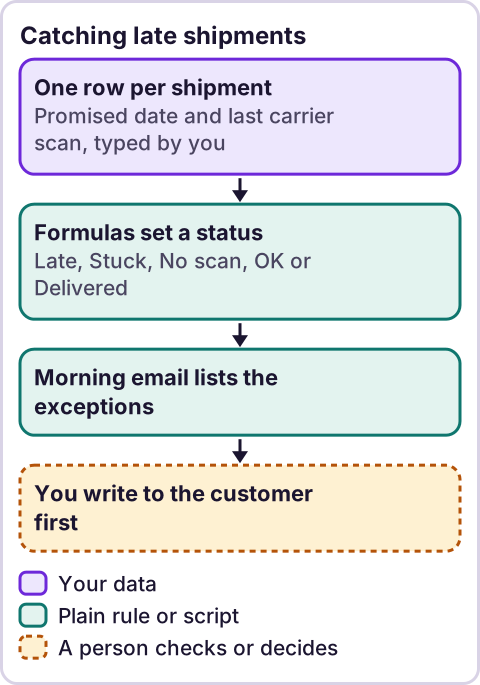
Diagram: Catching late shipments.
What columns does the shipment sheet need?
Make a tab named Shipments with these headings in row 1. The script looks for the names, so spell them exactly:
| Column | Heading | What goes in it |
|---|---|---|
| A | Order # | Your order number |
| B | Carrier | Carrier name |
| C | Tracking # | The tracking number |
| D | Shipped | Date handed to the carrier |
| E | Promised | The delivery date you told the customer, blank if none |
| F | Last scan | Date of the latest carrier scan, blank if none yet |
| G | Delivered | Delivery date, blank until delivered |
| H | Status | Formula |
| I | Days late | Formula |
In N1 type Stuck after days and in N2 type 3. That is a setting and my starting number. Pick your own.
Where the scan date comes from is your choice. You can type it from the carrier's tracking page or paste a column from a carrier or shop export. I did not use a carrier's tracking service, and I could not read any carrier's developer docs for this post. If you want live carrier data, that is a bigger build.
Which formulas set the status?
In row 2:
H2: =IF(A2="","",IF(G2<>"","Delivered",IF(D2="","Not shipped",IF(AND(E2<>"",TODAY()>E2),"Late",IF(AND(F2<>"",TODAY()-F2>=$N$2),"Stuck",IF(AND(F2="",TODAY()-D2>=$N$2),"No scan","OK"))))))
I2: =IF(H2="Late",TODAY()-E2,"")
Fill both down. The status checks in this order:
- Delivered if there is a delivery date. Nothing after that matters.
- Not shipped if there is no shipped date yet.
- Late if today is past the promised date and the order has not arrived.
- Stuck if the last scan is at least as old as your setting.
- No scan if the carrier has not scanned it yet and it shipped at least as many days ago as your setting.
- OK for everything else.
Days late counts from the promised date, for Late rows only. TODAY() changes daily, so the statuses move on their own.
What did the formula test show?
I tested the formulas in LibreOffice with nine made-up rows dated around the day I ran it. With the setting at 3, a late order two days past its date showed Late and 2 days. An order whose last scan was four days old showed Stuck. An order shipped five days ago and never scanned showed No scan. A new order showed OK. A delivered order showed Delivered. A row with no shipped date showed Not shipped. A blank row stayed blank. A row scanned yesterday with no promised date showed OK. I then changed the setting to 5, and the four-day-old scan moved from Stuck to OK. Not tested: Google Sheets itself.
How do you get the morning email?
Paste this script into an Apps Script project that is attached to the sheet. Nothing in it runs until you call it.
// Daily shipment exceptions: reads the Status column from the Shipments tab and emails one summary.
var SHEET_NAME = 'Shipments';
var RECIPIENT = ''; // Paste the address that should get the summary. Your decision.
var SEND_HOUR = 7;  // Hour of day, in the script time zone.
var MAX_ROWS = 40;  // Most exception lines in one email.
var FLAGS = ['Late', 'Stuck', 'No scan'];
var NEEDED = ['Order #', 'Carrier', 'Tracking #', 'Promised', 'Last scan', 'Status'];

function colIndexes(headers) {
  var idx = {};
  NEEDED.forEach(function (name) {
    var i = headers.indexOf(name);
    if (i === -1) throw new Error('Missing column: ' + name);
    idx[name] = i;
  });
  return idx;
}

function buildSummary(items, dateLabel) {
  var lines = ['Shipment exceptions for ' + dateLabel, ''];
  if (items.length === 0) {
    lines.push('No exceptions today.');
    return lines.join('\n');
  }
  FLAGS.forEach(function (flag) {
    var group = items.filter(function (it) { return it.status === flag; });
    if (group.length === 0) return;
    lines.push(flag.toUpperCase() + ' (' + group.length + ')');
    group.forEach(function (it) {
      lines.push('- ' + it.order + ', ' + it.carrier + ', ' + it.tracking + ', promised ' + it.promised + ', last scan ' + it.lastScan);
    });
    lines.push('');
  });
  return lines.join('\n').replace(/\n+$/, '');
}

function sendShipmentExceptions() {
  if (!RECIPIENT) throw new Error('Set RECIPIENT first.');
  if (MailApp.getRemainingDailyQuota() < 1) throw new Error('No email quota left today.');

  var sheet = SpreadsheetApp.getActiveSpreadsheet().getSheetByName(SHEET_NAME);
  if (!sheet) throw new Error('No tab named ' + SHEET_NAME);
  var values = sheet.getDataRange().getValues();
  var idx = colIndexes(values[0]);
  var tz = Session.getScriptTimeZone();

  function show(v) {
    if (Object.prototype.toString.call(v) === '[object Date]') return Utilities.formatDate(v, tz, 'MMM d');
    return v === '' || v === null || v === undefined ? 'none' : String(v);
  }

  var items = [];
  for (var r = 1; r < values.length; r++) {
    var row = values[r];
    var status = String(row[idx['Status']]);
    if (FLAGS.indexOf(status) === -1) continue;
    items.push({
      status: status,
      order: show(row[idx['Order #']]),
      carrier: show(row[idx['Carrier']]),
      tracking: show(row[idx['Tracking #']]),
      promised: show(row[idx['Promised']]),
      lastScan: show(row[idx['Last scan']])
    });
  }

  var shown = items.slice(0, MAX_ROWS);
  var text = buildSummary(shown, Utilities.formatDate(new Date(), tz, 'EEE, MMM d'));
  if (items.length > MAX_ROWS) text += '\n\nPlus ' + (items.length - MAX_ROWS) + ' more. Open the sheet.';
  MailApp.sendEmail(RECIPIENT, 'Shipment exceptions: ' + items.length, text);
}

function installTrigger() {
  ScriptApp.newTrigger('sendShipmentExceptions')
    .timeBased()
    .everyDays(1)
    .atHour(SEND_HOUR)
    .inTimezone(Session.getScriptTimeZone())
    .create();
}
What the script does:
- It reads the
Shipmentstab and finds each column by its heading. It stops with a message if a heading is missing. - It keeps the rows whose Status is Late, Stuck or No scan. It does not recalculate anything. It trusts the formulas.
- It sends one email: a list grouped by status, with order, carrier, tracking number, promised date and last scan date.
- On a day with no exceptions it still sends a short note. I did that on purpose. If the email never comes, you know something broke.
- It caps the list at 40 lines and says how many more there are.
- It stops if
RECIPIENTis blank or the email quota is used up.
Google's descriptions, as I read them in the method tables this session: SpreadsheetApp.getActiveSpreadsheet() "Returns the currently active spreadsheet, or null if there is none." getSheetByName(name) "Returns a sheet with the given name." getDataRange() "Returns a Range corresponding to the dimensions in which data is present." getValues() "Returns the rectangular grid of values for this range." MailApp.sendEmail(recipient, subject, body) "Sends an email message." getRemainingDailyQuota() "Returns the number of recipients you can send emails to for the rest of the day." For the trigger: everyDays(n) "Specifies to run the trigger every n days." atHour(hour) "Specifies the hour the trigger at which the trigger runs." inTimezone(timezone) "Specifies the timezone for the specified dates/time when the trigger runs."
I read these pages as excerpts, and I cannot confirm which minute of the hour the trigger fires. Run installTrigger once. Then check your project's triggers list for exactly one entry. Per an earlier review of Google's triggers page, installable triggers "always run under the account of the person who created them."
Who gets the email?
You decide. RECIPIENT is a paste value, and the script will not run until you set it. For a small team it may be one person. For a larger one, ask the people involved before you add anyone. Do not assume they want it. The email lists order numbers and tracking numbers, so think about who should see them.
What should the sheet not decide?
- Whether a late order matters. A day late on a gift is not a day late on a restock.
- What to tell the customer. A person writes to them.
- Whether to reship or refund. That is your policy and your call.
- Whether the carrier is at fault. The sheet shows dates, not reasons.
Where does an LLM fit in this?
An LLM can help with the messy part: reading a carrier's free-text status, such as "exception, address problem," and suggesting which bucket it belongs in, or drafting a short apology that a person edits. A person must read both before anything goes out, because an LLM can misread a status and sound sure about it. The dates, the statuses and the email are plain rules, and they do the same thing every time. My stance: AI writes the code, plain automation runs it, and an LLM shows up only where the input is messy and a person checks the result. For other jobs worth automating next, see what to automate first, and for the thinking behind follow-ups, see the follow-up engine.
How do you test it?
- Enter six made-up orders: one delivered, one late, one with an old scan, one never scanned, one fine, one not shipped.
- Check each status against a calendar and your setting.
- Set
RECIPIENTto your own address. RunsendShipmentExceptionsby hand. - Check the email lists exactly the exception rows, and none of the others.
- Delete the exceptions and run it again. You should get the "No exceptions today" note.
- Rename a heading by one letter and run it. You should see the missing-column message. Then fix the heading.
- Run
installTriggeronce. Confirm one trigger. - Delete the test rows and keep the formulas.
What did the script test show?
I tested the script in Node with a mock of the Google services. All 15 checks passed: a normal mix of rows, grouping and order, the exclusion of OK and Delivered rows, an empty list, a header-only sheet, a blank recipient, a used-up quota, a missing tab, a missing column, the 40-line cap, the trigger chain and banned punctuation. The mock cannot show how Google returns dates from your sheet, so step 4 above matters.
Where this has limits
- Nothing was run in Google. The formulas ran in LibreOffice and the script ran against a mock in Node.
- There is no carrier link. The sheet knows only the dates you enter.
- The Stuck setting is my starting number. Carriers differ, and so do routes.
- It sends nothing to customers. A person writes to them.
- Date cells matter. If the scan column holds text instead of dates, the formulas will misread it. Test with real rows.
- No ReRev prices and no promises about results. I have no data on how many complaints this prevents.
If you want help turning this into a system that watches your orders and prepares the follow-ups, see our AI operations service or tell us how orders ship today. Do not send customer lists, tracking exports, passwords or login details.
Frequently asked questions
How do I know a shipment is late before the customer emails me?
Compare today's date to the promised date for every order that has not arrived. A formula can do that for every row at once.
What does a stuck shipment mean here?
In this sheet, it is an order whose last carrier scan is at least as old as your setting. The default I use is three days.
Does the sheet pull tracking from the carrier?
No. You type or paste the last scan date.
Will the email go to my customers?
No. It goes to the address you set, and it lists exceptions only.
Why send an email on days with no exceptions?
So you can tell a quiet day from a broken script.
Will it work in Excel?
The formulas are standard, but I tested them in LibreOffice. The script is for Google Sheets.
Read next: Order confirmation emails from a sheet starts the thread a late alert rescues, and sorting a customer service inbox in Gmail handles the replies when a customer does write in.