Blog / Construction Operations
Lien Waiver Tracking Spreadsheet: Conditional vs. Unconditional, Per Pay App
By Keyona Meeks, Founder, ReRev Labs · Oct 31, 2026 · 9 min read
The short answer: Keep one row per subcontractor per pay app. Record which waiver type you asked for, the date you asked, the date it came back and a status. A short Google Apps Script emails you a list every Monday of the waivers still missing, and emails each subcontractor the ones it owes. This tracks paperwork. It does not tell you what a waiver must say, which type you need or when you may pay. Those depend on your state and your contract, so check with an attorney.
By the end of this post, you'll be able to:
- Build a Google Sheet that shows, for every pay app, which lien waivers are in and which are missing.
- Tell conditional from unconditional and progress from final in your tracker, without deciding the legal question for yourself.
- Install a script that sends a weekly email of waivers to chase, to you and to the subs who owe them.
- Know where a sheet stops being enough.
The pay app goes out Friday. On Monday someone asks whether the concrete sub's waiver came in. Nobody knows. The answer is in an email from three weeks ago, or in a text, or in a folder with a name only one person understands.
That is the real cost of lien waivers for a project team. The form is a page or two. Finding out which one is missing, from whom, for which pay app, is the job. A sheet that answers that in ten seconds is worth building.
I sell build work, so you should know I benefit if you hire help. This post gives you the whole tracker for free. I will say where I would stop using a sheet.
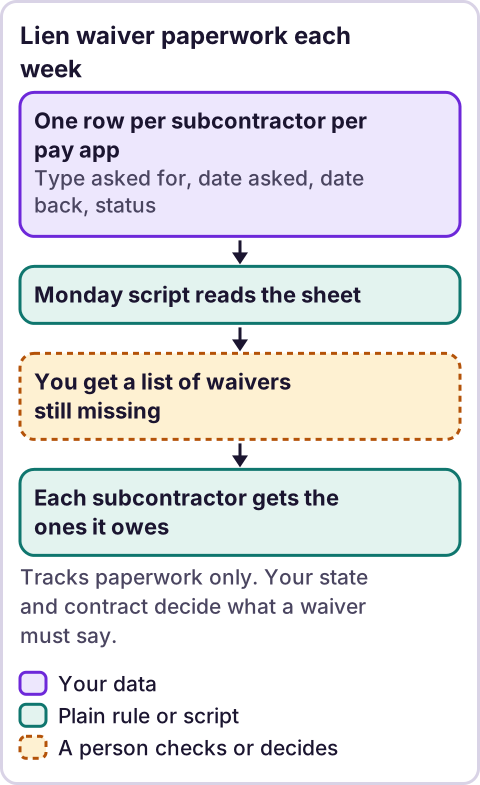
Diagram: Lien waiver paperwork each week.
What do conditional and unconditional lien waivers mean in a tracker?
In common use, a conditional waiver takes effect only once the payment it covers has been made. An unconditional waiver takes effect when it is signed. A progress waiver covers work through a date. A final waiver covers the end of the work. That gives four types you will see on most jobs:
- Conditional progress
- Unconditional progress
- Conditional final
- Unconditional final
Some states publish required or sample forms for these. Others use different names, different wording or no forms at all. Florida is one example. Its statute has a form for a waiver on progress payment, a form for a waiver on final payment, and a rule that a waiver given in exchange for a check can be made conditional on that check being paid. Source: Florida Statutes, section 713.20, checked October 30, 2026. The same page says a right to claim a lien may not be waived in advance, and that a waiver which is not substantially similar to the forms is still enforceable according to its own terms.
I am citing Florida only to show what an official rule looks like. Your project may sit in a different state, and your contract may add its own requirements. Find your state's statute on your legislature's website and read it, or ask an attorney. Then use the tracker to record what your rules say you need.
What columns does a lien waiver tracker need?
Make a tab called Waivers. Put these headers in row 1. Keep the names exactly as written, because the script finds columns by header text.
| Column | Header | What goes in it |
|---|---|---|
| A | Project | Job name or number |
| B | Subcontractor | Company name |
| C | Pay app # | The pay application number |
| D | Period through | The date the pay app covers through |
| E | Amount | The amount on the pay app for this sub |
| F | Waiver type | One of the four types above |
| G | Date requested | The day you asked for it |
| H | Date received | The day it came back |
| I | Status | Not requested, Requested, Received or Problem |
| J | Days waiting | A formula, below |
| K | Notes | Anything odd: wrong amount, unsigned, wrong date |
| L | Subcontractor email | The address that should get the reminder for this waiver. Leave it empty to skip that sub |
One row is one waiver for one sub for one pay app. If you need both a conditional waiver before payment and an unconditional waiver after it, add two rows. That keeps each document visible on its own.
Add a sample row or two before you start. Use made-up names.
How do you add dropdowns and a days-waiting count?
Dropdowns keep people from typing requested or recieved and slipping past the script.
- Select the cells in column F, from F2 down.
- Click Data, then Data validation, then Add rule.
- Under Criteria, choose Dropdown.
- Add the four waiver types.
- Click Done.
Repeat for column I with the four statuses. Menus in Google Sheets change, so see Google's help page on dropdown lists if yours looks different.
For column J, put this in J2 and fill it down:
=IF(OR(G2="",I2="Received"),"",TODAY()-G2)It shows how many days have passed since you asked, and goes blank once the waiver is received.
How do you highlight waivers that are late?
- Select the rows of data, for example A2:K500.
- Click Format, then Conditional formatting.
- Under Format cells if, choose Custom formula is.
- Enter
=AND($I2<>"Received",$I2<>"",ISNUMBER($J2),$J2>=3). - Pick a fill color and click Done.
Any waiver that is not in and has been outstanding three days or more turns that color. Change the 3 to your own number. Google explains the steps in its conditional formatting help, checked October 30, 2026.
How do you get a weekly list of missing waivers?
The script reads the Waivers tab every Monday morning and emails one list. It groups by project. It shows two sections: waivers you asked for and have not received, and waivers nobody has asked for yet. It sends nothing when there is nothing to chase.
It uses Google Apps Script, which lives inside your sheet. If you have not used it before, read what Google Apps Script is first.
Add a Settings tab
Make a tab called Settings. Put the email address that gets the list in B1. In B2, put the number of days to wait before a requested waiver is listed. Leave B2 empty to use 3. Waivers with status Problem are always listed.
The full list goes to the address in B1, which should be the project manager or whoever runs pay apps. The script also emails each subcontractor the requested and problem waivers it still owes, if you filled in column L (Subcontractor email) on that row. It does not tell a sub about waivers nobody has requested yet. The message goes out from your account, so read and edit the wording in the script first.
When you are ready to stop overseeing the weekly list, set EMAIL_OWNER: false in the script. The subs still get their reminders. To send to yourself only, set EMAIL_SUBCONTRACTOR: false. Both are your choice, and you can change them back at any time.
Install the script
- In the sheet, click Extensions, then Apps Script.
- Delete what is in the editor and paste the code below.
- Click Save.
- In the function list, choose
setupWaiverTriggerand click Run. Google asks you to allow the script. Read what it asks for and approve it if you agree.
// Weekly list of lien waivers still missing. Paste into Extensions > Apps Script.
const CONFIG = {
  SHEET: 'Waivers',
  SETTINGS_SHEET: 'Settings',  // B1 = email for the weekly list, B2 = days to wait before a requested waiver is listed
  EMAIL_OWNER: true,           // true = email the full list to Settings!B1. Set false when you stop overseeing
  EMAIL_SUBCONTRACTOR: true    // true = also email each sub the waivers it still owes
};

function sendWaiverDigest() {
  const ss = SpreadsheetApp.getActive();
  const sheet = ss.getSheetByName(CONFIG.SHEET);
  const settings = ss.getSheetByName(CONFIG.SETTINGS_SHEET);
  const email = String(settings.getRange('B1').getValue()).trim();
  const rawWait = settings.getRange('B2').getValue();
  const minDays = (typeof rawWait === 'number' && rawWait >= 0) ? rawWait : 3;

  const data = sheet.getDataRange().getValues();
  const col = headerMap_(data[0]);
  const now = new Date();
  const waiting = {};    // project -> lines for requested or problem waivers
  const notAsked = {};   // project -> lines for waivers nobody has asked for yet
  const bySub = {};      // sub email -> lines for requested or problem waivers
  let count = 0;

  for (let r = 1; r < data.length; r++) {
    const row = data[r];
    const sub = String(row[col['Subcontractor']]).trim();
    if (!sub) continue;
    const status = String(row[col['Status']]).trim();
    if (status === 'Received') continue;
    const project = String(row[col['Project']]).trim() || '(no project)';
    const label = sub + ', pay app ' + row[col['Pay app #']] + ', ' +
      row[col['Waiver type']] + ', amount ' + row[col['Amount']];

    if (status === 'Not requested') {
      (notAsked[project] = notAsked[project] || []).push(label);
      count++;
      continue;
    }
    const asked = row[col['Date requested']];
    const days = asked instanceof Date ? Math.floor((now - asked) / 86400000) : null;
    if (status === 'Problem' || days === null || days >= minDays) {
      const age = days === null ? 'no request date' : days + ' day(s) since request';
      (waiting[project] = waiting[project] || []).push(label + ' (' + status + ', ' + age + ')');
      const subEmail = String(row[col['Subcontractor email']] || '').trim();
      if (subEmail) {
        (bySub[subEmail] = bySub[subEmail] || []).push(
          project + ', pay app ' + row[col['Pay app #']] + ', ' + row[col['Waiver type']] +
          ' (' + status + ', ' + age + ')');
      }
      count++;
    }
  }
  if (count === 0) return;

  const parts = [];
  addSection_(parts, 'Requested, not received', waiting);
  addSection_(parts, 'Not requested yet', notAsked);
  if (CONFIG.EMAIL_OWNER && email) {
    MailApp.sendEmail({
      to: email,
      subject: 'Lien waivers to chase: ' + count,
      body: parts.join('\n\n')
    });
  }
  if (CONFIG.EMAIL_SUBCONTRACTOR) {
    Object.keys(bySub).forEach(function (to) {
      MailApp.sendEmail({
        to: to,
        subject: 'Reminder: lien waivers we are still waiting on',
        body: 'Our records show these lien waivers are still open for your company:\n\n' +
          bySub[to].map(function (l) { return '  - ' + l; }).join('\n') +
          '\n\nPlease send them, or reply if you think this is wrong.'
      });
    });
  }
}

function addSection_(parts, title, byProject) {
  const projects = Object.keys(byProject).sort();
  if (projects.length === 0) return;
  let text = title.toUpperCase();
  projects.forEach(function (p) {
    text += '\n' + p + '\n' + byProject[p].map(function (l) { return '  - ' + l; }).join('\n');
  });
  parts.push(text);
}

function setupWaiverTrigger() {
  ScriptApp.getProjectTriggers().forEach(function (t) { ScriptApp.deleteTrigger(t); });
  ScriptApp.newTrigger('sendWaiverDigest').timeBased()
    .onWeekDay(ScriptApp.WeekDay.MONDAY).atHour(8).create();
}

function headerMap_(headers) {
  const map = {};
  headers.forEach(function (h, i) { map[String(h).trim()] = i; });
  return map;
}
Run setupWaiverTrigger once. It sets the check for Monday morning. Google runs a time trigger at some point inside the hour you pick, not at the exact minute.
What the script does
- It skips rows with no subcontractor name.
- It skips rows with status
Received. - It lists
Not requestedrows in their own section, since nobody has asked yet. - It lists
Requestedrows once the days since the request reach your number. - It lists
Requestedrows with no valid date, and says "no request date", so they do not hide. - It always lists
Problemrows. - It sends the full list to the address in
Settings!B1and a separate list to each sub that has an email on its rows. It does not change your sheet.
Test it before you trust it
I tested the script with made-up rows in a mock harness and a syntax check. I did not run it in a live Google account. Test it on a copy of your sheet:
- Add five rows: one requested five days ago, one requested yesterday, one received, one not requested, one with status
Problem. - Put your own email in
SettingsB1. For this test, leave column L empty or put your own email in it, so no sub gets a test message. - Run
sendWaiverDigestby hand. - Check that the first, fourth and fifth rows appear, and the second and third do not.
- Set every row to
Receivedand run it again. No email should arrive.
Where does an LLM fit in lien waiver tracking?
Not in deciding anything about the waiver. Whether a waiver is valid, signed correctly or the right type is a legal call, and a person with the right training makes it. An LLM can help in one narrow place: reading a scanned waiver and suggesting the project, amount and date to type into the row. A person checks those against the document before they go in the sheet. The sheet trusts what is typed into it.
The pattern I use: AI helps write the script, plain automation runs it every Monday, and a language model only appears at a messy step where a person checks the result.
Where this has limits
- This is not legal advice. Lien and waiver rules vary by state, by project type and by contract. What a waiver must say, when it may be requested and what it releases are legal questions. Check with an attorney.
- One state is shown. The Florida link above is an example of an official rule, not your rule. Read your own state's statute.
- The sheet does not read the document. It records that a file came back. It cannot tell you the amount is right, the date is right, or the signature is there. Someone has to open the waiver.
- It does not decide payment. Whether to release or hold a payment when a waiver is missing is a decision for your contract, your accountant and your attorney. The tracker only shows what is missing.
- Lower tiers and suppliers are extra rows. If you track sub-subs and suppliers, add them as their own rows. The sheet does not know who works for whom.
- Email quotas apply. Apps Script limits how many emails a script can send each day. One weekly list plus one message per sub is usually far below that. See Google's quotas page for current numbers.
- One owner. If the script fails, the list stops. Check Executions in Apps Script now and then, and name one person who owns it.
- Software exists for this. Construction software vendors build lien waiver tracking into their products. A sheet suits a team with a handful of projects and a person who looks at it weekly. Larger teams with many projects and many pay apps a month may outgrow it.
If waivers, pay apps and insurance certificates live in inboxes and spreadsheets, see our AI-powered operations work or apply on /letstalk. Bring the list of documents you chase each pay cycle, who asks for each one and where it arrives. Do not send passwords, signed waivers or bank details.
To decide what to fix first, read what to automate first in a small business.
Frequently asked questions
Is there a free lien waiver tracking spreadsheet?
Yes. The tracker above is one. Build the tab, add the dropdowns, and paste the script if you want the weekly email. It costs nothing beyond the Google account you already have.
What is the difference between a conditional and an unconditional lien waiver?
In common use, a conditional waiver takes effect only when the payment it covers is made, and an unconditional waiver takes effect when it is signed. Your state may use different names or forms, so read your state's rule or ask an attorney before you rely on this.
Do I need a waiver for every pay app?
That depends on your contract and your state. The tracker works either way. If your contract asks for one per pay app, you will have one row per sub per pay app, and the sheet shows what is missing.
Can the sheet tell me whether a waiver is valid?
No. It records whether a document came back and when. Whether the document is valid is a legal question for an attorney.
Can the script email the subcontractor too?
Yes, and it does by default. Fill in the Subcontractor email column and the script sends each sub the requested and problem waivers it owes. Set EMAIL_SUBCONTRACTOR: false to turn it off. What you ask a sub for and how you word it are your decisions, so edit the message in the script and tell your subs first.
Does this work for suppliers and lower-tier subs?
Yes, as separate rows. Put the company name in Subcontractor and say what it is in Notes.
How is this different from a pay application tracker?
A pay application tracker follows the pay app itself. This tracker follows the waiver paperwork that goes with it. You can keep both in one workbook on separate tabs.
Read next: Certificate of insurance tracking runs the same expiry-reminder pattern on the other compliance document that expires.