Blog / Construction Operations
RFI Log in Google Sheets That Chases Its Own Answers
By Keyona Meeks, Founder, ReRev Labs · Oct 31, 2026 · 11 min read
The short answer: Build the log as one Google Sheet with a row per RFI. Add a due date formula, a Status dropdown, and a rule that colors overdue rows. Then add a short Apps Script that emails you and the people the RFIs wait on each morning about RFIs due soon or overdue, and sends you a weekly list of everything still open. Everything below is free and uses only Google Workspace.
By the end of this post, you'll be able to:
- Set up an RFI log with the columns, dropdowns and formulas a project team needs.
- See overdue RFIs at a glance, with a due date that calculates itself.
- Get a daily reminder and a Monday list of open RFIs by email, without chasing the log by hand.
You are the project manager. It is 4:40 on a Thursday. The framing crew needs an answer on a beam detail, and you sent that question to the design team nine days ago. You open the log. The RFI is there. Nobody has looked at it since you typed it in.
A log does not chase anyone. It holds the question. This post adds the part that watches the clock, so the answer does not depend on you remembering to look.
Most RFI templates stop at the table. I looked at what ranks for this search. The templates give you columns, color coding and a due date formula. The reminder is left to a habit: check the log every day. That habit is the part that breaks. This post keeps the template and adds the reminder.
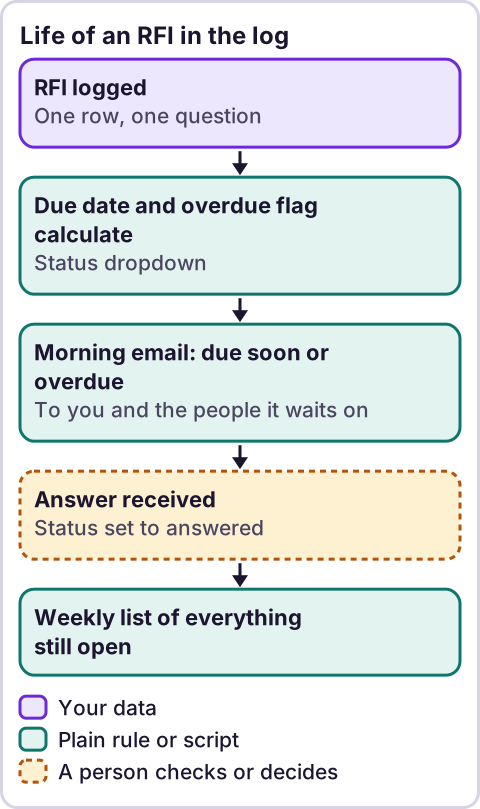
Diagram: Life of an RFI in the log.
What columns does an RFI log need?
Make one tab called RFI Log. Put these headers in row 1, in this order. The script reads the headers by name, so spell them exactly.
| Column | Header | What goes in it |
|---|---|---|
| A | RFI # | A number you assign. Keep them in order. |
| B | Project | Job name or number. |
| C | Subject | One line that says what you are asking. |
| D | Spec or drawing ref | The sheet or spec section the question affects. |
| E | Asked to (email) | The email of the person who owes the answer. |
| F | Date submitted | The day you sent it. |
| G | Due date | A formula. See below. |
| H | Status | A dropdown: Open, Answered, Closed. |
| I | Date answered | The day the answer came back. |
| J | Days open | A formula. See below. |
| K | Last reminder | The script writes this. Leave it empty. |
You may add columns after K, such as Cost impact, Schedule impact and Linked change order. The script ignores them. They matter, because an RFI that changes cost often ends up as a change order.
Make a second tab called Settings. Put these two values in it:
| Cell | What goes in it |
|---|---|
B1 | The number of days the contract gives for a response. Check your contract. |
B2 | The email address that gets the reminders. |
How do you make the due date and overdue flag calculate themselves?
Due date. Click cell G2 and enter this formula. Then drag it down, or double-click the corner square to fill the column.
=IF(F2="","",F2+Settings!$B$1)That adds calendar days. If your contract counts working days, use this one instead:
=IF(F2="","",WORKDAY(F2,Settings!$B$1))Days open. Click J2:
=IF(F2="","",IF(H2="Open",TODAY()-F2,IF(I2="","",I2-F2)))For an open RFI, it counts up to today. For an answered one, it shows how long the answer took. That second number is how you spot the reviewers who are slow.
Status dropdown. Select H2:H1000. Choose Data → Data validation → Add rule. Under Criteria, choose Dropdown. Enter Open, then click Add another item for Answered and Closed. Click Done.
Overdue color. Select A2:K1000. Choose Format → Conditional formatting. Under Format cells if, choose Custom formula is. In the Value or formula box, enter this:
=AND($H2="Open",$G2<TODAY())Pick a red fill and click Done. Every open RFI past its due date now turns red.
Google's help pages cover data validation and conditional formatting if a menu looks different on your screen. Menu names change, so check them there. Source checked October 30, 2026.
How do you make the log send its own reminders?
Open the sheet. Choose Extensions → Apps Script. Delete the sample code. Paste the script below. Choose Save.
If you have never used Apps Script, read what Google Apps Script is first. It takes five minutes.
// RFI reminders for a Google Sheet. Paste into Extensions > Apps Script.
const CONFIG = {
  LOG_SHEET: 'RFI Log',
  SETTINGS_SHEET: 'Settings',   // B1 = response days, B2 = owner email
  WARN_DAYS: 2,                 // remind when due in this many days or fewer
  RESEND_AFTER_DAYS: 2,         // do not remind about the same RFI more often
  EMAIL_OWNER: true,            // true = email the list to the owner in Settings!B2. Set false when you stop overseeing
  EMAIL_ASKED_PARTY: true       // true = also email the person each RFI waits on
};

function sendRfiReminders() {
  const ss = SpreadsheetApp.getActive();
  const sheet = ss.getSheetByName(CONFIG.LOG_SHEET);
  const owner = ss.getSheetByName(CONFIG.SETTINGS_SHEET).getRange('B2').getValue();
  const data = sheet.getDataRange().getValues();
  const col = headerMap_(data[0]);
  const today = startOfDay_(new Date());
  const due = [];

  for (let r = 1; r < data.length; r++) {
    const row = data[r];
    if (row[col['Status']] !== 'Open') continue;
    const dueDate = row[col['Due date']];
    if (!(dueDate instanceof Date)) continue;
    const daysLeft = Math.round((startOfDay_(dueDate) - today) / 86400000);
    if (daysLeft > CONFIG.WARN_DAYS) continue;
    const last = row[col['Last reminder']];
    if (last instanceof Date &&
        (today - startOfDay_(last)) / 86400000 < CONFIG.RESEND_AFTER_DAYS) continue;
    due.push({
      sheetRow: r + 1,
      rfi: row[col['RFI #']],
      project: row[col['Project']],
      subject: row[col['Subject']],
      askedTo: String(row[col['Asked to (email)']]).trim(),
      daysLeft: daysLeft
    });
  }
  if (due.length === 0) return;

  if (CONFIG.EMAIL_OWNER) {
    MailApp.sendEmail({
      to: owner,
      subject: 'RFIs due soon or overdue: ' + due.length,
      body: formatList_(due, true)
    });
  }

  if (CONFIG.EMAIL_ASKED_PARTY) {
    const byPerson = {};
    due.forEach(function (d) {
      if (d.askedTo) (byPerson[d.askedTo] = byPerson[d.askedTo] || []).push(d);
    });
    Object.keys(byPerson).forEach(function (email) {
      MailApp.sendEmail({
        to: email,
        subject: 'Reminder: open RFIs waiting on you',
        body: formatList_(byPerson[email], false)
      });
    });
  }

  due.forEach(function (d) {
    sheet.getRange(d.sheetRow, col['Last reminder'] + 1).setValue(today);
  });
}

function sendWeeklyRfiDigest() {
  const ss = SpreadsheetApp.getActive();
  const sheet = ss.getSheetByName(CONFIG.LOG_SHEET);
  const owner = ss.getSheetByName(CONFIG.SETTINGS_SHEET).getRange('B2').getValue();
  const data = sheet.getDataRange().getValues();
  const col = headerMap_(data[0]);
  const today = startOfDay_(new Date());
  const open = [];

  for (let r = 1; r < data.length; r++) {
    const row = data[r];
    if (row[col['Status']] !== 'Open') continue;
    const dueDate = row[col['Due date']];
    open.push({
      rfi: row[col['RFI #']],
      project: row[col['Project']],
      subject: row[col['Subject']],
      askedTo: String(row[col['Asked to (email)']]).trim(),
      daysLeft: dueDate instanceof Date
        ? Math.round((startOfDay_(dueDate) - today) / 86400000) : 9999
    });
  }
  open.sort(function (a, b) { return a.daysLeft - b.daysLeft; });
  const overdue = open.filter(function (d) { return d.daysLeft < 0; }).length;

  MailApp.sendEmail({
    to: owner,
    subject: 'Open RFIs: ' + open.length + ' (' + overdue + ' overdue)',
    body: open.length ? formatList_(open, true) : 'No open RFIs.'
  });
}

function setupRfiTriggers() {
  ScriptApp.getProjectTriggers().forEach(function (t) { ScriptApp.deleteTrigger(t); });
  ScriptApp.newTrigger('sendRfiReminders')
    .timeBased().everyDays(1).atHour(7).create();
  ScriptApp.newTrigger('sendWeeklyRfiDigest')
    .timeBased().onWeekDay(ScriptApp.WeekDay.MONDAY).atHour(7).create();
}

function headerMap_(headers) {
  const map = {};
  headers.forEach(function (h, i) { map[String(h).trim()] = i; });
  return map;
}

function startOfDay_(d) {
  return new Date(d.getFullYear(), d.getMonth(), d.getDate());
}

function formatList_(items, showAskedTo) {
  return items.map(function (d) {
    const n = Math.abs(d.daysLeft);
    const unit = n === 1 ? ' day' : ' days';
    const when = d.daysLeft < 0 ? n + unit + ' overdue'
      : d.daysLeft === 0 ? 'due today'
      : d.daysLeft === 9999 ? 'no due date'
      : 'due in ' + n + unit;
    return d.project + ' | RFI ' + d.rfi + ' | ' + d.subject + ' | ' + when +
      (showAskedTo && d.askedTo ? ' | waiting on ' + d.askedTo : '');
  }).join('\n');
}
Here is what each function does.
sendRfiReminderslooks at everyOpenRFI. If it is due in two days or fewer, or overdue, it adds it to a list. It emails that list to the address inSettings!B2, and emails each person a list of the RFIs that wait on them. It then writes today's date inLast reminder, so the same RFI is not repeated every day.sendWeeklyRfiDigestemails the whole open list, soonest due first, with the count of overdue items in the subject line.setupRfiTriggerscreates the two schedules. Run it once.
How do you turn it on?
- In the Apps Script toolbar, pick
setupRfiTriggersin the function dropdown. Choose Run. - Google asks you to authorize the script. It needs to read your sheet and send email as you. Read the screen and approve it, only if you wrote or checked the code.
- Check Triggers in the left menu. You should see two time-based triggers.
- Add a test row with an open status and a due date of tomorrow. Pick
sendRfiRemindersand choose Run. You should get an email.
The daily reminder runs between 7 and 8 AM in the script's time zone. The weekly list runs Monday in the same window. Google runs an atHour trigger anywhere inside that hour, not at an exact minute. Check the time zone under Project settings. Source: Google's ClockTriggerBuilder reference, checked October 30, 2026.
Who gets the email?
By default, two groups do. You get the full list at the address in Settings!B2, and each person an RFI waits on gets a list of their own open RFIs. Both emails go out from your account, so tell those people before you turn the script on, and edit the wording in sendRfiReminders so it sounds like you.
When you are ready to stop overseeing the chase, set EMAIL_OWNER: false. The script then emails only the people the RFIs wait on, and you stop getting the daily list. That is your choice to make, and you can change it back at any time. The weekly digest is separate and still goes to you. To stop it too, delete the weekly trigger under Triggers. If you want to start with reminders to yourself only, set EMAIL_ASKED_PARTY: false for the first few weeks.
Where does an LLM fit in an RFI log?
Not in the reminders. The reminder is a rule: if the status is open and the date has passed, send the email. A plain script runs that well, and you can check it.
The one place an LLM can help is at the start, when an RFI arrives as a messy email. It could read the email and fill in the subject, spec reference and a draft due date. A person should check those fields before the row is saved. If you do not have that problem, skip it.
Where this has limits
- Email quotas.
MailApplimits how many recipients you can email per day. Google lists 100 per day for consumer accounts and 1,500 per day for Google Workspace accounts. A daily summary email to yourself uses one. Source: Apps Script quotas, checked October 30, 2026. Quotas change, so recheck the page. - Run time. A script run is limited to 6 minutes. A log of a few hundred rows finishes in seconds.
- Response periods are contract terms. The due date formula uses the number you put in
Settings!B1. Your contract or specifications set the real period. Check them. This post is not contract or legal advice. - It does not replace the answer. The script reminds you. It does not tell the design team why the question matters. Keep the RFI itself clear.
- One person owns it. If the script fails, the reminder stops. Check the Executions page in Apps Script now and then, and put one person in charge of it.
- When to buy software instead. If your team needs to send RFIs with drawing markups, route them through an approval chain and keep them in a system the owner can see, project management software is built for that. A sheet is the right size when you track and chase. It is not the right size for a large team that needs controlled routing.
- Test it first. The script was checked for logic and syntax with mock data. Run it on a copy of your sheet before you trust it with live jobs.
If you want this log built for your own project forms, with the chase running without you, you can apply on /letstalk. Bring your RFI log and a note on how you chase answers today, such as who you email, how often and what slips. Do not send drawings or owner documents. We will not need them to see the process.
For where to start, read what to automate first.
Frequently asked questions
Do we already have project software? Why use a sheet?
Use your software if it sends the reminders you need. Many teams keep their software and run a sheet beside it for one gap, such as a weekly open-RFI list. If your software already does that, you do not need this.
My field team won't use another log. What do I do?
They do not have to. The log is for the person who sends and chases RFIs. The field team keeps asking you. You enter the question once, and the sheet watches it. If the field team needs to see status, share the sheet as view only.
I don't have time to set this up. How long does it take?
The sheet and formulas are a short job. The script is a paste, one run and one test. Plan for an hour with the test. If your forms or approval steps are more complicated, that is when to bring in help.
Can the script chase the architect for me?
Yes. With EMAIL_ASKED_PARTY: true, which is the default in this script, it emails each person a list of the RFIs that wait on them. Tell them first. If you want to start with reminders to yourself only, set it to false. When you are ready to stop getting the daily list, set EMAIL_OWNER: false.
What counts as an overdue RFI?
An RFI with status Open and a due date before today. The due date comes from the response period you set in Settings!B1. If your contract uses working days, switch the formula to WORKDAY.
Is this advice about contracts or delays?
No. It tracks and organizes. The habits in this post match how one public owner runs RFIs formally: New York State DOT's Construction Administration Manual, for example, has RFIs numbered in order, logged, one issue per RFI and answered inside the stated time (NYSDOT CAM Section 91: https://www.dot.ny.gov/main/business-center/contractors/construction-division/construction-repository/CAM_Sect91.pdf, checked October 30, 2026). It is one public owner's manual, shown as an example, not a universal rule; practices vary by owner, contract and state. Rules about response times, notice and delay claims depend on your contract and your state. Check with an attorney or your contract administrator.
Read next: Gmail labels by job number if the RFI emails themselves are hard to find, and the paperwork map for where this log sits with the rest of the office paper.