Blog / Product Brand Operations
Send Shopify Orders to Google Sheets Without a Paid App
By Keyona Meeks, Founder, ReRev Labs · Oct 31, 2026 · 10 min read
The short answer: The free, official way to get Shopify orders out is the CSV export on the Orders page. Download it, paste the rows into a tab of your Google Sheet, then run a short script that turns the export, which has one row per line item, into one row per order. It skips orders already listed, so you can repeat it each week. This is a manual route, not a live feed. I tested the script with a mock in Node, not in Google, and I did not test it on a real Shopify export. I did not cover Shopify webhooks, and I explain why below.
By the end of this post, you'll be able to:
- Export orders from Shopify to a CSV file.
- Set up a sheet that holds the raw export and a clean one-row-per-order tab.
- Run a script that adds only the new orders.
- Know what this route cannot do.
We sell operations builds for product brands, so weigh this post with that in mind. This post names no paid app and I did not review any. Shopify's information is as of October 31, 2026. Check it again before you rely on it.
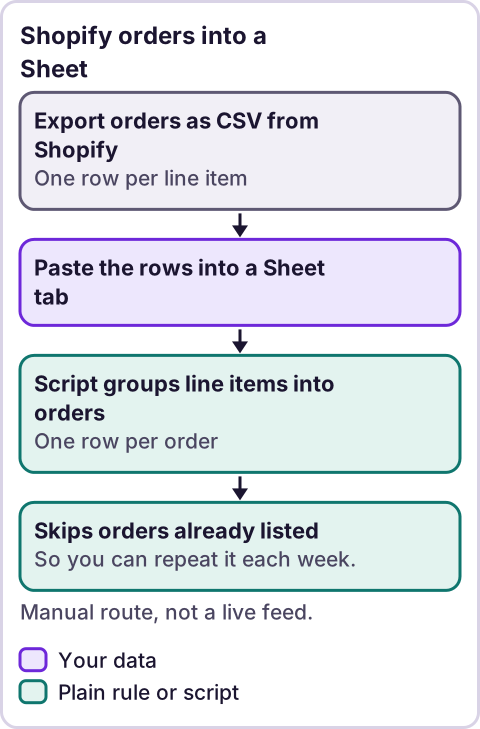
Diagram: Shopify orders into a Sheet.
How do you export orders from Shopify?
I read Shopify's help article on exporting orders. The tool returned excerpts, not the full page. It describes these steps. Sort and filter your orders. From the Orders page, "click Export." In the Export orders window, "Select the option for the orders that you want to export." Under "Export as," choose a file format. Then, to get all order information, click "Export orders." There is a separate button for "Export transaction histories."
On delivery, the article says: "If you select to export up to 50 orders or the current page of orders, then the CSV file is downloaded to your device." For more than 50 orders, or an export by date, the file is emailed to you and the store owner. On the format, I did not find this sentence on the orders page. Shopify's separate Exporting products help page says: "A CSV file with UTF-8 encoding is the only file format that can be used to import to or export from Shopify." That page is about products, so treat it as a general statement about Shopify CSV files. The article leaves the exact count of 51 orders unclear.
The orders article has a table titled "Order export CSV structure." I read the full table, and the six headings in the script's HEADERS block appear in it exactly as written: Name, Email, Financial Status, Total, Created at and Lineitem quantity. Shopify can change its export, and your file may differ, so open your own file and check the headings before you run the script.
The first Shopify page I tried was not on my tool's allowlist, so I did not use it. The article above came from a different address.
What does the export look like?
A Shopify export has one row for each line item, not one row for each order. An order with three products spans three rows. In the exports I know of, the order-level facts, such as the total, appear on the first row of the order. I could not confirm that from Shopify's article, so check your file. The script handles it by taking the first non-empty value for each order, and by adding up the quantity on every row.
How do you set up the sheet?
- Make two tabs:
Raw ExportandOrders. - Open the CSV file you downloaded. Select all, copy, and paste it into
Raw Exportat cell A1. I did not confirm a menu route for importing a CSV into Google Sheets, so copy and paste is the route I give. - Compare the headings in row 1 of
Raw Exportwith theHEADERSblock in the script below. Change the text on the right so it matches your file exactly. - Run the script. It makes the first row of
Ordersif that tab is empty. - For the next export, clear
Raw Exportand paste the new file. Run the script again. It adds only orders it has not seen.
Keep one export in Raw Export at a time. If you paste two exports together, the same order's line items would be counted twice.
What does the script look like?
Nothing in it runs until you call importOrders.
// Turns a pasted Shopify orders export (one row per line item) into one row per order.
// Reads the "Raw Export" tab. Adds new orders to the "Orders" tab. Skips orders already there.
var RAW_TAB = 'Raw Export';
var ORDERS_TAB = 'Orders';
var INCLUDE_EMAIL = false; // Set to true only if the people who open this sheet should see customer emails.
var MAX_NEW = 200;         // Most new orders added in one run.
var HEADERS = {            // Change the text on the right to match the headings in YOUR export.
  order: 'Name',
  created: 'Created at',
  email: 'Email',
  financial: 'Financial Status',
  total: 'Total',
  qty: 'Lineitem quantity'
};

function findColumns(headerRow) {
  var need = ['order', 'created', 'financial', 'total', 'qty'];
  if (INCLUDE_EMAIL) need.push('email');
  var idx = {};
  need.forEach(function (key) {
    var i = headerRow.indexOf(HEADERS[key]);
    if (i === -1) throw new Error('Missing column in Raw Export: ' + HEADERS[key]);
    idx[key] = i;
  });
  return idx;
}

function groupOrders(rows, idx) {
  var order = [];
  var groups = {};
  rows.forEach(function (row) {
    var name = String(row[idx.order]).trim();
    if (name === '') return;
    var g = groups[name];
    if (!g) {
      g = groups[name] = { name: name, created: '', email: '', financial: '', total: '', qty: 0 };
      order.push(name);
    }
    ['created', 'financial', 'total', 'email'].forEach(function (key) {
      if (idx[key] === undefined) return;
      if (g[key] === '' && row[idx[key]] !== '' && row[idx[key]] !== null) g[key] = row[idx[key]];
    });
    g.qty += Number(row[idx.qty]) || 0;
  });
  return order.map(function (name) { return groups[name]; });
}

function importOrders() {
  var ss = SpreadsheetApp.getActiveSpreadsheet();
  var raw = ss.getSheetByName(RAW_TAB);
  var out = ss.getSheetByName(ORDERS_TAB);
  if (!raw) throw new Error('No tab named ' + RAW_TAB);
  if (!out) throw new Error('No tab named ' + ORDERS_TAB);

  var rawValues = raw.getDataRange().getValues();
  if (rawValues.length < 2) throw new Error('Raw Export has no data rows.');
  var idx = findColumns(rawValues[0]);
  var orders = groupOrders(rawValues.slice(1), idx);

  var headerRow = ['Order', 'Created', 'Financial status', 'Total', 'Items'];
  if (INCLUDE_EMAIL) headerRow.splice(2, 0, 'Email');
  if (out.getLastRow() === 0) out.appendRow(headerRow);

  var existing = {};
  out.getDataRange().getValues().slice(1).forEach(function (r) { existing[String(r[0])] = true; });

  var added = 0;
  var skipped = 0;
  for (var i = 0; i < orders.length; i++) {
    var o = orders[i];
    if (existing[o.name]) { skipped++; continue; }
    if (added >= MAX_NEW) break;
    var line = [o.name, o.created, o.financial, o.total, o.qty];
    if (INCLUDE_EMAIL) line.splice(2, 0, o.email);
    out.appendRow(line);
    existing[o.name] = true;
    added++;
  }
  var result = { added: added, skipped: skipped, orders: orders.length };
  console.log(JSON.stringify(result));
  return result;
}
What it does:
- It finds each column by the heading you set. It stops with a message that names the missing heading.
- It groups rows by order name, adds up the quantity, and takes the first non-empty created date, status and total.
- It leaves customer emails out unless you set
INCLUDE_EMAILto true. The export holds customer details, so think about who opens this sheet. - It skips orders already in
Orders, and adds at most 200 new ones per run.
Google's descriptions, as I read them in the method tables this session: SpreadsheetApp.getActiveSpreadsheet() "Returns the currently active spreadsheet, or null if there is none." getSheetByName(name) "Returns a sheet with the given name." getDataRange() "Returns a Range corresponding to the dimensions in which data is present." getValues() "Returns the rectangular grid of values for this range." getLastRow() "Returns the position of the last row that has content." appendRow(rowContents) "Appends a row to the bottom of the current data region in the sheet."
What does this route not do?
- It is not live. You export, paste and run it by hand.
- It does not update old rows. If an order's status changes later, say from pending to paid, the row already in
Orderskeeps the old value. Delete that row, clear and re-paste a fresh export that includes the order, and run the script again. - It is capped. A Shopify export covers what you select, and the script adds 200 new orders per run.
- It adds nothing about refunds, shipping or tax. I kept the columns few on purpose.
Why not use Shopify webhooks?
A webhook would send each new order to a web address on its own. Shopify's webhook documentation was not on my tool's allowlist, so I could not read it. The pages I found by search were from companies other than Shopify, and I did not use them. I also could not confirm that a Google Apps Script web app can check the signature Shopify says it adds to each webhook. If it cannot, anyone who finds the address could post fake orders into your sheet. Until I can read Shopify's documentation and test this, I do not recommend that route here.
Who should see this sheet?
You decide. It holds order numbers, dates and totals, and optionally emails. Share it only with the people who need it, and ask them first before you add them. Do not assume they want access.
Where does an LLM fit in this?
An LLM can help with the messy part: reading your export's headings and suggesting how they map to the HEADERS block, or summarizing a free-text order note. A person has to check the mapping against the file, because an LLM can pick a similar heading and sound sure. Do not paste a real customer export into an LLM tool unless your own privacy rules allow it. The grouping, the counting and the skip rule are plain rules, and they do the same thing every time. My stance: AI writes the code, plain automation runs it, and an LLM shows up only where the input is messy and a person checks the result. For the thinking behind dropping paid tools, see how to replace paid software subscriptions, and for where to start, see what to automate first.
How do you test it?
- Make a Shopify export of five orders, at least one with more than one product.
- Paste it into
Raw Export. Check that the headings matchHEADERS. - Run
importOrders. Count the rows inOrdersagainst the orders in the file. - Check one multi-product order: the item count should equal the sum of its quantities.
- Run it again. It should add nothing.
- Break a heading by one letter and run it. You should see the missing-column message. Then fix it.
- Delete the test rows when you are done.
What did the test show?
I tested the script in Node with a mock of Sheets and a made-up export. All 14 checks passed. They covered quantities summed across line items, order facts taken from the first non-empty row, a blank row being ignored, text quantities, emails left out by default and added on request, an existing order being skipped, a header being created on an empty tab, a missing heading, an export with no data, missing tabs, the 200-order cap, numeric order names and banned punctuation. The mock does not use a real Shopify file, and the made-up file follows my assumption about its layout. That is why the steps above ask you to check your own export.
Where this has limits
- Nothing was run in Google. The test was a mock in Node.
- I did not test a real Shopify export. The made-up layout is an assumption.
- Shopify's help pages were read as of October 31, 2026. The step-by-step part of the orders article came back as excerpts. The column table was read in full. Check your own export.
- Webhooks are not covered. I could not read Shopify's webhook documentation.
- It is manual and not live.
- It reads customer data. Control who can open the sheet and the script.
- No ReRev prices and no promises about results.
If you want help turning this into a system that keeps your order data current, see our AI operations service or tell us what you pull from your orders. Do not send customer exports, API keys, passwords or login details.
Frequently asked questions
Can I get Shopify orders into Google Sheets for free?
Yes, by exporting a CSV from the Orders page and pasting it into a sheet. This post adds a script that makes one row per order.
Is the export live?
No. You export and paste each time.
Why does the export have more than one row per order?
Because the export lists line items. This script groups them by order name.
Will the script create duplicates if I run it twice?
No. It skips orders already in the Orders tab.
Does this use Shopify webhooks?
No. I could not read Shopify's webhook documentation, so I left that route out.
Is my customers' email safe in this sheet?
The script leaves emails out by default. Whoever can open the sheet can see whatever you put in it, so control access.
Read next: Order confirmation emails from a sheet and the daily sales summary are two useful things to do with the orders once they land.