Blog / Technical Guides
Build an Approval Workflow in Google Workspace (Forms, Sheets, Gmail)
By Keyona Meeks, Founder, ReRev Labs · Oct 31, 2026 · 11 min read
The short answer: A Google Form collects the request into a Sheet. A script gives each request a random token, emails the approver a summary with an Approve link and a Decline link, and records the decision, the time and an audit row when the approver clicks and confirms. A second script sends one reminder if nothing happens within a day. The links open a page that asks for confirmation, so merely opening a link does not decide anything. I tested the script with a mock in Node and have not run it in Google, so run the test steps first. This is a tracking tool. It does not give anyone legal or financial authority.
By the end of this post, you'll be able to:
- Set up a form and a sheet that hold requests and their status.
- Install a script that emails Approve and Decline links.
- Keep an audit row for every event.
- Know what the audit trail does not prove.
An approval is a small thing that stalls often. Someone sends a request, the approver sees it between meetings, and nobody knows whether it was seen. This workflow does four things: it records the request, asks the right person, records the answer, and nudges once. It does not decide for anyone.
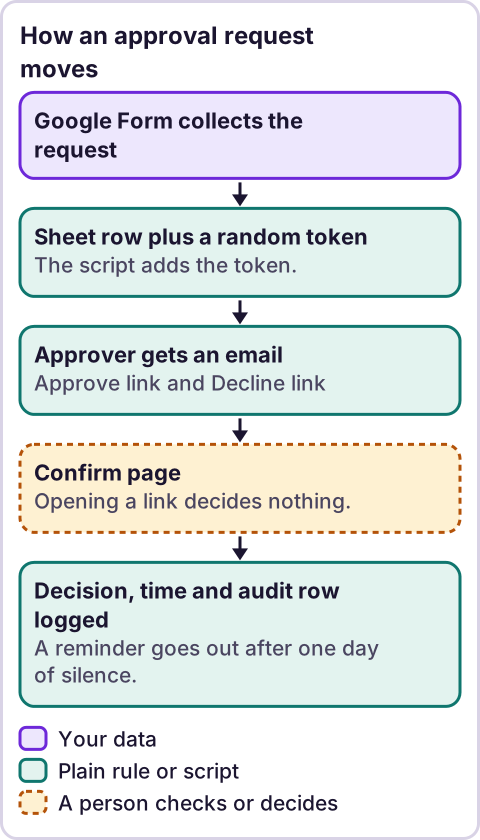
Diagram: How an approval request moves.
What does an approval workflow need?
- A request with the same fields every time.
- One approver who is named in the script, not guessed.
- A status that is Pending, Approved or Declined, and nothing else.
- A record of what happened and when.
- A nudge if nobody answers.
Everything else is decoration. Start with one approver and one kind of request. Add a second approver only after the first works.
How do you set up the form and the sheet?
Make a Google Form with the questions you need. The script below expects these question titles: Item, Amount and Reason. If you want the requester to get an email when the decision is made, the form also needs to collect an email address, and the response sheet column must be named Email Address. I did not confirm from a Google page how a form collects email addresses or what the column is called, so check your response sheet and change the name in the script if it differs.
Link the form to a Sheet. On the response tab, add four headings to the right of the form columns: Status, Token, Decided at and Reminded at. Add a second tab named Audit with the headings When, Event, Token and Details.
The script finds columns by their headings, not their position, so you can reorder them. If a heading is missing, the script stops and says which one.
Why does the Approve link open a page that asks to confirm?
Because opening a link and making a decision are different things. Some mail systems and security tools open links in a message to check them. I did not test whether yours does. If the Approve link decided the request the moment it was opened, a tool could approve something nobody read. So the link only shows the request and a Confirm button. The button sends the decision.
Google's documentation on web apps describes the two entry points. A web app needs a function that "contains a doGet or doPost function," and "when a program sends the app an HTTP POST request, Apps Script runs doPost instead." Opening a link is a GET. A button on a page that posts a form is a POST. Source: Web apps, read on October 31, 2026.
What does Google's documentation say about the pieces?
I read these pages on October 31, 2026. Some came back as excerpts, and I say where.
- Web app functions. "The function returns an HTML service HtmlOutput object or a Content service TextOutput object." Request values arrive in
e.parameter, "An object of key/value pairs that correspond to the request parameters." Source: Web apps. - Who the script runs as. For a web app set to run as you, "the script always executes as you, the owner of the script, no matter who accesses the web app." Source: same page.
- The form-submit event.
namedValuesis "An object containing the question names and values from the form submission," andrangeis a range object for the affected cells. The page cautions: "Make sure you use this form submit trigger withSpreadsheetTriggerBuilder." Source: Event objects, read in two parts because the page is long. - Email.
MailApp.sendEmail(recipient, subject, body)is "Sends an email message."getRemainingDailyQuota()"Returns the number of recipients you can send emails to for the rest of the day." Source: Class MailApp, an excerpt; the page cut off inside thesendEmailsection. - The token.
Utilities.getUuid()is "Get a UUID as a string (equivalent to using thejava.util.UUID.randomUUID()method)." Source: Class Utilities, an excerpt.
What I could not confirm: the deployment settings for who can open the web app, and where they sit in the editor. The page I read describes who the script runs as, but not the access options. I also did not read the reference pages for the Sheet, lock, HTML service or trigger-builder methods the script uses. Test each step.
From an earlier review of Google's quotas page: email recipients are 100 per day for a consumer account and 1,500 for Workspace, and "All quotas are subject to elimination, reduction, or change at any time, without notice." Check the live page.
What is the script?
// Approval workflow: Form -> Sheet -> email with Approve / Decline links -> audit trail -> one reminder.
// Add these headings to the right of the form columns on the response tab: Status, Token, Decided at, Reminded at.
// Add a tab named Audit with headings: When, Event, Token, Details.
const APPROVER_EMAIL = 'PASTE_APPROVER_EMAIL';
const WEB_APP_URL = 'PASTE_WEB_APP_URL_AFTER_DEPLOYING';
const SHEET_NAME = 'Form Responses 1';
const AUDIT_SHEET_NAME = 'Audit';
const SHOW_COLUMNS = ['Item', 'Amount', 'Reason'];
const REQUESTER_EMAIL_COLUMN = 'Email Address';
const REMIND_AFTER_HOURS = 24;
const MAX_REMINDERS_PER_RUN = 10;
const COL = { time: 'Timestamp', status: 'Status', token: 'Token', decided: 'Decided at', reminded: 'Reminded at' };
function onFormSubmit(e) {
withLock_(function () {
const ctx = open_();
const row = e.range.getRow();
const token = Utilities.getUuid();
ctx.sheet.getRange(row, ctx.at.status + 1).setValue('Pending');
ctx.sheet.getRange(row, ctx.at.token + 1).setValue(token);
audit_('Submitted', token, 'row ' + row);
try {
sendApprovalEmail_(ctx, row, token, false);
} catch (err) {
audit_('ERROR', token, 'approval email failed: ' + err.message);
}
});
}
function doGet(e) {
const p = (e && e.parameter) || {};
const ctx = open_();
const row = findPendingRow_(ctx, p.t);
if (!row || (p.a !== 'approve' && p.a !== 'decline')) {
return page_('This request is not waiting for a decision.');
}
const verb = p.a === 'approve' ? 'Approve' : 'Decline';
const html = '<p>' + esc_(verb) + ' this request?</p><pre>' + esc_(summary_(ctx, row)) + '</pre>' +
'<form method="post" action="' + esc_(WEB_APP_URL) + '">' +
'<input type="hidden" name="t" value="' + esc_(p.t) + '">' +
'<input type="hidden" name="a" value="' + esc_(p.a) + '">' +
'<button type="submit">Confirm: ' + esc_(verb) + '</button></form>';
return HtmlService.createHtmlOutput(html);
}
function doPost(e) {
const p = (e && e.parameter) || {};
let message = 'This request is not waiting for a decision.';
withLock_(function () {
const ctx = open_();
const row = findPendingRow_(ctx, p.t);
if (!row || (p.a !== 'approve' && p.a !== 'decline')) { return; }
const result = p.a === 'approve' ? 'Approved' : 'Declined';
ctx.sheet.getRange(row, ctx.at.status + 1).setValue(result);
ctx.sheet.getRange(row, ctx.at.decided + 1).setValue(new Date());
audit_(result, p.t, 'decided through the link');
message = 'Recorded: ' + result + '.';
try {
const requester = String(ctx.sheet.getRange(row, ctx.at.requester + 1).getValue()).trim();
if (requester) {
MailApp.sendEmail(requester, 'Your request was ' + result.toLowerCase(), summary_(ctx, row));
}
} catch (err) {
audit_('ERROR', p.t, 'requester email failed: ' + err.message);
}
});
return page_(message);
}
function sendReminders() {
withLock_(function () {
const ctx = open_();
const values = ctx.sheet.getDataRange().getValues();
const cutoff = Date.now() - REMIND_AFTER_HOURS * 3600 * 1000;
let sent = 0;
for (let i = 1; i < values.length && sent < MAX_REMINDERS_PER_RUN; i++) {
const r = values[i];
const waiting = String(r[ctx.at.status]).trim() === 'Pending';
const reminded = String(r[ctx.at.reminded]).trim() !== '';
const old = new Date(r[ctx.at.time]).getTime() < cutoff;
if (!waiting || reminded || !old) { continue; }
sent++;
const token = String(r[ctx.at.token]);
try {
sendApprovalEmail_(ctx, i + 1, token, true);
ctx.sheet.getRange(i + 1, ctx.at.reminded + 1).setValue(new Date());
audit_('Reminder sent', token, 'row ' + (i + 1));
} catch (err) {
audit_('ERROR', token, 'reminder failed: ' + err.message);
}
}
});
}
function setupApprovalTriggers() {
ScriptApp.getProjectTriggers().forEach(function (t) {
const fn = t.getHandlerFunction();
if (fn === 'onFormSubmit' || fn === 'sendReminders') { ScriptApp.deleteTrigger(t); }
});
ScriptApp.newTrigger('onFormSubmit').forSpreadsheet(SpreadsheetApp.getActive()).onFormSubmit().create();
ScriptApp.newTrigger('sendReminders').timeBased().everyMinutes(30).create();
}
function open_() {
const sheet = SpreadsheetApp.getActive().getSheetByName(SHEET_NAME);
if (!sheet) { throw new Error('No tab named ' + SHEET_NAME); }
const head = sheet.getDataRange().getValues()[0].map(function (h) { return String(h).trim(); });
const at = {};
Object.keys(COL).forEach(function (k) { at[k] = head.indexOf(COL[k]); });
at.requester = head.indexOf(REQUESTER_EMAIL_COLUMN);
const show = SHOW_COLUMNS.map(function (n) { return head.indexOf(n); });
const missing = Object.keys(COL).filter(function (k) { return at[k] < 0; }).map(function (k) { return COL[k]; })
.concat(SHOW_COLUMNS.filter(function (n, i) { return show[i] < 0; }));
if (missing.length) { throw new Error('Missing columns: ' + missing.join(', ')); }
return { sheet: sheet, head: head, at: at, show: show };
}
function findPendingRow_(ctx, token) {
if (!token) { return 0; }
const values = ctx.sheet.getDataRange().getValues();
for (let i = 1; i < values.length; i++) {
if (String(values[i][ctx.at.token]) === String(token)) {
return String(values[i][ctx.at.status]).trim() === 'Pending' ? i + 1 : 0;
}
}
return 0;
}
function summary_(ctx, row) {
const values = ctx.sheet.getRange(row, 1, 1, ctx.head.length).getValues()[0];
return SHOW_COLUMNS.map(function (n, i) { return n + ': ' + values[ctx.show[i]]; }).join('\n');
}
function sendApprovalEmail_(ctx, row, token, isReminder) {
const t = encodeURIComponent(token);
const body = summary_(ctx, row) + '\n\nApprove: ' + WEB_APP_URL + '?a=approve&t=' + t +
'\nDecline: ' + WEB_APP_URL + '?a=decline&t=' + t +
'\n\nEach link opens a page that asks you to confirm.';
const values = ctx.sheet.getRange(row, 1, 1, ctx.head.length).getValues()[0];
const subject = (isReminder ? 'Reminder: ' : '') + 'Approval needed: ' + values[ctx.show[0]];
MailApp.sendEmail(APPROVER_EMAIL, subject, body);
}
function audit_(event, token, details) {
SpreadsheetApp.getActive().getSheetByName(AUDIT_SHEET_NAME).appendRow([new Date(), event, token, details]);
}
function withLock_(fn) {
const lock = LockService.getScriptLock();
if (!lock.tryLock(10000)) { throw new Error('busy, try again'); }
try { fn(); } finally { lock.releaseLock(); }
}
function page_(text) {
return HtmlService.createHtmlOutput('<p>' + esc_(text) + '</p>');
}
function esc_(s) {
return String(s).replace(/&/g, '&').replace(/</g, '<').replace(/>/g, '>').replace(/"/g, '"');
}Replace the two PASTE_ values. You get the second one after you deploy.
How do you install it?
- Open the Apps Script editor from your Sheet. I could not confirm a menu path from the pages I read, so follow Google's current help.
- Paste the script, set
APPROVER_EMAILand save. - Deploy it as a web app. I could not confirm the deployment screen or its access options, so follow Google's current help. The approver must be able to open the link, which may mean the app must be open to people outside your organization. Decide that on purpose.
- Paste the web app address into
WEB_APP_URLand save again. - Run
setupApprovalTriggersonce. Google asks you to allow the script to use your Sheet and your mail. Read the list and approve it only if you agree. Google says scopes are "determined automatically by scanning the script code," per an earlier review. - The script adds a form-submit trigger and a 30-minute reminder check. Google's documentation lists 1, 5, 10, 15 and 30 as the allowed values for
everyMinutes, per an earlier review.
Installable triggers "always run under the account of the person who created them," per an earlier review. So the emails come from whoever ran step 5.
How do you test it?
- Submit the form once with test values, and use your own address as the approver.
- Check that the row says Pending, has a token, and that an email arrived with both links.
- Click Approve. You should land on a page that asks you to confirm. Check that the row is still Pending.
- Click Confirm. The row should say Approved with a time, and the Audit tab should have a new line.
- Click the same link again. The page should say the request is not waiting for a decision.
- Submit a second request, click Decline, confirm, and check the status.
- Submit a third and leave it. Set
REMIND_AFTER_HOURSto a small number for the test, runsendRemindersby hand, and check that one reminder arrives. Run it again and check that nothing more is sent. - Forward one email to a different account and open the link there. Note what happens. This is how you learn who can decide.
- Delete the test rows.
What did my mock test cover?
I wrote a Node harness that stands in for the Sheet, mail, lock, trigger service and web app output, and ran 40 checks. They covered: a submission gets Pending, a token and an email with both links; opening a link shows a confirmation page and changes nothing; an unknown token, a missing token and a bad action show the "not waiting" page; confirming records Approved or Declined, a time and an audit row; the requester is told; a second click cannot flip a decision; a decision affects only its own row; request text is escaped in the page; only old, pending, not-yet-reminded rows get a reminder; each row gets one; no more than 10 reminders go out per run; a failed email is written to the audit tab, and a failed reminder is not marked as sent; a failed email to the requester does not undo the decision; a missing column stops with a clear message and releases the lock; a busy lock does nothing; and the trigger setup removes only its own triggers. All 40 passed.
That proves the logic against my assumptions about Google's behavior. It does not prove the script runs in Google. The mock cannot tell me how Google serves the page, who can open the link, or how the form-submit trigger behaves with your form.
What does the audit trail show, and what does it not?
The Audit tab gets a row for each submission, decision, reminder and error, with a time and the request's token. That is a useful record of what the script did.
It does not prove who clicked. The script has no way to know. Anyone who has the email can use the link, including someone it was forwarded to, and the token never expires. The script is also not tamper-proof: anyone with edit access to the sheet can change the audit rows. If the decision matters legally or financially, this is not enough, and you should ask your attorney or your auditor what record you need.
Who should get the reminder?
Whoever you put in APPROVER_EMAIL. I have not decided that for you. A reminder to the approver is one thing. A copy to the requester's manager is another, and some teams will not want that. Ask the people involved before you set the recipient, and tell the requester that reminders exist.
What should a person still do?
- Decide. The script records an answer. It does not judge a request.
- Check the amount and the reason. The form takes whatever is typed.
- Handle exceptions. Rush requests, absent approvers and disputes need a person.
- Review the log. Someone should look at the Audit tab now and then.
Where does an LLM fit in this?
An LLM can help with the messy part: reading a free-text reason and drafting a one-line summary for the approver, or flagging a request that looks incomplete. A person should read the original, because a summary can drop the one detail that matters. The token, the links, the status and the reminder are plain rules, and they do the same thing every time. My stance: AI writes the code, plain automation runs it, and an LLM shows up only where the input is messy and a person checks the result. For the thinking behind reminders like this one, see the follow-up engine, and for a primer on the tool behind the script, see what Google Apps Script is.
Where this has limits
- I did not run this script in Google. The mock test used my own stand-ins for Google's services.
- Several Google pages were read as excerpts. The events page was read in two parts and the MailApp page cut off.
- I could not confirm the web app access options, the menu paths, or how a form collects email addresses. I also did not read the reference pages for the Sheet, lock, HTML service or trigger-builder methods.
- The trigger, scope,
everyMinutesand quota lines are from an earlier review. Check the live pages. - The links are not tied to a person. Anyone with the email can decide, and links do not expire.
- The audit tab can be edited by anyone with sheet access.
- This is not a substitute for legal, financial or audit controls. Check with an attorney or an auditor if the approval carries weight.
- No ReRev prices and no promises about results.
If you want help setting this up, see our AI operations service or tell us which requests stall. Do not send request details, passwords or login details.
Frequently asked questions
Can Google Forms send an approval request by email?
Not by itself in the way this post describes. A script can read each submission and email the approver links. This post gives a script and a test.
Why does the link ask me to confirm?
So that opening a link does not decide anything. The Confirm button sends the decision.
Can the approver approve from their phone?
If they can open the link and the page loads, yes. I did not test it.
Does the audit trail prove who approved?
No. It records that someone with the link confirmed. The script cannot tell who.
How many reminders are sent?
One per request, after the number of hours you set.
Can I add a second approver?
Not in this version. Get one approver working first.
Read next: The change order log is the construction approval this workflow can carry, the purchase order tracker chases suppliers once approval lands, and the timestamp checkbox stamps the approval moment automatically.