Blog / Construction Operations
Change Order Log That Tracks Approvals (Google Sheets + Gmail)
By Keyona Meeks, Founder, ReRev Labs · Oct 31, 2026 · 9 min read
The short answer: Make one Google Sheet with a row per change order. Give each row a number, a project, a description, a dollar impact, an approver, the date you sent it, a status and a date decided. Add a formula for days waiting. Then add a short script that emails you when a change order has waited too long. The sheet tracks the work. It does not tell you what your contract requires.
By the end of this post, you'll be able to:
- Build a change order log with the columns that matter.
- Add a status dropdown, a days-waiting formula and color for old items.
- Total pending and approved dollars by project.
- Install a script that sends reminders and a weekly digest.
A change order is easy to start and easy to lose. The owner says yes on a site walk. The crew does the work. Three weeks later nobody can say who approved it, what it cost or whether the paper was ever signed. Then it is an argument.
A log does not fix that on its own. It does give you one place to see what is waiting, on whom, for how long and for how much. This post builds that log in Google Sheets, and adds a script that chases the items that stall.
I sell build work, so you should know where I stand. This sheet is free to copy from this post and you can run it without us.
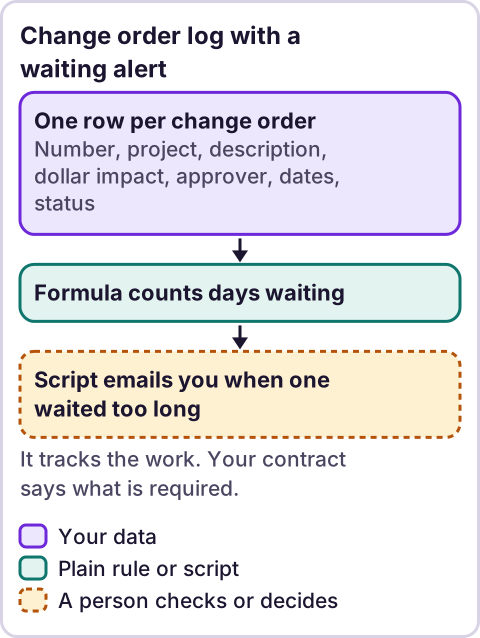
Diagram: Change order log with a waiting alert.
What columns does a change order log need?
Make a tab called Change Orders. Put these headers in row 1, in this order:
| Column | Header | What goes in it |
|---|---|---|
| A | CO # | Your own number for the change order |
| B | Project | The job name or number |
| C | Description | One line on what changed |
| D | Dollar impact | A number. Use a minus sign for a credit |
| E | Approver (email) | The person who has to say yes |
| F | Date submitted | The day you sent it for approval |
| G | Status | Draft, Pending approval, Approved, Rejected or Withdrawn |
| H | Date decided | The day it was approved or rejected |
| I | Days pending | A formula, below |
| J | Last reminder | The script fills this in. Leave it empty |
Keep the header names exactly as written. The script finds columns by their header text.
Two habits matter more than the columns. Enter a row the day the change is requested, even if it is still a Draft. And enter the dollar impact as a plain number, with no $ and no words, so the sheet can add it up.
How do you add a status dropdown?
- Select the cells in column G, from G2 down.
- Click Data, then Data validation, then Add rule.
- Under Criteria, choose Dropdown.
- Add the five statuses:
Draft,Pending approval,Approved,Rejected,Withdrawn. - Click Done.
The script looks for the exact text Pending approval. A dropdown keeps people from typing pending or Pending Approval and slipping past it. Menus in Google Sheets change, so see Google's help page on dropdown lists if yours looks different.
How do you count days waiting?
Put this in I2 and fill it down:
=IF(F2="","",IF(G2="Pending approval",TODAY()-F2,IF(H2="","",H2-F2)))While a change order is pending, the cell counts days since you sent it. Once someone decides, it shows how many days the decision took. If there is no submit date, it stays blank.
Format column I as a plain number. If it shows a date, select the column and choose Format, Number, Number.
How do you color the old ones?
Use conditional formatting so the stuck items stand out.
- Select the rows of data, for example A2:J500.
- Click Format, then Conditional formatting.
- Under Format cells if, choose Custom formula is.
- Enter
=AND($G2="Pending approval",$I2>=5). - Pick a fill color and click Done.
Change the 5 to the number of days that fits your jobs. The script has its own setting for the same number, so keep the two the same. Google explains the steps in its conditional formatting help.
How do you total the dollars by project?
Add a tab called Summary. List your project names in column A. In B2 and C2, use:
=SUMIFS('Change Orders'!$D:$D,'Change Orders'!$B:$B,$A2,'Change Orders'!$G:$G,"Approved")
=SUMIFS('Change Orders'!$D:$D,'Change Orders'!$B:$B,$A2,'Change Orders'!$G:$G,"Pending approval")
Label B "Approved" and C "Pending approval", then fill both down. The first formula adds approved change orders for that project. The second adds the ones still waiting. A cell that holds text instead of a number is skipped without an error, so a row that never adds up is a row to check.
These totals show what you entered. They are not a contract value, an invoice or a promise that a change order will be paid.
How do you get reminders when approvals stall?
A sheet does not watch itself. This script does. It runs on a timer, finds change orders that are Pending approval and have waited too long, and emails you a list. It also sends a weekly digest with a count and a total.
It uses Google Apps Script, which lives inside your sheet. If you have not used it before, read what Google Apps Script is first.
Add a Settings tab
Make a tab called Settings. In B1, put the email address that should get the reminders. In A1, write Owner email as a label.
Install the script
- In the sheet, click Extensions, then Apps Script.
- Delete what is in the editor and paste the code below.
- Click Save.
- In the function list, choose
setupChangeOrderTriggersand click Run. Google asks you to allow the script. Read what it asks for and approve it if you agree.
// Change order reminders for a Google Sheet. Paste into Extensions > Apps Script.
const CONFIG = {
  LOG_SHEET: 'Change Orders',
  SETTINGS_SHEET: 'Settings',   // B1 = owner email
  REMIND_AFTER_DAYS: 5,         // remind once a change order has waited this many days
  RESEND_AFTER_DAYS: 5,         // do not remind about the same one more often
  EMAIL_OWNER: true,            // true = email the list to the owner in Settings!B1. Set false when you stop overseeing
  EMAIL_APPROVER: true          // true = also email the approver on each row
};

function sendChangeOrderReminders() {
  const ss = SpreadsheetApp.getActive();
  const sheet = ss.getSheetByName(CONFIG.LOG_SHEET);
  const owner = ss.getSheetByName(CONFIG.SETTINGS_SHEET).getRange('B1').getValue();
  const data = sheet.getDataRange().getValues();
  const col = headerMap_(data[0]);
  const today = startOfDay_(new Date());
  const late = [];

  for (let r = 1; r < data.length; r++) {
    const row = data[r];
    if (row[col['Status']] !== 'Pending approval') continue;
    const sent = row[col['Date submitted']];
    if (!(sent instanceof Date)) continue;
    const age = Math.round((today - startOfDay_(sent)) / 86400000);
    if (age < CONFIG.REMIND_AFTER_DAYS) continue;
    const last = row[col['Last reminder']];
    if (last instanceof Date &&
        (today - startOfDay_(last)) / 86400000 < CONFIG.RESEND_AFTER_DAYS) continue;
    late.push(item_(row, col, age, r + 1));
  }
  if (late.length === 0) return;

  if (CONFIG.EMAIL_OWNER) {
    MailApp.sendEmail({
      to: owner,
      subject: 'Change orders waiting on approval: ' + late.length,
      body: formatList_(late, true)
    });
  }

  if (CONFIG.EMAIL_APPROVER) {
    const byPerson = {};
    late.forEach(function (d) {
      if (d.approver) (byPerson[d.approver] = byPerson[d.approver] || []).push(d);
    });
    Object.keys(byPerson).forEach(function (email) {
      MailApp.sendEmail({
        to: email,
        subject: 'Reminder: change orders waiting on you',
        body: formatList_(byPerson[email], false)
      });
    });
  }

  late.forEach(function (d) {
    sheet.getRange(d.sheetRow, col['Last reminder'] + 1).setValue(today);
  });
}

function sendWeeklyChangeOrderDigest() {
  const ss = SpreadsheetApp.getActive();
  const sheet = ss.getSheetByName(CONFIG.LOG_SHEET);
  const owner = ss.getSheetByName(CONFIG.SETTINGS_SHEET).getRange('B1').getValue();
  const data = sheet.getDataRange().getValues();
  const col = headerMap_(data[0]);
  const today = startOfDay_(new Date());
  const pending = [];
  let total = 0;

  for (let r = 1; r < data.length; r++) {
    const row = data[r];
    if (row[col['Status']] !== 'Pending approval') continue;
    const sent = row[col['Date submitted']];
    const age = sent instanceof Date
      ? Math.round((today - startOfDay_(sent)) / 86400000) : -1;
    const item = item_(row, col, age, r + 1);
    pending.push(item);
    if (typeof item.amount === 'number') total += item.amount;
  }
  pending.sort(function (a, b) { return b.age - a.age; });

  MailApp.sendEmail({
    to: owner,
    subject: 'Pending change orders: ' + pending.length +
      ' (' + total.toFixed(2) + ' total, as entered)',
    body: pending.length ? formatList_(pending, true) : 'No change orders pending.'
  });
}

function setupChangeOrderTriggers() {
  ScriptApp.getProjectTriggers().forEach(function (t) { ScriptApp.deleteTrigger(t); });
  ScriptApp.newTrigger('sendChangeOrderReminders')
    .timeBased().everyDays(1).atHour(7).create();
  ScriptApp.newTrigger('sendWeeklyChangeOrderDigest')
    .timeBased().onWeekDay(ScriptApp.WeekDay.MONDAY).atHour(7).create();
}

function item_(row, col, age, sheetRow) {
  return {
    sheetRow: sheetRow,
    co: row[col['CO #']],
    project: row[col['Project']],
    description: row[col['Description']],
    amount: row[col['Dollar impact']],
    approver: String(row[col['Approver (email)']]).trim(),
    age: age
  };
}

function headerMap_(headers) {
  const map = {};
  headers.forEach(function (h, i) { map[String(h).trim()] = i; });
  return map;
}

function startOfDay_(d) {
  return new Date(d.getFullYear(), d.getMonth(), d.getDate());
}

function formatList_(items, showApprover) {
  return items.map(function (d) {
    const n = d.age;
    const waited = n < 0 ? 'no submit date' : n + (n === 1 ? ' day' : ' days') + ' waiting';
    const money = typeof d.amount === 'number' ? ' | ' + d.amount.toFixed(2) : '';
    return d.project + ' | CO ' + d.co + ' | ' + d.description + money + ' | ' + waited +
      (showApprover && d.approver ? ' | waiting on ' + d.approver : '');
  }).join('\n');
}
Run setupChangeOrderTriggers once. It sets the reminder to run each morning and the digest to run on Monday morning. Google runs a time trigger at some point inside the hour you pick, not at the exact minute.
What the script does
- Reminders. Each morning it checks every row where Status is
Pending approval. If the row has waited 5 days or more, it goes in an email to you. It writes today's date inLast reminder, so it does not repeat the same item for 5 more days. - Digest. Each Monday it sends every pending change order, oldest first, with the count and the total dollars as entered.
- Approver emails. They are on. The script also emails each approver a list of what waits on them. Tell your approvers first, and read the wording in
sendChangeOrderReminders, because a reminder to a client or owner goes out under your name. To send reminders to yourself only, setEMAIL_APPROVERtofalse. - Taking yourself off the reminders. When you are ready to stop overseeing each reminder, set
EMAIL_OWNERtofalse. The approvers still get their lists, and you still get the Monday digest. To stop the digest too, delete the weekly trigger under Triggers. This is your choice, and you can change it back at any time. - Where emails come from. They send from the Google account that owns the script, so use an address you are happy to send from.
Test it before you trust it
I tested the script with made-up data in a mock harness and a syntax check. I did not run it in a live Google account. Do the same on a copy of your sheet:
- Add three rows: one pending for 6 days, one pending for 2 days, one approved.
- Run
sendChangeOrderRemindersby hand. - Check that only the 6-day row appears in the email, and that
Last remindernow has today's date. - Run it again. The row should not appear a second time.
- Run
sendWeeklyChangeOrderDigestand check the count and the total.
Where does an LLM fit in this?
Nowhere in the log. The columns, the formulas and the reminders are rules, and rules are better for this job than a model. An LLM can help in one place: reading a messy email from a client or sub and suggesting a draft row, with the description and the amount pulled out. A person should check that draft before it goes in the log, because a wrong number in this sheet becomes a wrong number in an argument.
Where this has limits
- This is not contract advice. What counts as a change order, who can approve one, how fast you must give notice and whether work can start before approval are set by your contract. Check with an attorney.
- Public work has its own rules. If your job is a federal contract, read FAR Subpart 43.2 on change orders, checked October 30, 2026. It covers federal government contracts only. State, local and private jobs follow their own rules and your contract.
- A row is not a signature. The log tracks status. It does not replace the signed change order your contract asks for.
- People can edit the sheet. Anyone with edit access can change a status. Limit who can edit, and keep the signed copies somewhere else.
- The script is untested in a live account. Test it on a copy first.
- Quotas apply. Apps Script limits how many emails a script can send each day and how long it can run. See Google's quotas page for the current numbers.
- It does not read email. It does not see replies. When an approval arrives, someone changes the status by hand.
If your change orders, RFIs and approvals live in inboxes and memory, see our AI-powered operations work or apply on /letstalk. Bring the workflow that eats your week and a sample of how it runs today. Do not send contracts, passwords or login details.
To decide what to fix first, read what to automate first in a small business.
Frequently asked questions
What is a change order log?
It is a list of every change to a job's scope, price or schedule, with who asked, who approves, what it costs and where it stands. This one adds days waiting so you can see what is stuck.
Do I need construction software for this?
Not to start. A sheet covers the basics for a small team. Software may fit better when many people need to edit at once, or when your owner or client requires a specific system. Use what your contract and your team need.
Should the dollar impact include tax or markup?
That depends on your contract and your books. Pick one rule, write it at the top of the sheet and use it for every row. Ask your accountant or attorney if you are unsure.
Can I log credits and deductions?
Yes. Enter a credit as a negative number in Dollar impact. The totals then add and subtract in one sum.
Can the script email my client or the owner?
Yes. EMAIL_APPROVER is true in this script, so it emails each approver a list of what waits on them. Set it to false to keep reminders to yourself. Think about the tone and the contract before you let a script write to the person who pays you.
Why does the reminder skip some rows?
It skips rows that are not Pending approval, rows with no submit date and rows reminded in the last 5 days. Check the status text and the date first.
Can I change how many days before it reminds me?
Yes. Change REMIND_AFTER_DAYS at the top of the script. Change the 5 in the color rule to match.
Read next: The RFI log uses the same chasing pattern one step earlier in the paper trail, and the approval workflow routes a change order for sign-off instead of just tracking it. The paperwork map shows how the logs fit together.