Blog / Technical Guides
Turn a Google Sheets Row into a Filled Doc or PDF Automatically
By Keyona Meeks, Founder, ReRev Labs · Oct 31, 2026 · 10 min read
The short answer: Write the document once as a Google Doc with placeholders such as
{{Client}}. Keep the details in a Sheet, one row per document. A script copies the template, swaps each placeholder for the row's value, saves a PDF beside it and writes both links back to the row. It handles three rows per run and stops a row with a clear error if a value is empty, if the template has a placeholder the script does not know, or if a value contains a dollar sign or a backslash. I tested the script with a mock in Node and have not run it in Google, so run the test steps first. The script fills in words. It does not check them.
By the end of this post, you'll be able to:
- Turn a document you retype into a template with placeholders.
- Install a script that produces a Doc and a PDF from a Sheet row.
- Catch the common failures before a document goes out.
- Know what a person must still read.
I sell build work, and I am not an attorney. Proposals, change orders and similar documents can carry legal weight, and nothing here tells you what they should say. This is about filling in the blanks the same way every time. The wording belongs to you and your attorney.
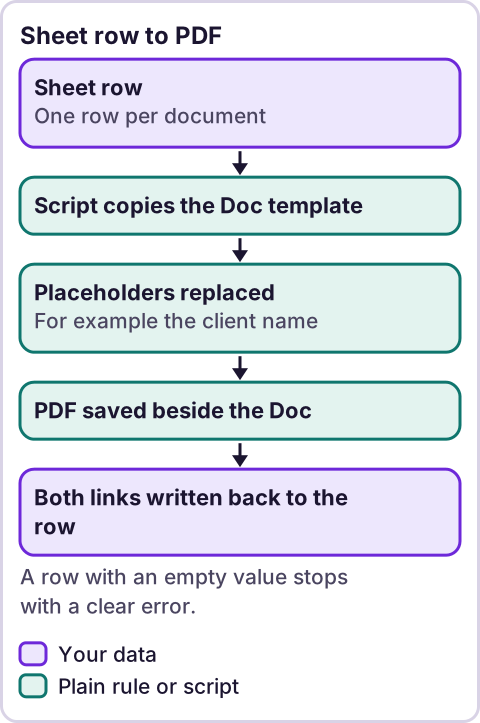
Diagram: Sheet row to PDF.
What kind of document is a good fit?
Anything where the shape stays the same and a few details change: a proposal, a change order, a packing slip, an invoice cover sheet, a welcome letter. If most of the text changes each time, a template will not help. If you have to think about the wording each time, a person should write it.
How do you build the template?
- Write one real document in Google Docs.
- Replace each changing detail with a placeholder in double curly braces, such as
{{Client}},{{Project}}and{{Amount}}. - Put a dollar sign in the template itself, not in the data. Write
${{Amount}}in the document and1200in the sheet. The reason is below. - Note the template's ID from its address, and make a folder for the output and note that ID. I did not confirm a Google page that shows where each ID appears, so check Google's help.
Keep placeholders simple: letters and spaces. The script looks for them by name.
How do you set up the sheet?
Make a tab named Documents with these headings in row 1, in any order: Client, Project, Amount, Create document, Status, Document link, PDF link and Created at. One row per document. Type Yes in Create document when a row is ready. The script fills in the rest.
If you need more fields, add a column, add the name to the FIELDS list in the script and add a placeholder to the template. The name has to match exactly.
What does Google's documentation say about the methods?
I read the Apps Script reference pages for Body, Document, File and Folder on October 31, 2026. Each page was long and came back as an excerpt, so I read the tails with an offset. The lines the script relies on:
replaceText(searchPattern, replacement): "Replaces all occurrences of a given text pattern with a given replacement string, using regular expressions."saveAndClose(): "Saves the currentDocument."getId(): "Retrieves the document's unique identifier."getAs(contentType): "Return the data inside this object as a blob converted to the specified content type."makeCopy(name, destination): "Creates a copy of the file in the destination directory and names it with the name provided."setTrashed(trashed): "Sets whether theFileis in the trash of the user's Drive."createFile(blob): "Creates a file in the current folder from a givenBlobof arbitrary data."
Sources: Class Body, Class Document, Class File and Class Folder.
The replaceText line matters. It says the pattern is a regular expression, so characters such as braces and brackets in a placeholder have a meaning of their own. The script escapes them. The page says nothing I could find about how the replacement string treats a dollar sign or a backslash. In some regular expression systems those are special in the replacement. I could not confirm either way, so the script refuses any value containing them and tells you which field. That is why the dollar sign lives in the template.
Things I could not confirm from the pages I read:
- What
DocumentApp.openByIddoes. The page has only a code sample with the comment "Open a document by ID." - Whether
getAsacceptsapplication/pdf. The line says "the specified content type" and no list was in the excerpt. - The descriptions of
getText,File.getUrlandBlob.setName, which the script also uses. - Whether the copy keeps the template's sharing.
- How long a copy and a conversion take.
What is the script?
// Fill a Google Doc template from a Sheet row, save a PDF next to it, and write the links back.
// Template placeholders look like {{Client}}. Sheet tab "Documents" needs these headings in row 1 (any order):
//   Client | Project | Amount | Create document | Status | Document link | PDF link | Created at
const SHEET_NAME = 'Documents';
const TEMPLATE_DOC_ID = 'PASTE_TEMPLATE_DOC_ID';
const OUTPUT_FOLDER_ID = 'PASTE_OUTPUT_FOLDER_ID';
const FIELDS = ['Client', 'Project', 'Amount'];
const NAME_FIELDS = ['Client', 'Project'];
const MAX_ROWS_PER_RUN = 3;
const COL = { go: 'Create document', status: 'Status', doc: 'Document link', pdf: 'PDF link', created: 'Created at' };

function createDocuments() {
  const lock = LockService.getScriptLock();
  if (!lock.tryLock(10000)) { return; }
  try {
    const sheet = SpreadsheetApp.getActiveSpreadsheet().getSheetByName(SHEET_NAME);
    if (!sheet) { throw new Error('No tab named ' + SHEET_NAME); }
    const values = sheet.getDataRange().getValues();
    const head = values[0].map(function (h) { return String(h).trim(); });
    const at = {};
    Object.keys(COL).forEach(function (k) { at[k] = head.indexOf(COL[k]); });
    const fieldAt = FIELDS.map(function (f) { return head.indexOf(f); });
    const missing = Object.keys(COL).filter(function (k) { return at[k] < 0; }).map(function (k) { return COL[k]; })
      .concat(FIELDS.filter(function (f, i) { return fieldAt[i] < 0; }));
    if (missing.length) { throw new Error('Missing columns: ' + missing.join(', ')); }
    const template = DriveApp.getFileById(TEMPLATE_DOC_ID);
    const folder = DriveApp.getFolderById(OUTPUT_FOLDER_ID);
    let done = 0;
    for (let i = 1; i < values.length && done < MAX_ROWS_PER_RUN; i++) {
      const row = values[i];
      const go = String(row[at.go]).trim().toLowerCase();
      const hasLink = String(row[at.doc]).trim() !== '';
      const status = String(row[at.status]).trim();
      if (go !== 'yes' || hasLink || status.indexOf('ERROR') === 0) { continue; }
      done++;
      const rowNum = i + 1;
      const made = [];
      try {
        const data = FIELDS.map(function (f, k) { return String(row[fieldAt[k]]).trim(); });
        FIELDS.forEach(function (f, k) {
          if (data[k] === '') { throw new Error('"' + f + '" is empty'); }
          if (/[$\\]/.test(data[k])) { throw new Error('"' + f + '" has a $ or backslash, which this script does not handle'); }
        });
        const name = NAME_FIELDS.map(function (f) { return data[FIELDS.indexOf(f)]; }).join(' - ');
        const copy = template.makeCopy(name, folder);
        made.push(copy);
        const doc = DocumentApp.openById(copy.getId());
        const body = doc.getBody();
        FIELDS.forEach(function (f, k) { body.replaceText(placeholder_(f), data[k]); });
        if (body.getText().indexOf('{{') >= 0) { throw new Error('the document still has an unfilled {{placeholder}}'); }
        doc.saveAndClose();
        const blob = copy.getAs('application/pdf');
        blob.setName(name + '.pdf');
        const pdf = folder.createFile(blob);
        made.push(pdf);
        sheet.getRange(rowNum, at.doc + 1).setValue(copy.getUrl());
        sheet.getRange(rowNum, at.pdf + 1).setValue(pdf.getUrl());
        sheet.getRange(rowNum, at.created + 1).setValue(new Date());
        sheet.getRange(rowNum, at.status + 1).setValue('Done');
      } catch (err) {
        made.forEach(function (f) { try { f.setTrashed(true); } catch (e2) { /* leave it for a person */ } });
        sheet.getRange(rowNum, at.status + 1).setValue('ERROR: ' + err.message);
      }
    }
  } finally {
    lock.releaseLock();
  }
}

function placeholder_(field) {
  return '\\{\\{' + field.replace(/[.*+?^${}()|[\]\\]/g, '\\amp;') + '\\}\\}';
}

function setupDocumentTrigger() {
  ScriptApp.getProjectTriggers().forEach(function (t) {
    if (t.getHandlerFunction() === 'createDocuments') { ScriptApp.deleteTrigger(t); }
  });
  ScriptApp.newTrigger('createDocuments').timeBased().everyMinutes(10).create();
}
Replace the two PASTE_ values with your template ID and folder ID.
How do you install it?
- Open the Apps Script editor from your Sheet. I could not confirm a menu path from the pages I read, so follow Google's current help.
- Paste the script, set the two IDs and save.
- Run
createDocumentsonce by hand. Google asks you to allow the script to use your Sheet, Docs and Drive. Read the list and approve it only if you agree. Google says scopes are "determined automatically by scanning the script code," per an earlier review. - Run
setupDocumentTriggeronce. It removes only its own earlier trigger and adds one that runs every ten minutes. Google's documentation lists 1, 5, 10, 15 and 30 as the allowed values foreveryMinutes, per an earlier review.
Installable triggers "always run under the account of the person who created them," per an earlier review. So the files are made in the account that ran step 4.
How do you test it?
- Make a test template with three placeholders and a test row marked
Yes. - Run
createDocuments. A new Doc and a PDF should appear in the output folder, named after the client and project. - Open both. Check every placeholder was replaced and the dollar sign appears once.
- Check the sheet: Status says Done, and both links open the files.
- Run it again. Nothing new should appear.
- Add a placeholder to the template that is not in the script. Mark a row
Yes. You should get an ERROR about an unfilled placeholder and no leftover file. - Put
$100in a value and mark a rowYes. You should get an ERROR naming the field. - Leave a field empty and check the error.
- Open the PDF on your phone. Check that the layout holds.
- Delete the test rows and files.
What did my mock test cover?
I wrote a Node harness that stands in for the Sheet, Drive, Docs and the lock, and ran 28 checks. They covered: a Yes row makes a copy named from the fields, with every placeholder replaced and the template left alone; the PDF is saved with a .pdf name in the output folder; both links, the time and Done are written; a second run makes nothing new; rows marked No or left blank are skipped; an empty field, a dollar sign and a backslash each produce an error before anything is copied; an unfilled placeholder produces an error and the copy is moved to the trash; a failed PDF conversion moves the copy to the trash; a failure to trash does not hide the original error; error rows are not retried; at most three rows are done per run; a busy lock skips the run; a missing column or tab stops with a clear message and releases the lock; regular expression characters in a field name are escaped; a value that itself contains a placeholder is caught; and the trigger setup removes only its own trigger and sets ten minutes. All 28 passed.
That proves the logic against my assumptions about Google's behavior. It does not prove the script runs in Google. The mock cannot tell me how the real conversion looks, how long it takes, or what happens to fonts, images and tables in your template.
Why does the script move a failed copy to the trash?
So a half-made document does not sit in the folder looking like a real one. It only moves files the script itself created in that run, and it uses the trash, not permanent deletion. If you want to inspect a failed copy, change that part of the script.
What should a person still do?
- Read every document before it goes out. The script fills blanks. It does not know if a number is right.
- Own the wording. For proposals and change orders, have your attorney review the template, not the script.
- Check amounts and dates. Anything typed into the sheet is as good as what was typed.
- Decide who receives it. This script does not send anything.
Should the script email the PDF?
Not in this version. Sending a document to a client is where a small script becomes a risk. A wrong amount that sits in a folder can be fixed. A wrong amount in a client's inbox cannot be taken back. Let a person look at the PDF and send it.
Where does an LLM fit in this?
An LLM can help with the messy part: drafting the template wording from a past document, or reading a messy request and suggesting the values for the row. A person should read both. The copy, the replace and the PDF are plain rules, and they do the same thing every time. My stance: AI writes the code, plain automation runs it, and an LLM shows up only where the input is messy and a person checks the result. For other jobs worth automating next, see what to automate first, and for a primer on the tool behind the script, see what Google Apps Script is.
Where this has limits
- I did not run this script in Google. The mock test used my own stand-ins for Google's services.
- The Google reference pages were read as excerpts. Several methods the script uses were not described on the pages I read.
- I could not confirm how the replacement handles a dollar sign or backslash. The script refuses them.
- I could not confirm that the PDF conversion accepts the content type used. Your first test settles it.
- Large templates, images and tables may not convert cleanly. Check the PDF.
- The trigger, scope and
everyMinuteslines are from an earlier review. Check the live pages. - I am not an attorney. Check with an attorney before you rely on a template for a contract document.
- No ReRev prices and no promises about results.
If you want help setting this up, see our AI operations service or tell us which documents you retype. Do not send contracts, client details, passwords or login details.
Frequently asked questions
Can Google Sheets fill a Google Doc template automatically?
Yes, with an Apps Script that copies the template and replaces placeholders from a row. This post gives a script and a test.
Can the script make a PDF as well?
It asks Google to convert the filled document to a PDF and saves it beside the Doc. I could not confirm the content type from the page I read, so your first test settles it.
Why can't my values contain a dollar sign?
I could not confirm how the replacement treats it, so the script refuses it. Put the dollar sign in the template.
Will it work for change orders and proposals?
For the filling, yes. Whether the wording is right is a question for you and your attorney.
Does it email the document?
No. A person should read it first.
What if a placeholder is misspelled in the template?
The row stops with an error about an unfilled placeholder and the copy is moved to the trash.
Read next: The change order log is a natural row to turn into a PDF for signatures, and the weekly owner report is the document version on a schedule.