Blog / Construction Operations
Submittal Log That Tells You What's Overdue (Google Sheets)
By Keyona Meeks, Founder, ReRev Labs · Oct 31, 2026 · 10 min read
The short answer: A submittal log needs more than a list of what you sent. Give every submittal a needed-by date, a review due date and a status, then let a formula count the days out and a short Google Apps Script email you and the reviewers a list every Monday of reviews past due and items that are not approved with the needed-by date close. This tracks paperwork. Your contract sets review times and what a submittal must contain, so check it, and ask an attorney if you are unsure.
By the end of this post, you'll be able to:
- Build a Google Sheets submittal log with review due dates and needed-by dates.
- Highlight overdue reviews in the sheet.
- Install a script that emails a weekly list of submittals to chase, plus a reminder to each reviewer with a past-due review.
- Handle resubmittals without losing the history.
A product has to be on site in six weeks. Its submittal went to the reviewer three weeks ago. You think it came back approved. It might be in someone's inbox, or it might still be sitting on a desk. The first time anyone checks is when the supplier asks for a release.
The log is supposed to prevent that. Most logs list what was sent. Few say what is late, so the person who owns the log has to scan every row, every week, by eye. This post builds a log that does the scanning.
I sell build work, so you should know I benefit if you hire help. The whole tracker is below for free, and I say where I would stop using a sheet.
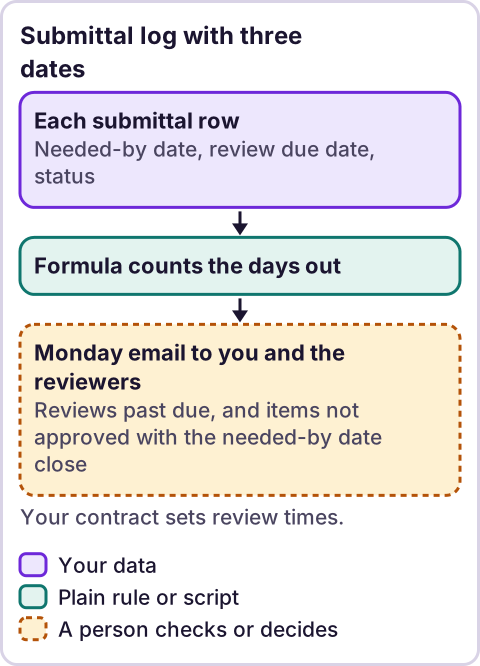
Diagram: Submittal log with three dates.
What is a submittal, and what does the official rule say?
A submittal is a document or sample the contractor sends for review before work or buying proceeds. Shop drawings, product data, samples, schedules and safety plans are common examples.
Your contract defines what counts and how long review takes. Federal construction contracts are one example of a written rule. The General Services Administration has a submittals clause in its acquisition manual. It says submittals "may include: safety plans, schedules, shop drawings, coordination drawings, samples." It says "The Contractor shall prepare and submit all submittals as specified in the contract or requested by the Contracting Officer." And it says the contractor should get notice of action "within a reasonable time," with no number of days given. Source: GSAM 552.236-72, Submittals, the clause version dated March 2019 on the page I read, checked October 30, 2026.
That clause applies to GSA's own contracts. Your job may be private, state or local, and your contract may say something different. The point for a tracker is this: review time is a number you take from your contract, and "reasonable time" is not one. So the log has a setting for it.
What columns does a submittal log need?
Make a tab called Submittals. Put these headers in row 1. Keep the names exactly as written, because the script finds columns by header text.
| Column | Header | What goes in it |
|---|---|---|
| A | Submittal # | Your number, for example 033000-01 |
| B | Project | Job name or number |
| C | Spec section | The section the submittal answers |
| D | Description | What it is |
| E | Responsible sub | Who prepares it |
| F | Needed by | The date you need it approved, so work or buying is not held up |
| G | Date sent | The day it went to the reviewer |
| H | Review due | A formula, below |
| I | Reviewer | Who has it |
| J | Date returned | The day it came back |
| K | Status | Not sent, Under review, Approved, Approved as noted, Revise and resubmit or Superseded |
| L | Rev | 0 for the first send, 1 for the first resubmittal, and so on |
| M | Days out | A formula, below |
| N | Notes | Reviewer comments, who has the ball |
| O | Reviewer email | The address that gets the past-due reminder for this row. Leave it empty to skip that reviewer |
Add a sample row or two before you start. Use made-up names.
A popular free example log I read on October 30, 2026 lists number, spec section, description, sub, date submitted and status. It has no review due date and no needed-by date. Those two columns are what make a log tell you what is late.
How do you set up the dropdown and formulas?
First make a tab called Settings. Put the number of days your contract allows for review in B3. Take the number from your contract. If your contract gives none, pick the number your team works to and write it down.
Now the status dropdown:
- Select the cells in column K, from K2 down.
- Click Data, then Data validation, then Add rule.
- Under Criteria, choose Dropdown.
- Add the six statuses.
- Click Done.
Menus in Google Sheets change, so see Google's help page on dropdown lists if yours looks different.
In H2, put the review due formula and fill it down:
=IF(G2="","",G2+Settings!$B$3)In M2, put the days-out formula and fill it down:
=IF(OR(G2="",J2<>""),"",TODAY()-G2)Days out counts from the day you sent it and stops when a return date is entered.
How do you highlight overdue reviews?
- Select the rows of data, for example A2:N500.
- Click Format, then Conditional formatting.
- Under Format cells if, choose Custom formula is.
- Enter
=AND($K2="Under review",ISNUMBER($H2),$H2<TODAY()). - Pick a fill color and click Done.
Any submittal still under review past its due date turns that color. Google explains the steps in its conditional formatting help, checked October 30, 2026.
How do you handle resubmittals?
Give each send its own row. When a reviewer returns a submittal as Revise and resubmit, change that row's status to Superseded once you send the new version, then add a new row with the same Submittal # and Rev one higher. This keeps the history, and the script ignores superseded rows so they do not keep showing up as late.
How do you get a weekly list of submittals to chase?
The script reads the Submittals tab every Monday morning and emails one list. It has two sections: reviews past their due date, and items not yet approved whose needed-by date is close or already passed. It groups by project. It sends nothing when there is nothing to chase.
It uses Google Apps Script, which lives inside your sheet. If you have not used it before, read what Google Apps Script is first.
In Settings, put the email address that gets the list in B1. In B2, put how many days ahead to look at needed-by dates. Leave B2 empty to use 14. The full list goes to the address in B1, which should be the project manager or whoever owns the log. The script also emails each reviewer the past-due reviews they hold, if you filled in column O (Reviewer email) on that row. It does not email subs. The message goes out from your account, so read and edit the wording in the script first.
When you are ready to stop overseeing the weekly list, set EMAIL_OWNER: false in the script. The reviewers still get their reminders. To send to yourself only, set EMAIL_REVIEWER: false. Both are your choice, and you can change them back at any time.
Install the script
- In the sheet, click Extensions, then Apps Script.
- Delete what is in the editor and paste the code below.
- Click Save.
- In the function list, choose
setupSubmittalTriggerand click Run. Google asks you to allow the script. Read what it asks for and approve it if you agree.
// Weekly submittal watch list. Paste into Extensions > Apps Script.
const CONFIG = {
  SHEET: 'Submittals',
  SETTINGS_SHEET: 'Settings',  // B1 = email for the weekly list, B2 = look-ahead days for needed-by dates (default 14)
  EMAIL_OWNER: true,           // true = email the full list to Settings!B1. Set false when you stop overseeing
  EMAIL_REVIEWER: true         // true = also email each reviewer the past-due reviews they hold
};
const DONE = ['Approved', 'Approved as noted', 'Superseded'];

function sendSubmittalDigest() {
  const ss = SpreadsheetApp.getActive();
  const sheet = ss.getSheetByName(CONFIG.SHEET);
  const settings = ss.getSheetByName(CONFIG.SETTINGS_SHEET);
  const email = String(settings.getRange('B1').getValue()).trim();
  const rawWindow = settings.getRange('B2').getValue();
  const windowDays = (typeof rawWindow === 'number' && rawWindow >= 0) ? rawWindow : 14;

  const data = sheet.getDataRange().getValues();
  const col = headerMap_(data[0]);
  const today = startOfDay_(new Date());
  const late = {};     // project -> reviews past their due date
  const needed = {};   // project -> items not approved with a needed-by date inside the window
  const byReviewer = {}; // reviewer email -> past-due reviews they hold
  let count = 0;

  for (let r = 1; r < data.length; r++) {
    const row = data[r];
    const id = String(row[col['Submittal #']]).trim();
    if (!id) continue;
    const status = String(row[col['Status']]).trim();
    if (DONE.indexOf(status) !== -1) continue;
    const project = String(row[col['Project']]).trim() || '(no project)';
    const label = id + ', spec ' + row[col['Spec section']] + ', ' + row[col['Description']] +
      ', ' + row[col['Responsible sub']] + ' (' + (status || 'no status') + ')';

    const due = row[col['Review due']];
    if (status === 'Under review' && due instanceof Date) {
      const daysLate = Math.floor((today - startOfDay_(due)) / 86400000);
      if (daysLate > 0) {
        (late[project] = late[project] || []).push(label + ', review ' + daysLate + ' day(s) past due');
        const reviewerEmail = String(row[col['Reviewer email']] || '').trim();
        if (reviewerEmail) {
          (byReviewer[reviewerEmail] = byReviewer[reviewerEmail] || []).push(
            id + ', spec ' + row[col['Spec section']] + ', ' + row[col['Description']] +
            ' (' + project + '), review ' + daysLate + ' day(s) past due');
        }
        count++;
      }
    }
    const need = row[col['Needed by']];
    if (need instanceof Date) {
      const daysLeft = Math.floor((startOfDay_(need) - today) / 86400000);
      if (daysLeft <= windowDays) {
        const when = daysLeft < 0 ? Math.abs(daysLeft) + ' day(s) past needed-by date'
                                  : daysLeft + ' day(s) to needed-by date';
        (needed[project] = needed[project] || []).push(label + ', ' + when);
        count++;
      }
    }
  }
  if (count === 0) return;

  const parts = [];
  addSection_(parts, 'Reviews past due', late);
  addSection_(parts, 'Not approved and needed soon', needed);
  if (CONFIG.EMAIL_OWNER && email) {
    MailApp.sendEmail({
      to: email,
      subject: 'Submittals to chase: ' + count,
      body: parts.join('\n\n')
    });
  }
  if (CONFIG.EMAIL_REVIEWER) {
    Object.keys(byReviewer).forEach(function (to) {
      MailApp.sendEmail({
        to: to,
        subject: 'Reminder: submittal reviews past their due date',
        body: 'Our records show these submittal reviews are past their due date:\n\n' +
          byReviewer[to].map(function (l) { return '  - ' + l; }).join('\n') +
          '\n\nPlease send the review, or reply if you think this is wrong.'
      });
    });
  }
}

function startOfDay_(d) {
  return new Date(d.getFullYear(), d.getMonth(), d.getDate());
}

function addSection_(parts, title, byProject) {
  const projects = Object.keys(byProject).sort();
  if (projects.length === 0) return;
  let text = title.toUpperCase();
  projects.forEach(function (p) {
    text += '\n' + p + '\n' + byProject[p].map(function (l) { return '  - ' + l; }).join('\n');
  });
  parts.push(text);
}

function setupSubmittalTrigger() {
  ScriptApp.getProjectTriggers().forEach(function (t) { ScriptApp.deleteTrigger(t); });
  ScriptApp.newTrigger('sendSubmittalDigest').timeBased()
    .onWeekDay(ScriptApp.WeekDay.MONDAY).atHour(8).create();
}

function headerMap_(headers) {
  const map = {};
  headers.forEach(function (h, i) { map[String(h).trim()] = i; });
  return map;
}
Run setupSubmittalTrigger once. It sets the check for Monday morning. Google runs a time trigger at some point inside the hour you pick, not at the exact minute.
What the script does
- It skips rows with no submittal number.
- It skips rows with status
Approved,Approved as notedorSuperseded. - It lists
Under reviewrows once the review due date has passed. - It lists any other row whose needed-by date is within your look-ahead window, or already past.
- A row can appear in both sections. That is on purpose: late review and tight need are two different problems.
- It sends the full list to the address in
Settings!B1and a separate list to each reviewer that has an email on its rows. It does not change your sheet.
Test it before you trust it
I tested the script with made-up rows in a mock harness and a syntax check. I did not run it in a live Google account. Test it on a copy of your sheet:
- Add rows for: a review three days past due, an item not sent with a needed-by date in five days, a
Revise and resubmitrow with a needed-by date two days ago, an approved row, and a superseded row. - Put your own email in
SettingsB1. For this test, leave column O empty or put your own email in it, so no reviewer gets a test message. - Run
sendSubmittalDigestby hand. - Check that the first three appear and the approved and superseded rows do not.
- Set every row to
Approvedand run it again. No email should arrive.
Where does an LLM fit in a submittal log?
Not in the review. Whether a submittal meets the specification is a call for the reviewer. An LLM can help in one narrow place: reading a transmittal email or a PDF cover sheet and suggesting the spec section, description and date to type into a row. A person checks those against the document before they go in the log. The sheet trusts what is typed into it.
The pattern I use: AI helps write the script, plain automation runs it every Monday, and a language model only appears at a messy step where a person checks the result.
Where this has limits
- This is not contract advice. Review times, what a submittal must contain and what happens when review runs long are set by your contract. Check it, and ask an attorney if you are unsure.
- The federal clause is an example. GSAM 552.236-72 applies to GSA's own contracts. It is shown here as an example of a written rule, not as your rule.
- The sheet does not read the document. It records that a submittal went out and came back. It cannot tell you the right spec section was cited or that the reviewer's comments were addressed.
- It does not decide what to build or buy. Whether work can proceed before approval is a contract question. The log shows what is not yet approved.
- Review due is one number. The formula uses one review period for every row. If your contract gives different periods for different submittal types, type the date into column H for those rows.
- Email quotas apply. Apps Script limits how many emails a script can send each day. One weekly list plus one message per reviewer is usually far below that. See Google's quotas page for current numbers.
- One owner. If the script fails, the list stops. Check Executions in Apps Script now and then, and name one person who owns it.
- Software exists for this. Construction project software builds submittal tracking into its products. A sheet suits a team with a handful of projects and a person who looks at it weekly. A team with many projects and hundreds of submittals each may outgrow it.
If submittals, RFIs and change orders live in inboxes and spreadsheets, see our AI-powered operations work or apply on /letstalk. Bring your current submittal log and a description of how you find out a review is late today. Do not send passwords, drawings or contract documents.
To decide what to fix first, read what to automate first in a small business.
Frequently asked questions
Is there a free submittal log template for Google Sheets?
Yes. The tracker above is one. Build the tab, add the dropdown and formulas, and paste the script if you want the weekly email. It costs nothing beyond the Google account you already have.
What should a submittal log include?
At a minimum: a number, the project, the spec section, a description, who prepares it, the date it was sent, the date it came back and a status. The two that make it useful for chasing are a review due date and a needed-by date.
How do I track resubmittals?
Add a new row for each send, with the same submittal number and a higher revision number. Mark the old row Superseded so it stops showing as open.
How long does a review take?
Your contract says. The federal clause I linked says "within a reasonable time" and gives no number of days. Put your contract's number in Settings B3.
We already have project software. Do we need this?
Maybe not. If your software flags overdue submittals and your team uses it, keep using it. A sheet is for teams that track submittals in email and spreadsheets today, or for a job that sits outside the main system.
My field team won't use another tool. Will they use this?
The sheet is for whoever owns the log, not the field. The weekly list goes to whoever owns the log, and reviewers with a past-due review get their own short email. Nobody in the field has to open the sheet.
Can the script email the reviewer or the sub?
The reviewer, yes, and it does by default. Fill in the Reviewer email column and the script sends each reviewer the past-due reviews they hold. Set EMAIL_REVIEWER: false to turn it off. It does not email subs. Who gets chased, and in what words, is your decision, so edit the message in the script and tell your reviewers first.
Read next: The RFI log handles the questions that come out of submittal review, with the same due-date chasing. The paperwork map shows where both logs sit.