Blog / Small Business Automation
Weekly Client Status Reports from Your Project Sheet (Professional Services)
By Keyona Meeks, Founder, ReRev Labs · Oct 31, 2026 · 9 min read
The short answer: A weekly client status report is easy to write if the facts are already in one place. Keep one row per project in a Google Sheet: status, what was done, what is next, blockers and the date of the last update. A short Apps Script then emails you one draft with a block per project, and marks any project nobody has updated this week. You review it, edit it and send each client's update yourself. The script never emails a client. I tested the script with a mock in Node and the stale flag in LibreOffice. Nothing was run in Google.
By the end of this post, you'll be able to:
- Set up a project sheet that a weekly report can come from.
- Get a draft email with one block per project.
- See which projects have not been updated.
- Use an LLM on the wording, with a person checking it.
We sell this kind of build, so weigh this post with that in mind. This is for professional services firms. It is not about construction owner reports.
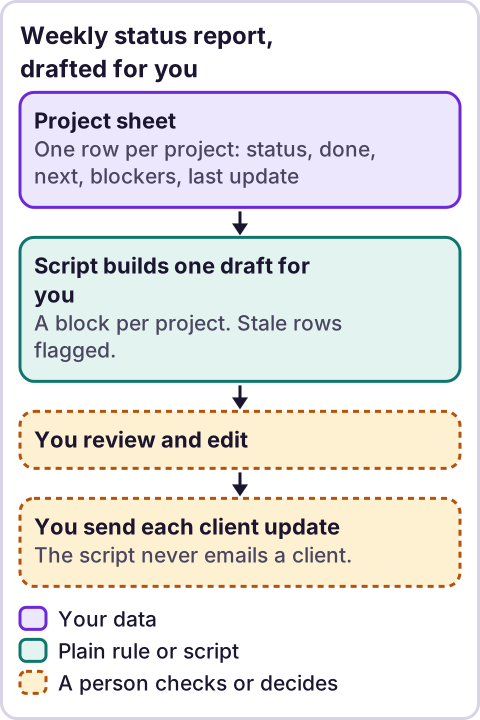
Diagram: Weekly status report, drafted for you.
What does the project sheet need?
Row 1 holds headings. Use a tab named Projects.
| Column | Heading | What goes in it |
|---|---|---|
| A | Client | The client name |
| B | Project | A short name |
| C | Status | A word you pick, such as On track, At risk or Late |
| D | Done this week | One or two plain lines |
| E | Next week | One or two plain lines |
| F | Blockers | What is in the way, or blank |
| G | Last updated | The date someone last edited this row |
| H | Flag | Formula |
The words for Status are yours. I do not suggest a scale. Put this in H2 and fill it down:
=IF(A2="","",IF(G2="","No update date",IF(TODAY()-G2>7,"Not updated","Updated")))I tested it in LibreOffice with four made-up rows. A row updated yesterday and one updated exactly 7 days ago returned "Updated," a row updated 8 days ago returned "Not updated," and a row with no date returned "No update date." I did not run it in Google Sheets. The 7 matches the script's STALE_DAYS setting. Keep the two the same.
Someone has to type the Last updated date. This sheet does not do it for you. I did not confirm a way for Sheets to stamp an edit date by itself, so I make no claim about one.
What does the script look like?
Paste this into the Apps Script project attached to the sheet. It reads the tab and changes nothing. Nothing in it runs until you call it.
// Builds one weekly status email to YOU from the "Projects" tab, one block per project. A person reviews it and sends client updates. This script never emails a client.
var RECIPIENT = '';       // Paste the address that should get the draft. Your decision.
var SEND_HOUR = 7;        // Hour of day, in the script time zone.
var TAB = 'Projects';
var STALE_DAYS = 7;       // Mark a project NOT UPDATED when its Last updated date is older than this. Your decision.
var HEADERS = {           // Change the text on the right to match YOUR column headings.
  client: 'Client', project: 'Project', status: 'Status', done: 'Done this week',
  next: 'Next week', blockers: 'Blockers', updated: 'Last updated'
};

function dayKey(value, tz) {
  if (value === '' || value === null || value === undefined) return '';
  if (Object.prototype.toString.call(value) === '[object Date]') return Utilities.formatDate(value, tz, 'yyyy-MM-dd');
  return String(value).slice(0, 10);
}

function dayNumber(key) {
  var p = key.split('-');
  return Math.round(Date.UTC(Number(p[0]), Number(p[1]) - 1, Number(p[2])) / 86400000);
}

function findColumns(headerRow) {
  var idx = {};
  Object.keys(HEADERS).forEach(function (k) {
    var at = headerRow.map(function (h) { return String(h).trim(); }).indexOf(HEADERS[k]);
    if (at === -1) throw new Error('Missing column in ' + TAB + ': ' + HEADERS[k]);
    idx[k] = at;
  });
  return idx;
}

function field(value) {
  var s = String(value === null || value === undefined ? '' : value).trim();
  return s === '' ? '(blank)' : s;
}

function buildBlocks(rows, idx, todayKey, tz) {
  var today = dayNumber(todayKey);
  var blocks = [];
  var stale = 0;
  rows.forEach(function (r) {
    if (String(r[idx.client]).trim() === '' && String(r[idx.project]).trim() === '') return;
    var key = dayKey(r[idx.updated], tz);
    var flag = '';
    if (key === '' || isNaN(dayNumber(key))) { flag = '  NOT UPDATED: no date'; stale++; }
    else if (today - dayNumber(key) > STALE_DAYS) { flag = '  NOT UPDATED: last ' + key; stale++; }
    blocks.push([
      field(r[idx.client]) + ' / ' + field(r[idx.project]) + flag,
      'Status: ' + field(r[idx.status]),
      'Done this week: ' + field(r[idx.done]),
      'Next week: ' + field(r[idx.next]),
      'Blockers: ' + field(r[idx.blockers])
    ].join('\n'));
  });
  return { blocks: blocks, stale: stale };
}

function sendStatusDraft() {
  if (!RECIPIENT) throw new Error('Set RECIPIENT first.');
  if (MailApp.getRemainingDailyQuota() < 1) throw new Error('No email quota left today.');
  var sheet = SpreadsheetApp.getActiveSpreadsheet().getSheetByName(TAB);
  if (!sheet) throw new Error('Missing tab: ' + TAB);
  var values = sheet.getDataRange().getValues();
  if (values.length === 0) throw new Error('The ' + TAB + ' tab is empty.');
  var idx = findColumns(values[0]);
  var tz = Session.getScriptTimeZone();
  var todayKey = Utilities.formatDate(new Date(), tz, 'yyyy-MM-dd');
  var built = buildBlocks(values.slice(1), idx, todayKey, tz);
  var body = ['Weekly status draft for you to review, as of ' + todayKey, 'Projects: ' + built.blocks.length + '. Not updated in ' + STALE_DAYS + ' days: ' + built.stale + '.', ''].concat(built.blocks.length ? built.blocks.join('\n\n') : ['No projects.']).join('\n');
  MailApp.sendEmail(RECIPIENT, 'Weekly status draft: ' + built.blocks.length + ' projects', body);
  return built;
}

function installTrigger() {
  ScriptApp.newTrigger('sendStatusDraft')
    .timeBased()
    .everyDays(1)
    .atHour(SEND_HOUR)
    .inTimezone(Session.getScriptTimeZone())
    .create();
}
What the parts do, with Google's own descriptions as I read them in the method tables this session:
getActiveSpreadsheet(): "Returns the currently active spreadsheet, ornullif there is none."getSheetByName(name): "Returns a sheet with the given name."getDataRange(): "Returns aRangecorresponding to the dimensions in which data is present."getValues(): "Returns the rectangular grid of values for this range."Utilities.formatDate"Formats date according to specification described in Java SE SimpleDateFormat class."Session.getScriptTimeZone()"Gets the time zone of the script."MailApp.sendEmail(recipient, subject, body)"Sends an email message."getRemainingDailyQuota()"Returns the number of recipients you can send emails to for the rest of the day."everyDays(n)"Specifies to run the trigger everyndays."atHour(hour)"Specifies the hour the trigger at which the trigger runs."inTimezone(timezone)"Specifies the timezone for the specified dates/time when the trigger runs."
The script finds columns by the headings in the HEADERS block. It writes one block per project and marks a project NOT UPDATED when its date is missing or older than STALE_DAYS. A blank field shows as "(blank)," so a gap is visible. It sends the whole draft to RECIPIENT, which is you.
Who should get the draft?
You decide. RECIPIENT is a paste value, and the script will not run until you set it. I suggest your own address. Client names and project details are business-sensitive, so ask the people involved before you add anyone else.
How do you put it on a weekly rhythm?
The trigger in this script runs every day, because I quoted only the daily call. If you want one email a week, I could not confirm Google's weekly trigger calls this session, so I give no code for it. You can run sendStatusDraft by hand each week instead, or ignore the daily drafts you do not need. Run installTrigger once only if you want the daily email, and check your project's triggers list for exactly one entry. I could not confirm which minute of the hour a trigger fires, so do not expect 7:00 sharp. Per an earlier review of Google's triggers page, installable triggers "always run under the account of the person who created them." Per an earlier review of Google's authorization page, scopes are "determined automatically by scanning the script code." Read the permission prompt before you approve it.
How do you test it?
- Enter four test projects: one updated yesterday, one 8 days ago, one with no date and one with blank fields.
- Check the Flag column against your own reading.
- Set
RECIPIENTto your own address and runsendStatusDraft. Check that you get one email with four blocks. - Check the NOT UPDATED marks and the "(blank)" fields.
- Change a heading by one letter. You should see the missing-heading message. Fix it.
- Run
installTriggerif you want it daily, check the triggers list and delete the test rows.
What did the test show?
I tested the script in Node with a mock of the Google services. All 15 checks passed. They covered fresh and stale projects, a missing date, blank fields, a project exactly 7 days old not being flagged, date cells, a skipped empty row, exactly one email going to the recipient, an empty sheet, a missing heading, an empty tab, a blank recipient, a used-up quota, a missing tab and the trigger chain. The mock cannot show how Google returns your dates.
Where does an LLM fit in this?
An LLM can help with the messy input. For example, it can turn your rough notes in "Done this week" into two clear sentences in a client's tone. A person must check every sentence against the facts before it goes out, because an LLM can soften a delay into something untrue, and sound sure. The sheet, the flag and the draft are plain rules. Do not paste confidential client details into an LLM tool unless your contract and your own rules allow it. My stance: AI writes the code, plain automation runs it, and an LLM shows up only where the input is messy and a person checks the result.
For a similar plain-rule email, see the Phoebe daily briefing. For where to start, see what to automate first.
Where this has limits
- It does not send anything to clients. You edit and send each update.
- It depends on people updating the sheet. A flag shows a gap. It cannot fill it.
- The status words and what counts as late are yours to define.
- Nothing was run in Google. The script test was a mock in Node. The formula test was in LibreOffice.
- It sends daily if you install the trigger. I give no weekly trigger code.
- Email quotas apply. I quote the quota call above. Check Google's limits for your account type.
- We sell this kind of build. No ReRev prices and no promises about results.
If you want help setting up a weekly rhythm that your team keeps, see our fractional chief of staff service or tell us how your status reports work now. Do not send client documents, passwords or login details.
Frequently asked questions
Can I automate a weekly client status report?
You can automate the draft. A script can gather the rows from your project sheet into one email. A person should still review and send each update.
Does the script email my clients?
No. It emails you a draft. You send each client update.
What if nobody updates the sheet?
The script marks the project NOT UPDATED. It cannot fix the gap.
Can an LLM write the client update?
It can turn your notes into clear wording. A person checks it against the facts.
Can it run once a week?
I could not confirm Google's weekly trigger calls, so this post gives a daily trigger or a manual run.
Is this the same as a project management tool?
No. It is a sheet and an email. A project tool does more.
Read next: The weekly owner report for construction is the same idea for project owners, and turn a sheet row into a PDF when the report needs to go out as a document.